# Home screen
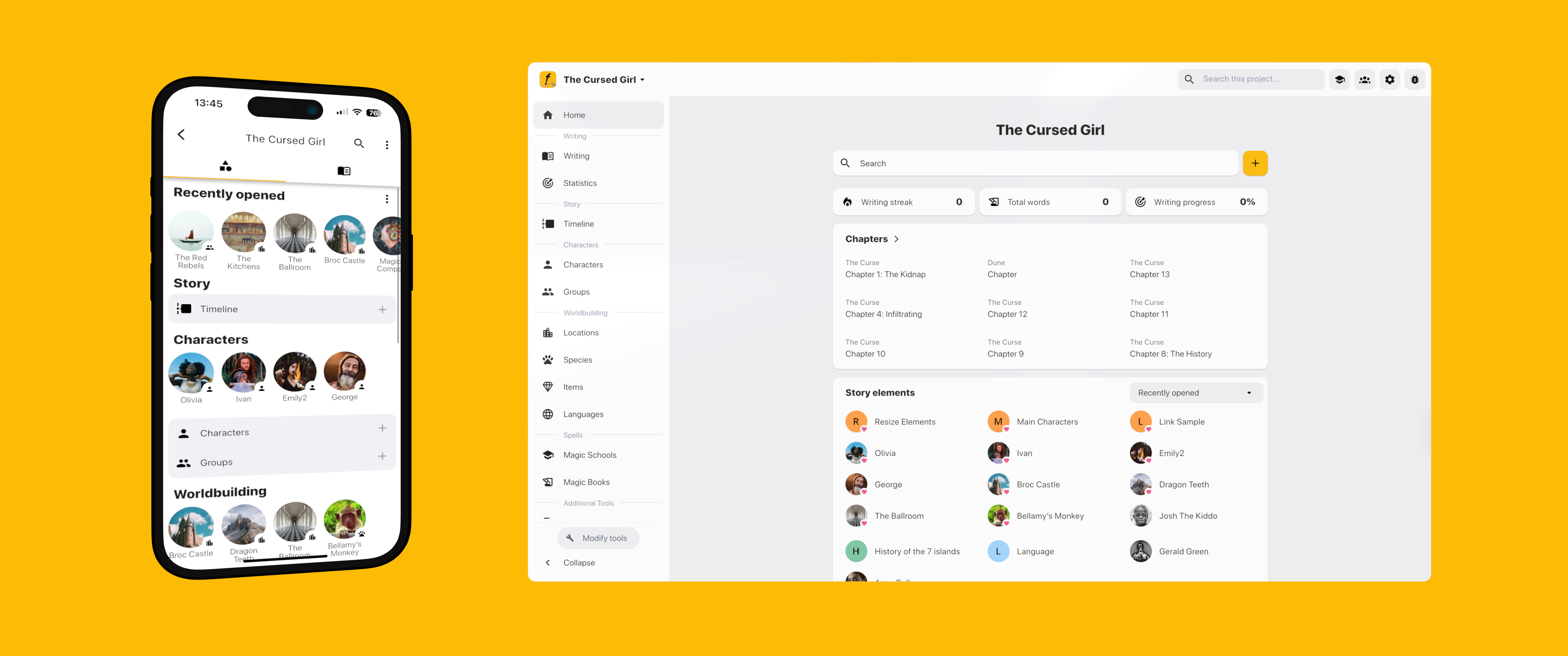
Your project home screen in Fortelling is your command center, designed to give you instant access to your storytelling tools and resources. The layout differs slightly between mobile and desktop versions, tailored to optimize your creative workflow on each device.
## Mobile layout
On mobile, the project home screen features two intuitive tabs to streamline your creative process: Worldbuilding and Writing.
### Worldbuilding tab
{% hint style="info" %}
***Pro tip**: Mark an item as a favorite to highlight it on your home screen.*
{% endhint %}
The Worldbuilding tab contains all your essential world-building tools and [story elements](https://wiki.fortelling.app/story-elements): Characters, Locations, Species, etc.
At the top of this tab is a *Recent Overview* section, which shows elements you've recently opened, created, or edited. Prefer a cleaner view? You can easily hide this section in the app settings.
### Writing tab
{% hint style="info" %}
***Pro tip:** Prefer the Writing tab as your default view? You can swap the order of the tabs in the app settings!*
{% endhint %}
The Writing tab organizes your project content based on your [books](https://wiki.fortelling.app/writing/books-and-chapters#books). If there are books, a horizontal scroll at the top allows you to quickly switch between books. Selecting a book updates everything displayed below, including:
* **Synopsis**: A brief overview of your book's plot.
* **Outline**: Structured overview of chapters and scenes. [Learn more](https://wiki.fortelling.app/plotting/outline).
* **Statistics**: Detailed stats about your writing progress.
Below these sections is a clearly organized list of [chapters](https://wiki.fortelling.app/writing/books-and-chapters#chapters).
## Desktop layout
On the desktop, Fortelling offers a spacious and detailed overview, optimized for deeper workflow:
### 1. Search and stats
At the top of the home screen:
* **Big Search Bar**: Quickly locate specific content.
* **Basic Statistics**: Includes your writing streak, total words written, and overall writing progress.
### 2. Recent chapters
Below the search and stats is a section highlighting your most recently opened chapters, making it easy to pick up exactly where you left off.
### 3. Recent story elements
Underneath this list of recent chapters, your recent story elements are showing. You can switch between recently opened, created, or edited elements. This organized layout allows you immediate access to all your project components.
## Customization options
Customization is one of the core values of Fortelling. We want you to be in control of how you work. Fortelling is not a one-size-fits-all solution.
### Categories and tools
You can personalize your homescreen by adding your own categories and tools. Follow the steps below:
#### Create/edit a new category
Mobile
1. Open your project
2. Open the context menu at the top right (3 vert dots)
3. Open the settings
4. Select Tools
*Edit: Tap on a header*
*Create: Select the big yellow add (+) button*
Web
1. Open your project
2. Open the settings
3. Select Tools
*Edit: Tap on a header*
*Create: Select the big yellow add (+) button*
#### Hide a default tool
1. Open your project settings
2. Go to tools
3. Select the tool you wish to hide
4. Tap the delete button
#### Restore a default tool
1. Open your project settings
2. Go to tools
3. Tap on the eye icon
4. Select the tool you wish to restore
5. Select a category to which you wish to restore the tool.
### Organizing books and chapters
Need help organizing or reordering books and chapters? Check out the detailed Books & Chapters guide for additional tips and instructions. [Learn more](https://wiki.fortelling.app/writing/books-and-chapters).