# Welcome

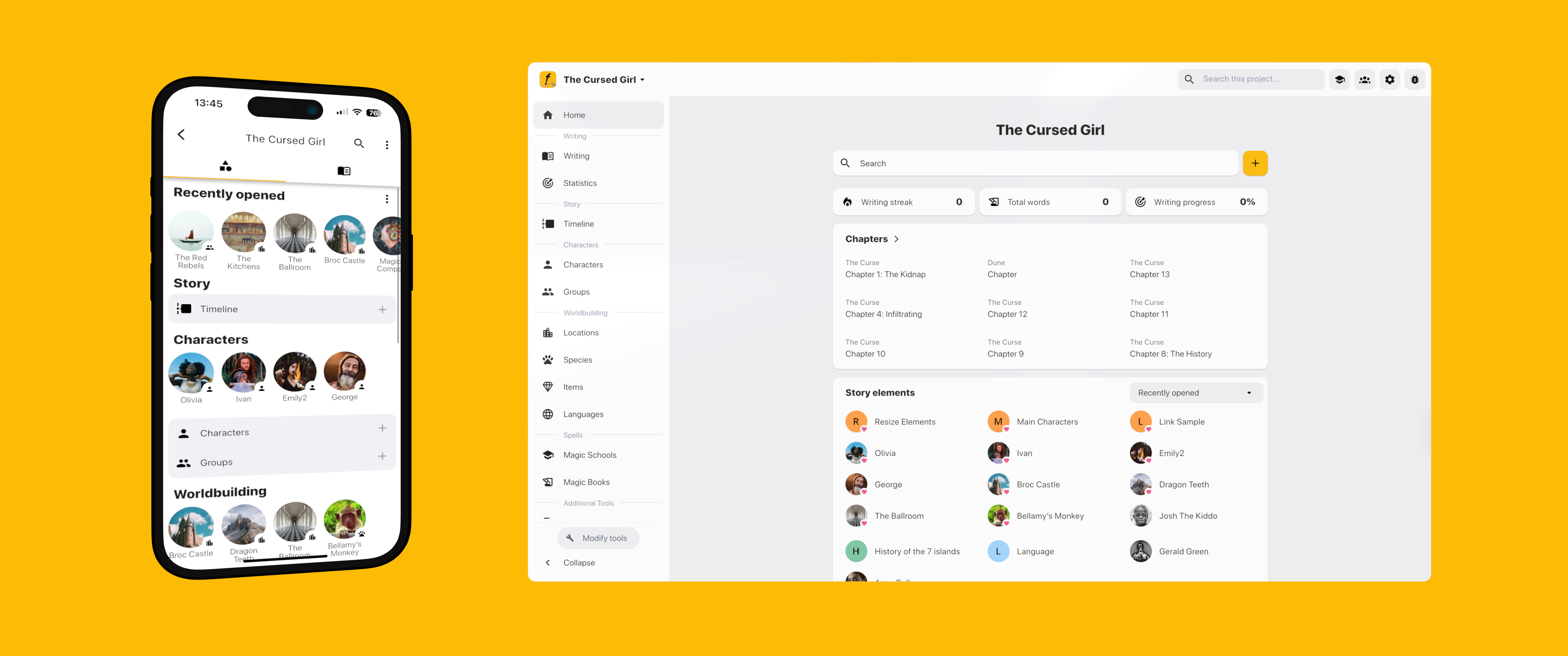
Welcome to Fortelling! Are you ready to embark on your journey toward writing the book of your dreams? We're here to help you streamline your creative process.

Fortelling provides a diverse suite of tools designed to help you achieve your creative goals. While many people dream of writing a creative story, few manage to complete their projects, often due to a lack of organization and structure. Facing a blank page in a word processor can be intimidating, making it hard to know where to begin.

Fortelling simplifies the creative process by helping you organize your ideas, stay motivated, and maintain a clear project overview. Whether you're planning a novel, a short story, or any other creative work, our tools are built to support every step of your journey.

> ***“The scariest moment is always just before you start. After that, things can only get better.”***\
> \~ [Stephen King](https://en.wikipedia.org/wiki/Stephen_King)

## For whom?

Fortelling is designed to be flexible and customizable, making it the perfect creative companion for a wide range of storytellers. Whether you're outlining a novel, building a game world, or scripting a series, our tools adapt to your unique workflow. With rich customization options, Fortelling allows anyone to tailor the platform to suit their specific creative needs.

#### 📒 Novelists

Fortelling is ideal for aspiring novelists looking to bring their stories to life. With structured planning features like character profiles, timeline tools, and scene organization, writers can build compelling narratives from the ground up with confidence and clarity.

#### 🌍 Worldbuilders

Fortelling offers worldbuilders a dynamic environment to design intricate settings, cultures, and histories. Keep track of your world's lore, geography, and unique elements in one cohesive space that grows along with your imagination.

#### 🎲 Tabletop roleplayers

Tabletop roleplayers will find Fortelling invaluable for managing campaigns, fleshing out non-player characters, and tracking story arcs. Whether you're a game master or a player, our platform helps you maintain consistency and immersion across sessions.

#### 🎮 Video game developers

Video game developers can use Fortelling to outline game narratives, develop character backstories, and map out quest lines. All our tools support real-time collaboration, making it easier to keep your development pipeline organized and creative.

#### 🎥 Script writers

Scriptwriters will appreciate Fortelling's structure-focused approach, which allows for easy planning of scenes, character development, and dialogue. Whether you're writing for film, television, or web series, you can maintain a clear narrative arc and manage revisions with ease.

## By whom?

Hi, I'm Albert-Jan Plate, a 26-year-old medical student passionate about storytelling. In my spare time, I created Fortelling to help writers like myself bring their ideas to life more easily and effectively.

My journey began with the launch of Writer Tools, an Android app designed to support writers with everything from planning to drafting. Over time, I expanded and refined that vision into what Fortelling is today, a robust and flexible platform packed with features tailored to a wide range of creative writing needs.

Fortelling remains a work in progress, constantly evolving based on user feedback and new ideas. If you have suggestions, requests, or want to share your experience, I’d love to hear from you!

## Download Fortelling

Now it's time to truly get started! Fortelling is available on all platforms. You can download the app on:

* [Android (Google Play)](https://play.google.com/store/apps/details?id=app.fortelling\&pli=1)
* [iOS (AppStore)](https://apps.apple.com/us/app/fortelling/id1503524513)
* [Desktop](https://web.fortelling.app)


# Getting started

Your creative journey begins here. A step-by-step guide for first-time creative story tellers.

## How to use Fortelling?

Setting sail on the creative seas of Fortelling can seem a bit daunting at first, but remember, you're not alone on this journey! This guide is designed to help you get started with Fortelling. It's important to know that there's no one-size-fits-all approach; every storyteller has their unique style. The steps outlined below are more like a flexible framework to cheer you on in your planning and development. Don’t hesitate to skip around, tweak sections, or revisit steps as your project grows and changes. Fortelling is here to fit your storytelling style comfortably!

### Step 1: The story <a href="#id-4012" id="id-4012"></a>

#### 1.1. Come up with a plot <a href="#id-345c" id="id-345c"></a>

Many people I’ve met share that they have a story all mapped out in their minds. However, it often turns out they have a setting in mind. A creative story, though, is so much more! That’s where this tool comes in handy, helping you to see the big picture of your plot.

If you’re still looking for a great plot, don’t stress about it! Look for inspiration in your everyday life, make a little twist, et voilà! I wish my app could assist you with this, but I genuinely believe that creativity is a gift unique to humans; it’s not something I can program.

You can start by capturing a wide range of ideas directly within Fortelling using [notes](/organization/files) or the [boards feature](/boards/pin-boards). Once you’ve laid everything out, look for patterns or standout concepts that resonate with your creative vision. Highlight the most promising ones and see if any can be combined into a compelling plot with a strong, natural progression. Fortelling gives you the freedom to explore and shape your story in a way that best fits your imagination.<br>

{% @arcade/embed flowId="uWFbbh53j4MhyMbRBa79" url="<https://app.arcade.software/share/uWFbbh53j4MhyMbRBa79>" %}

#### 1.2. Create a timeline <a href="#b063" id="b063"></a>

So, you’ve developed a fantastic plot, and it's wonderful to hear you're excited about it! It’s unique and fresh, sure to leave readers bursting with anticipation for the ending (and we hope that doesn’t mean literally!). Now, let’s explore how you can build your plot. How will your story unfold? What journeys will your main character(s) embark on? What background events will enrich the tale? These can be details that aren’t directly conveyed but add depth to the backstory.

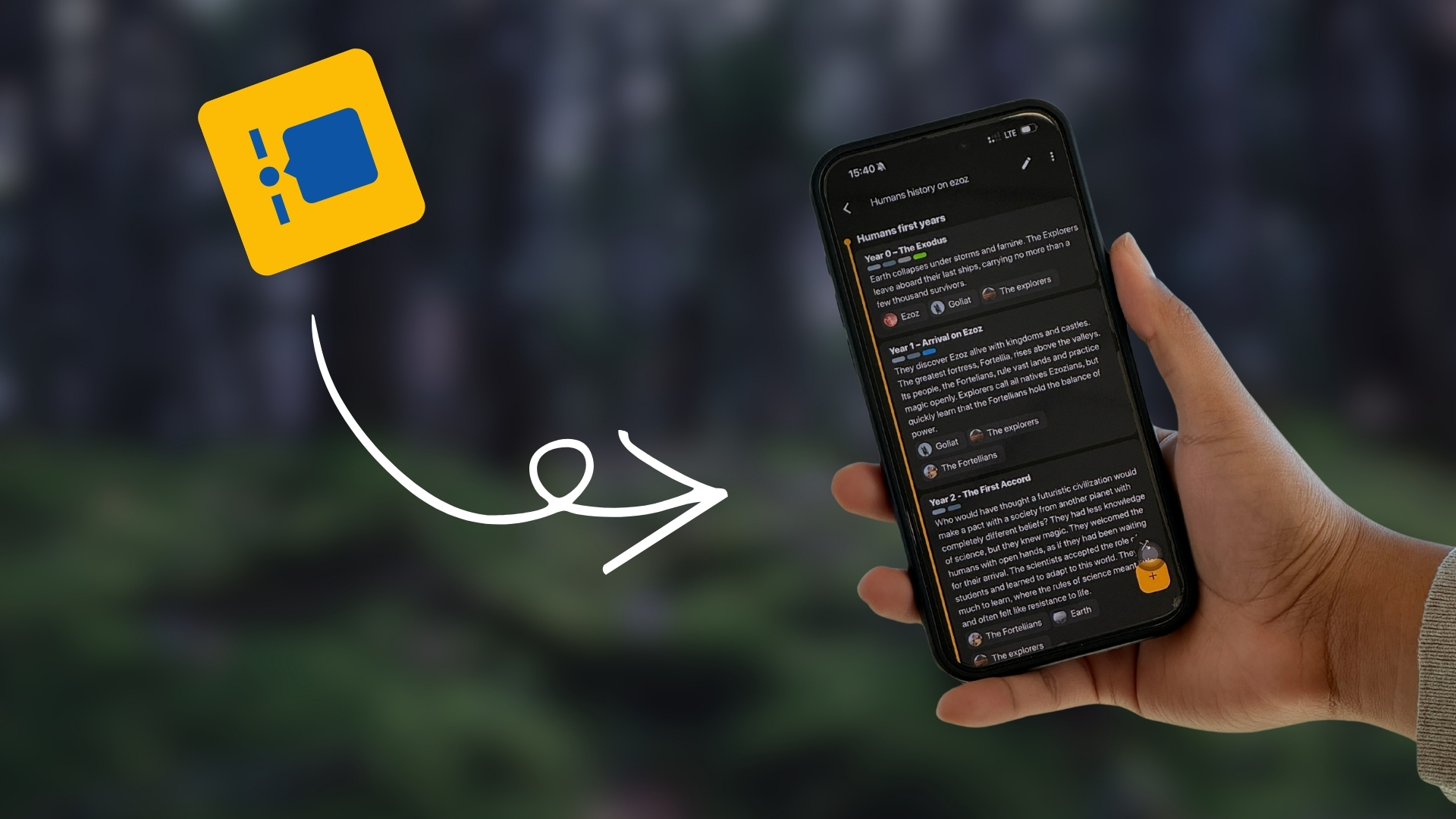
Using the [timeline](/plotting/timeline), you can easily create and rearrange your events! I suggest assigning each event a concise title along with a description that addresses: what’s happening, why it’s significant, and how it impacts the plot.

Quick tip: ensure that nearly every event plays a meaningful role in your story. This will help keep your story clear and engaging for your readers!

{% @arcade/embed flowId="by0E38dizYhLuSe5XhNK" url="<https://app.arcade.software/share/by0E38dizYhLuSe5XhNK>" %}

### Step 2: The characters <a href="#d704" id="d704"></a>

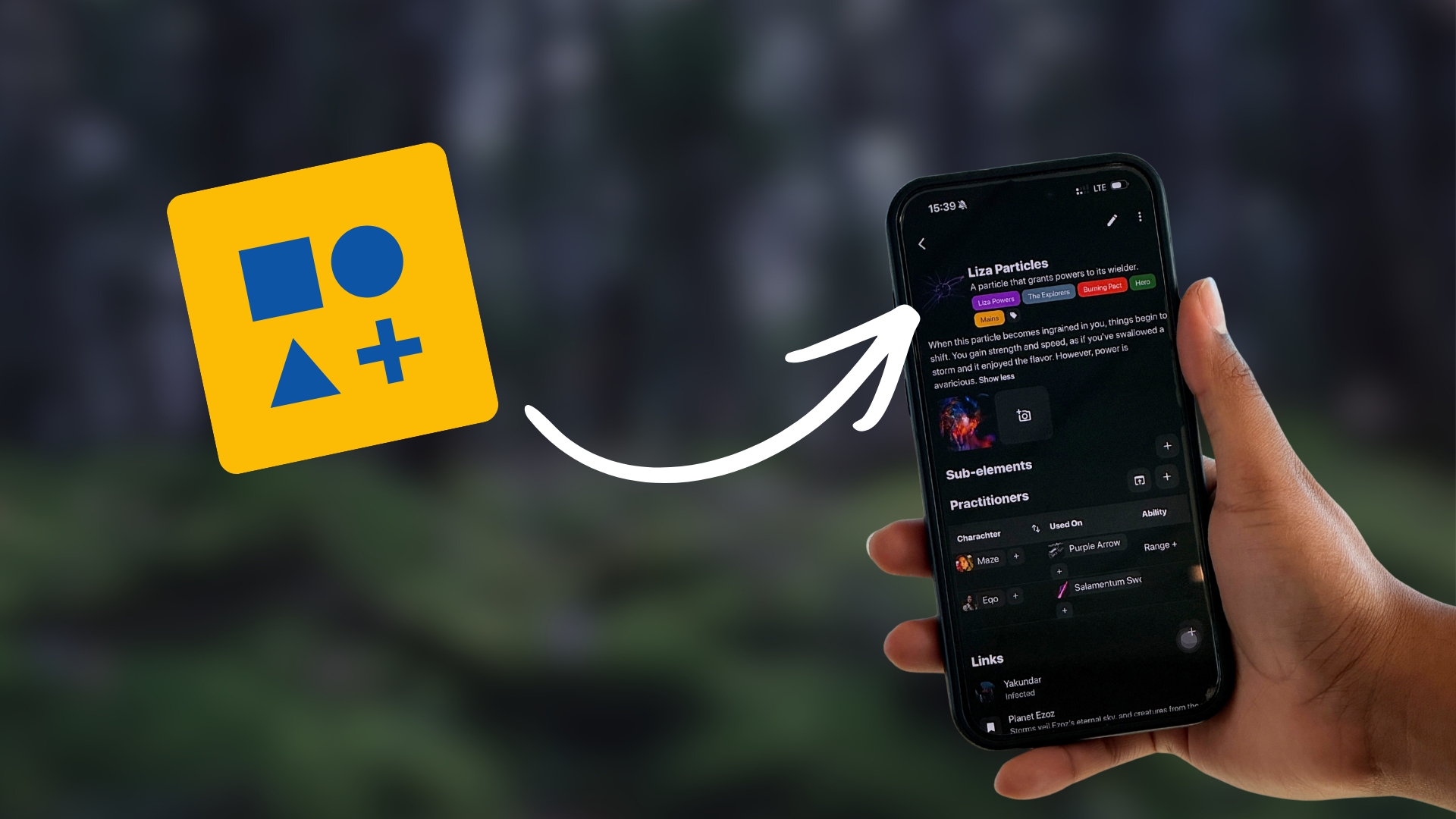
You’ve wrapped up the timeline of your story! Even if you’ve already imagined some characters, the next exciting step is to list them all. This approach helps you keep track of their habits, emotions, and personal backstories. The app empowers you to plan your characters in great detail. You can fill out a wonderful collection of forms across various areas: General, Appearance, Personality, History, and Story.

{% code title="Example #1" overflow="wrap" %}

```
Mae, a waitress, has a red cat. By noting down small details like this, you can fill in the empty gaps in the future. This will also prevent you from making errors, such as saying that Mae’s cat is black.
```

{% endcode %}

Utilize the handy built-in label system for your key characters! It’ll help you identify the ones you need so much faster. Plus, you can easily group characters by tagging them. For example, all villains can receive the ‘Villain’ tag, making it super simple to search for a specific group whenever you need them!

{% @arcade/embed flowId="f7FfhFgdx0umkdsZXp5w" url="<https://app.arcade.software/share/f7FfhFgdx0umkdsZXp5w>" %}

### Step 3. The setting <a href="#f82a" id="f82a"></a>

The next step is to record and document all your locations hierarchically. When done right, this will allow you to navigate through your virtual world. With Fortelling, you have the exciting ability to create endless sub-locations for each item. Focus on the most encompassing location first and then gradually add sub-locations to enrich your experience. Take a look at the example below.

{% code title="Example #2" overflow="wrap" %}

```
World > Countries > Cities > Streets > Houses > Room
```

{% endcode %}

This approach lets you keep a clear overview of your locations and world. You'll never have to worry about searching for details about a specific location again. And the best part? The location tool provides several default templates that include the attributes for any type of location.

{% @arcade/embed flowId="NzelrcqdTHoa8rYObpci" url="<https://app.arcade.software/share/NzelrcqdTHoa8rYObpci>" %}

### Step 4. The chapters <a href="#id-01d9" id="id-01d9"></a>

Now that we’ve mapped out our story - at least in a rough sense - it’s time to think about how to present these events to our readers. There are many exciting ways to do this: we can go chronologically or mix it up with some flashbacks! Rather than revealing the entire story all at once, we can unveil the past bit by bit. Another crucial aspect to consider is the perspective we’ll adopt. Will we share the story solely through the main character's eyes or include some moments from the antagonist's viewpoint?

Try using the [outline tool](/plotting/outline) to help you create multiple chapters in a practical overview! A great approach is to start by breaking your story down into key elements of a story arc. This way, you can organize your chapters according to each part of the story and then create engaging scenes to bring those chapters to life. Link your characters and other story elements to the different scenes for a better overview.

{% @arcade/embed flowId="WlhXaELmOkkW6lMSBQDp" url="<https://app.arcade.software/share/WlhXaELmOkkW6lMSBQDp>" %}

### Step 5. The words <a href="#id-2784" id="id-2784"></a>

In the previous step, we’ve figured out what each chapter will focus on together. Now, let’s transform that central idea of these various scenes that beautifully express everything we want to share in words.

The Fortelling editor has two tabs. A writing tab with an editor and a *quick-access* tab that allows you to open scenes, story elements, and much more. By switching between the two tabs, you’ll always have a clear idea of what to write next. This way, you can keep your writing on track and avoid straying into unrelated topics!

## Connect with others

Many others are also working on their stories! Having conversations and brainstorming together can really help you push through writer's block. Fortelling provides fantastic community aspects to help you connect with fellow writers and share your journeys. Participate in our weekly challenges or join our Telegram/Discord channel!

## Download Fortelling

Now it's time to truly get started! Fortelling is available on all platforms. You can download the app on:

* [Android (Google Play)](https://play.google.com/store/apps/details?id=app.fortelling\&pli=1)
* [iOS (AppStore)](https://apps.apple.com/us/app/fortelling/id1503524513)
* [Desktop](https://web.fortelling.app)

<details>

<summary>Image sources used for banner</summary>

* Photo by mahdi chaghari: <https://www.pexels.com/photo/portrait-of-woman-with-crown-11046598/>
* Photo by Ahmet Mert: <https://www.pexels.com/photo/portrait-of-man-wearing-fantasy-costume-20576396/>
* Photo by Nikola Tomašić: <https://www.pexels.com/photo/majestic-winter-castle-reflection-in-tranquil-lake-30237871/>

</details>


# Fortelling Pro

Elevate your creative experience to the next level.

As an independent business with no investors, we rely on Fortelling Pro subscriptions to keep Fortelling up and running. *By writers, for writers.* That's also why decisions had to be made on finding the right balance between free and paid features to cover hosting and salary costs. We celebrate creativity, so all default tools are available for free on mobile, and the web has a limited free trial.

<figure><img src="https://1916472331-files.gitbook.io/~/files/v0/b/gitbook-x-prod.appspot.com/o/spaces%2FFR1c40OqcLTLBKjzbDgF%2Fuploads%2FnePrM9GOcrNgBeCQYrf1%2FFamily%20tree%20tool.webp?alt=media&amp;token=891b9e65-a225-498d-9fe1-26332a5ead31" alt="three different devices showing the family tree tool from Fortelling"><figcaption></figcaption></figure>

<a href="https://web.fortelling.app/pro" class="button primary" data-icon="rocket">Upgrade</a>

### Our plans

{% hint style="success" %}
A subscription syncs across all your devices. Purchase on one device and enjoy it on all of your devices.
{% endhint %}

**Mobile is unlimited.** All free tools on mobile have no usage caps. Write as much as you want, on as many stories as you like.

The web free tier lets you get started and explore the app, with some caps on how much you can create.

{% hint style="info" %}
Fortelling 5.0 releases on the 3rd of August. All the tools are marked as "(new)."
{% endhint %}

<table><thead><tr><th width="166">Features</th><th width="249.33333333333331" align="center">Mobile (Free)</th><th align="center">Web (Free Trial)</th><th align="center">Fortelling Pro</th></tr></thead><tbody><tr><td>Ad free experience</td><td align="center"><span data-gb-custom-inline data-tag="emoji" data-code="2705">✅</span></td><td align="center"><span data-gb-custom-inline data-tag="emoji" data-code="2705">✅</span></td><td align="center"><span data-gb-custom-inline data-tag="emoji" data-code="2705">✅</span></td></tr><tr><td>Writing tools<br><sup><em>Chapters &#x26; Scenes</em></sup></td><td align="center">∞</td><td align="center"><a href="#usage-limitations-fortelling-web">See below</a></td><td align="center">∞</td></tr><tr><td>Plotting tools<br><sup><em>Characters, ...</em></sup></td><td align="center">∞</td><td align="center"><a href="#usage-limitations-fortelling-web">See below</a></td><td align="center">∞</td></tr><tr><td><a href="/organization/files">Files</a></td><td align="center">∞</td><td align="center">20</td><td align="center">∞</td></tr><tr><td><a href="/projects/collaboration">Collaborate</a></td><td align="center"><span data-gb-custom-inline data-tag="emoji" data-code="2705">✅</span></td><td align="center"><span data-gb-custom-inline data-tag="emoji" data-code="2705">✅</span></td><td align="center"><span data-gb-custom-inline data-tag="emoji" data-code="2705">✅</span></td></tr><tr><td>Export</td><td align="center">.txt</td><td align="center">.txt</td><td align="center">.txt, .docx, .ePUB</td></tr><tr><td><a href="/writing/writing-goals">Custom goals</a></td><td align="center"><span data-gb-custom-inline data-tag="emoji" data-code="2705">✅</span></td><td align="center"><span data-gb-custom-inline data-tag="emoji" data-code="2705">✅</span></td><td align="center"><span data-gb-custom-inline data-tag="emoji" data-code="2705">✅</span></td></tr><tr><td><a href="/writing/books-and-chapters#version-history">Version history</a></td><td align="center"><span data-gb-custom-inline data-tag="emoji" data-code="2705">✅</span></td><td align="center"><span data-gb-custom-inline data-tag="emoji" data-code="2705">✅</span></td><td align="center"><span data-gb-custom-inline data-tag="emoji" data-code="2705">✅</span></td></tr><tr><td><a href="/social/writing-challenges">Writing challenges</a></td><td align="center"><span data-gb-custom-inline data-tag="emoji" data-code="2705">✅</span></td><td align="center"><span data-gb-custom-inline data-tag="emoji" data-code="2705">✅</span></td><td align="center"><span data-gb-custom-inline data-tag="emoji" data-code="2705">✅</span></td></tr><tr><td><a href="/writing/writing-statistics">Advanced Statistics</a> (new)</td><td align="center"><span data-gb-custom-inline data-tag="emoji" data-code="2705">✅</span></td><td align="center"><span data-gb-custom-inline data-tag="emoji" data-code="2705">✅</span></td><td align="center"><span data-gb-custom-inline data-tag="emoji" data-code="2705">✅</span></td></tr><tr><td><a href="/writing/widgets">Widgets</a> (new)</td><td align="center"><span data-gb-custom-inline data-tag="emoji" data-code="2705">✅</span></td><td align="center"><span data-gb-custom-inline data-tag="emoji" data-code="2705">✅</span></td><td align="center"><span data-gb-custom-inline data-tag="emoji" data-code="2705">✅</span></td></tr><tr><td><a href="/writing/writing-statistics">Share your progress</a> (new)</td><td align="center"><span data-gb-custom-inline data-tag="emoji" data-code="2705">✅</span></td><td align="center"><span data-gb-custom-inline data-tag="emoji" data-code="2705">✅</span></td><td align="center"><span data-gb-custom-inline data-tag="emoji" data-code="2705">✅</span></td></tr><tr><td><a href="/writing/writing-sprint">Writing sprint</a> (new)</td><td align="center"><span data-gb-custom-inline data-tag="emoji" data-code="2705">✅</span></td><td align="center"><span data-gb-custom-inline data-tag="emoji" data-code="2705">✅</span></td><td align="center"><span data-gb-custom-inline data-tag="emoji" data-code="2705">✅</span></td></tr><tr><td><a href="/app/themes-and-fonts">Dark Mode</a></td><td align="center"><span data-gb-custom-inline data-tag="emoji" data-code="2705">✅</span></td><td align="center"><span data-gb-custom-inline data-tag="emoji" data-code="2705">✅</span></td><td align="center"><span data-gb-custom-inline data-tag="emoji" data-code="2705">✅</span></td></tr><tr><td><a href="/app/custom-themes">Custom themes</a></td><td align="center"><span data-gb-custom-inline data-tag="emoji" data-code="1f534">🔴</span></td><td align="center"><span data-gb-custom-inline data-tag="emoji" data-code="1f534">🔴</span></td><td align="center"><span data-gb-custom-inline data-tag="emoji" data-code="2705">✅</span></td></tr><tr><td><a href="/boards/family-tree-tool-for-stories">Family tree tool</a> (new)</td><td align="center"><span data-gb-custom-inline data-tag="emoji" data-code="1f534">🔴</span></td><td align="center"><span data-gb-custom-inline data-tag="emoji" data-code="1f534">🔴</span></td><td align="center"><span data-gb-custom-inline data-tag="emoji" data-code="2705">✅</span></td></tr><tr><td><a href="/app/themes-and-fonts">Layout fonts</a></td><td align="center"><span data-gb-custom-inline data-tag="emoji" data-code="1f534">🔴</span></td><td align="center"><span data-gb-custom-inline data-tag="emoji" data-code="1f534">🔴</span></td><td align="center"><span data-gb-custom-inline data-tag="emoji" data-code="2705">✅</span></td></tr><tr><td><a href="/story-elements/custom-tools">Custom tools</a></td><td align="center"><span data-gb-custom-inline data-tag="emoji" data-code="1f534">🔴</span></td><td align="center"><span data-gb-custom-inline data-tag="emoji" data-code="1f534">🔴</span></td><td align="center"><span data-gb-custom-inline data-tag="emoji" data-code="2705">✅</span></td></tr><tr><td><a href="/story-elements/templates">Custom templates</a></td><td align="center"><span data-gb-custom-inline data-tag="emoji" data-code="1f534">🔴</span></td><td align="center"><span data-gb-custom-inline data-tag="emoji" data-code="1f534">🔴</span></td><td align="center"><span data-gb-custom-inline data-tag="emoji" data-code="2705">✅</span></td></tr><tr><td><a href="/story-elements/tables">Tables</a></td><td align="center"><span data-gb-custom-inline data-tag="emoji" data-code="1f534">🔴</span></td><td align="center"><span data-gb-custom-inline data-tag="emoji" data-code="1f534">🔴</span></td><td align="center"><span data-gb-custom-inline data-tag="emoji" data-code="2705">✅</span></td></tr><tr><td><a href="/projects/collaboration">Role based access</a></td><td align="center"><span data-gb-custom-inline data-tag="emoji" data-code="1f534">🔴</span></td><td align="center"><span data-gb-custom-inline data-tag="emoji" data-code="1f534">🔴</span></td><td align="center"><span data-gb-custom-inline data-tag="emoji" data-code="2705">✅</span></td></tr><tr><td><a href="/projects/wiki">Public wiki</a></td><td align="center"><span data-gb-custom-inline data-tag="emoji" data-code="1f534">🔴</span></td><td align="center"><span data-gb-custom-inline data-tag="emoji" data-code="1f534">🔴</span></td><td align="center"><span data-gb-custom-inline data-tag="emoji" data-code="2705">✅</span></td></tr><tr><td><a href="/story-elements/inklink">InkLink</a></td><td align="center"><span data-gb-custom-inline data-tag="emoji" data-code="1f534">🔴</span></td><td align="center"><span data-gb-custom-inline data-tag="emoji" data-code="1f534">🔴</span></td><td align="center"><span data-gb-custom-inline data-tag="emoji" data-code="2705">✅</span></td></tr></tbody></table>

Not sure what a Pro feature does? Each one links to its own guide.

<details>

<summary>What is included in the free web trial?</summary>

* Timelines: 2
* Characters: 10
* Character groups: 5
* Locations: 10
* Species: 5
* Items: 10
* Languages: 5
* Files: 20
* Boards: 3
* Chapters: 5

</details>

### Pricing

{% hint style="success" %}
**Pay annually and get two months free!**\
*$74.99 per year versus $89.88 if you pay monthly.*
{% endhint %}

Fortelling Pro costs **$7.49 per month** or **$74.99 per year**. A subscription syncs across all your devices, so buying on one device gives you Pro everywhere.

*Prices may vary based on your local currency and platform.*

A lifetime license is available. Make sure to scroll down on the upgrade page.

### Upgrade to Fortelling Pro

The easiest way to subscribe is through the web app. Open [web.fortelling.app](https://web.fortelling.app/pro), tap the star button, and follow the steps from there.

<a href="https://web.fortelling.app/pro" class="button primary" data-icon="rocket">Upgrade</a>

### Are there coupon codes?

Not right now — but we occasionally run promotions on our social channels. Follow us on [Instagram](https://www.instagram.com/fortelling.app/), [Bluesky](https://bsky.app/profile/fortellingapp.bsky.social), or [X](https://x.com/fortellingapp) to catch them when they come around.

### Is there a student discount?

Unfortunately not. As a small team, we keep our prices as low as we can for everyone, rather than offering individual discounts. But if you're a student on a tight budget, the free mobile tier has everything you need to get started.

## Manage or cancel a subscription

Subscribing to Fortelling is not a deal with the devil, you can cancel whenever you like. Just use the same platform you originally subscribed through, since cancellations have to be made there.

### Android - Play Store

1. On your computer, go to [subscriptions in Google Play](https://play.google.com/store/account/subscriptions).
2. For the subscription you want to cancel, click Manage.&#x20;
3. Click Cancel subscription.
4. Within the confirmation pop-up, select a reason.
5. Click Continue.

For more information, please visit the official Google Help Center: [https://support.google.com/googleplay/answer/7018481](https://support.google.com/googleplay/answer/7018481?co=GENIE.Platform=Android\&hl=en)

### iOS - AppStore

1. Open the Settings app.
2. Tap your name.
3. Tap Subscriptions.
4. Tap the subscription.
5. Tap Cancel Subscription. You might need to scroll down to find the Cancel Subscription button. If there is no Cancel button or you see an expiration message in red text, the subscription is already canceled.

For more information, please visit the official Apple Support Center: <https://support.apple.com/en-us/118428>

### Web - Stripe

{% hint style="info" %}
Using *'Sign in with Apple'*? Our servers don't know about your regular email address. Apple hides this from us. Make sure to use the email address shown in your Fortelling account.
{% endhint %}

1. Open the web version.
2. Open the menu at the top right.
3. Open the Fortelling Pro page.
4. Tap 'Manage Subscription' to open a new screen.
5. Tap on 'Cancel Subscription'.

Feel free to contact us if anything is unclear or not working as expected.

<details>

<summary>Image sources used for banner</summary>

* Photo by mahdi chaghari: <https://www.pexels.com/photo/portrait-of-woman-with-crown-11046598/>
* Photo by Ahmet Mert: <https://www.pexels.com/photo/portrait-of-man-wearing-fantasy-costume-20576396/>
* Photo by Nikola Tomašić: <https://www.pexels.com/photo/majestic-winter-castle-reflection-in-tranquil-lake-30237871/>

</details>


# Frequently Asked Questions

An answer to almost anything, even the meaning of life.

## Copyright & privacy

<details>

<summary>Will I keep the copyright over my creative work?</summary>

Yes, you do! We value transparency. Let us make it clear that:

* Everything you create within Fortelling is your creative work.
* You own the full ownership rights of everything.
* Your project will never be shared with others.
* We will never share or use your data for training AI ~~monst...~~ models.
* We will never claim any rights over what you created.

</details>

<details>

<summary>Am I required to credit Fortelling when I publish?</summary>

No, you're not required to mention or credit us in any way. If you do ever share your final story somewhere, we'd of course love to know.

</details>

<details>

<summary>Who can access my content?</summary>

Only you can access your content (and the co-authors you've added). The Fortelling team will not access your project unless you provide explicit consent by inviting them using a collaboration code. You can use the blue check mark to verify our identity. You remain in control and can remove collaborators at any time.

</details>

<details>

<summary>Which company is behind Fortelling?</summary>

Fortelling is developed and published by AJP Digital Tools B.V.. We're located in Maastricht, The Netherlands. Our chamber of commerce number: KVK 76795349

</details>

## Projects

### General

<details>

<summary>How do I delete a project?</summary>

Open your project > menu > project settings > tap 'Move to Archive'. The project has now been moved to your archive. Open the archive folder on your app's homescreen to permanently delete the project. Homepage > Archive > confirm deletion.

</details>

### Story elements

<details>

<summary>What is a story element?</summary>

Story elements are the basic building blocks of your story. Examples are characters, character groups, locations, items, species, and languages. With a Fortelling Pro subscription, you can create your own custom tools (e.g., magic schools).

</details>

<details>

<summary>How can I re-shuffle items?</summary>

You can re-order items by entering '*shuffle*' mode.&#x20;

1. Tap the icon with the two crossing arrows to enable item reordering. At the end of the item, two lines will appear, one above the other; this is the drag indicator.&#x20;
2. Long-press or click this, and the tile will follow your finger or cursor while you move it.&#x20;
3. Release the drag indicator to put the chapter at that position in the list.
4. Tap the checkmark button to exit the '*shuffle*' mode and save everything.

</details>

### Customization

<details>

<summary>What are templates?</summary>

Fortelling offers a few default world-building tools. For example, locations. Within these tools are several templates with attributes that you can fill in, including biomes, buildings, and countries. With a Fortelling Pro subscription, you can customize these templates to your personal preference. [Learn more](/story-elements/templates).

*Tldr: templates are forms within tools.*

</details>

<details>

<summary>Can I create my own tools?</summary>

If you need a tool that isn't currently supported on Fortelling, you can create it yourself. For example, magic schools and their departments.

Open your project > menu > settings > tools > yellow plus button. Tap the plus button to select a category in which the new tool will be added. After you select a category, you can choose an icon and a name. If you open the newly created tool, you can change a few settings.&#x20;

Ensure that you create a [template](/story-elements/templates), as this is necessary to create elements within the tool. The tool is now ready for use. Return to your project homepage and add new story elements.

</details>

<details>

<summary>Can I create my own templates?</summary>

With a Fortelling Pro subscription, you can create your own tools and templates. Open your project, go to Settings, then Tools, and select the tool for which you wish to create a template.

Once you've pressed the yellow plus button, you can fully customize the template. Start by creating the first category. A pop-up shows a field selector. Ensure that you select an icon and name it correctly. Then select the fields you want to include. You can use the default fields from Fortelling or create your own custom fields. [Learn more](/story-elements/custom-tools).

</details>

### Timeline

<details>

<summary>How do I use the timeline tool?</summary>

A timeline is used to order events and moments in a specific order. It can cover a variety of periods, such as a conversation, a war logbook, or historical events from a book. It's a very powerful tool for arranging items in a specific order. [Learn more](/plotting/timeline).

</details>

<details>

<summary>Can I create multiple timelines?</summary>

Yes, it is possible to create multiple timelines within Fortelling. Tap the big yellow plus button in the list view to create a new timeline.

</details>

<details>

<summary>What is the difference between an event and a moment?</summary>

A moment is a specific point in time. This can be described as a timestamp (16:15), a date (28th of January), or a very short description of your liking (Era of the Talis). An event is a description of what happens during a moment. This can be anything you can come up with, for example, the coronation of a new queen.

</details>

### Links

<details>

<summary>What are the 'links' between story elements?</summary>

All story elements can be linked together. You can use links to describe the relationship between two things. Try to describe a link in 1 or 2 words. The perspective field allows you to add more depth to the relationship. How does item A see item B?

</details>

<details>

<summary>How do I create a link between 2 story elements?</summary>

Open one of the story elements you'd like to link. Tap the link button and select the other story element. Fill in the form that appears and save it.

</details>

<details>

<summary>Can I switch the story elements once a link is created?</summary>

It is possible to replace a story element with another one in an active link. 1) Open the link. 2) Press the edit button. 2) Select the image in the header. 3) Select a new story element. [Learn more](/boards/pin-boards).

</details>

### Boards

<details>

<summary>How can boards help me keep track of all the elements in my novel?</summary>

Boards can be used to create a relationship board for all the items in your novel. By drawing lines between the elements on the board, you can easily visualize the relationships and connections between characters, plot points, and other important story elements. This can give you a perfect overview of your story and help you keep track of everything as you write. [Learn more](/boards/pin-boards).

</details>

<details>

<summary>How do I move an element?</summary>

To move an item to a new position, simply drag it across the screen. The best part is that this action will sync in real-time with other users you're collaborating with.

</details>

<details>

<summary>How can I resize an element?</summary>

You can scale an item by dragging the bottom right corner of the element. However, keep in mind that each element has a minimum size, so you may not be able to make it smaller than that.

</details>

<details>

<summary>How can I prevent an element from being moved or removed?</summary>

To prevent an element from being moved or removed, you can lock it by long-pressing the element. Once locked, a grey lock item will appear at the top corner of the element. This action will prevent the element from being moved or removed, but you will still be able to create/edit its links. To unlock the item, simply long-press it again.

</details>

<details>

<summary>How can I create a link between elements?</summary>

To create a link between elements, follow these steps:

1. Tap on the element you'd like to link.
2. Tap on the link button in the menu.
3. Tap on the other element to create a link.
4. Edit the link style to your liking in the pop-up.

</details>

<details>

<summary>How many links can exist between 2 elements?</summary>

There's no limit on how many links you can create between elements.

</details>

<details>

<summary>How can I recenter a link bubble?</summary>

Link bubbles can be moved to a custom position like any other element. Once moved, it will be pinned to this position. To recenter a link bubble, simply long-press it.

</details>

<details>

<summary>How do I add a description to an image?</summary>

Tap on an image and enter some text. This description will appear below your image as if it were a Polaroid image.

</details>

<details>

<summary>How do I use the sticky notes?</summary>

You can use sticky notes to quickly write down your thoughts and to-dos. Simply add the sticky notes to your board to get started. To quickly open the edit screen for a particular note, double-tap on it. Additionally, to bring more structure to your notes, you can recolor them with one of the six available colors.

</details>

<details>

<summary>How does multi-select work?</summary>

Tap on the multi-select icon in the taskbar. Every item you select will now be highlighted in dark blue, indicating it has been added to the multi-select. You can move, duplicate, and delete items in bulk.

</details>

### Labels

<details>

<summary>How do I use the label tool?</summary>

You can use labels to structure your story elements. Using the filter tool on each main screen, you can filter story elements by a label.

</details>

<details>

<summary>How can I create a new label?</summary>

To create a new label, simply go to the place where you use labels (e.g. in a character). Press the yellow add (+) button to create a new label.

</details>

### Files & images

<details>

<summary>Where did the image gallery go to?</summary>

Since Fortelling 4.0, we have merged the image gallery with the notes tool. This new tool is called Files. It now also allows you to upload your own files for reference.

</details>

### Books & chapters

<details>

<summary>How do I reshuffle my books?</summary>

Long-press on a book to enter wiggle mode, drag it in the proper order, and tap the checkmark to save.

</details>

<details>

<summary>What file types can I export to?</summary>

Export your writing to .fortelling, .docx, and .EPUB.

</details>

<details>

<summary>What file types can I import?</summary>

You can only import a '.fortelling' file. A .docx file can not be imported just yet. The easiest way to import your current writing with formatting is to copy and paste it into the web version.

</details>

<details>

<summary>What if I import an already existing chapter?</summary>

You get two options if you import a local save (.fortelling file). You can either overwrite the existing chapter or create a new chapter with the file's content.

</details>

<details>

<summary>Can I write offline?</summary>

Chapters support offline writing on our mobile apps. If you are offline and come back online, the app will sync the content to the cloud. If another team member made online changes, you can manually merge both versions to prevent data loss.

</details>

<details>

<summary>What are merge conflicts?</summary>

When you've worked offline and another team member made changes to the same chapter, this is a merge conflict.

</details>

<details>

<summary>Can I save my writing locally?</summary>

Yes, export your chapter as a .fortelling file and save it locally. You can always import it again later.

</details>

<details>

<summary>Does the chapter editor auto-save?</summary>

The chapter editor saves automatically every 5 seconds. You can always go to the version history to create a new save.

</details>

<details>

<summary>How do I use the chapter status?</summary>

You can assign each chapter a status. This status reflects how far this chapter is in your writing pipeline. In the end, you'll have all the chapters done. It is yet to be possible to add custom statuses. [Learn more](/writing/books-and-chapters#chapter-status).

</details>

<details>

<summary>How is my writing streak calculated?</summary>

A streak is calculated based on the entries in your logbook. Each consecutive writing log counts as one day in your writing streak.

</details>

## Collaboration

<details>

<summary>How do I add team members?</summary>

Open your project > menu > collaborate > activate collaboration. Now, a collaboration code will appear on the screen. Share this code or the collaboration link with your friend, and they can request access. You need to approve this request once more.

</details>

<details>

<summary>Where do I enter a collaboration code?</summary>

A collaboration code is your access token to a project created by another user. After you enter a code, the project admin needs to accept your request before the project will appear on your homepage. To enter a code, tap on the button with a person and a plus sign.

</details>

<details>

<summary>Can I transfer my admin rights?</summary>

No, you can only make other people an admin. You can not leave a project as an admin. Contact support to remove you from a project.

</details>

<details>

<summary>What can a user with reading access do?</summary>

A reader can browse all your story elements. They can also read your chapters. They cannot make any changes to the database and, thus, your project content.

</details>

<details>

<summary>What can a user with write access do?</summary>

A user with write access can create, update, and delete story elements. They are allowed to export data. They cannot change the project's archive state, name, etc.

</details>

<details>

<summary>How do I determine who can see which elements?</summary>

You can select a story element and open the context menu. Within this menu, you can already see who can access this story element. Open the menu item "Visible for:" and edit which roles have access.

</details>

<details>

<summary>Can I create custom roles?</summary>

No, as of right now, only the pre-defined roles (admin, editor, viewer & public) can be used.

</details>

<details>

<summary>Can I allow users only to read my chapters?</summary>

No, this is not an option just yet.

</details>

<details>

<summary>How can I leave a collaborative project?</summary>

Go to the collaboration page of the project and tap on the button with the leave icon.

</details>

<details>

<summary>What happens when I delete a collaborative project?</summary>

The project will also be removed for all the other users.

</details>

### Public wiki

<details>

<summary>What is a public wiki?</summary>

A public wiki in Fortelling is a special feature that lets you share selected story elements from your project with others via a public link. It allows you to showcase your world-building (like characters, locations, magic systems, or organizations) without exposing your full manuscript or chapters. Think of it as a public-facing encyclopedia for your story universe.

*This feature is part of the Fortelling Pro plan.*

</details>

<details>

<summary>How do I turn my project in a wiki?</summary>

1. Enable Collaboration
   * Go to your project settings.
   * Turn on collaboration.
2. Activate Wiki Mode
   * In the same Collaboration tab, toggle on “Wiki”.
   * A public link will be generated.
3. Choose what to share
   * Open your story elements (like a character profile).
   * Use the “Public” toggle to make that item visible on your wiki.
4. Share your link
   * Copy and paste your wiki link anywhere: social media, email, or your personal website.

</details>

<details>

<summary>How do I manage what elements are public?</summary>

You decide what gets shared; nothing is public by default. You’ll manually choose which elements (like characters or locations) are visible.

</details>

## Fortelling app

<details>

<summary>Can I revert to an earlier version of the app?</summary>

Unfortunately, this is not possible due to technical limitations.

</details>

<details>

<summary>How do I know what version I'm on?</summary>

Open the app menu and scroll to the bottom, your version and build number should be there.

</details>

<details>

<summary>How do I access the web version?</summary>

Visit the following link using your browser on your desktop: <https://web.fortelling.app> [Learn more](/app/web-version).

</details>

<details>

<summary>Is the web version free?</summary>

The Fortelling web version is part of Fortelling Pro. You'll need a subscription to access it. However, all our basic mobile tools are free, with no limits.

</details>

<details>

<summary>Is there an installable desktop version?</summary>

There is no native installable version of Fortelling. However, you can install the web app as a PWA on your desktop.

</details>

<details>

<summary>How can I change the language of Fortelling?</summary>

Open the app menu and select "Language". Fortelling supports 13 different languages. [Learn more](/app/language).

</details>

<details>

<summary>Can I contribute translations in my own language?</summary>

At Fortelling, we crowdsource and verify the app's translations through our community. Don't see your language in the list? Join the translation team!

Currently, our translation platform is unavailable. You can reach out to us via email to sign up for the translators team. <support@fortelling.app>

</details>

<details>

<summary>Does Fortelling support dark mode?</summary>

Yes, we know most writers are night owls, and we don't want to hurt your eyes. Go to homepage -> menu -> theme

</details>

<details>

<summary>Can I use Fortelling offline?</summary>

Fortelling is an online-first application. Some features are available offline (e.g., creating, updating, and deleting story elements), while others are only accessible online (e.g., creating projects and collaborating). Make sure to go online periodically, before the cache runs out, to prevent data loss.

We're doing our best to offer all functionalities offline in the future, but as an indie developer, this is a huge task.

</details>

<details>

<summary>How many people are working on this app?</summary>

Fortelling is being developed by 1 developer, Albert-Jan. If you want to support me in making the best writing app in the world, please consider upgrading to Fortelling Pro.

</details>

## Fortelling Pro

<details>

<summary>How do I upgrade to Fortelling Pro?</summary>

Upgrading to Fortelling Pro is easy and gives you access to powerful features like an ad-free experience, the web app, custom tools, advanced export options (.EPUB, .DOCX), role-based access, public wikis, and more.

To start your Fortelling Pro subscription:

1. Visit the web app:

   Go to <https://web.fortelling.app/>
2. Tap the blue star button:

   This opens the Fortelling Pro shop.
3. Follow the purchase flow:

   You can choose between:

   * $4.99/month
   * $49.99/year (2 months free)

*Your subscription will sync across all your devices: buy once, use everywhere.*

</details>

<details>

<summary>How do I redeem a Fortelling gift card?</summary>

1. Open: <https://web.fortelling.app>
2. Check you're logged in with the correct account. The lifetime can not be transferred to another account later.
3. Tap on the blue upgrade star.
4. Select the lifetime plan and tap on 'Continue to Checkout'. A new screen will open.
5. Select the 'Add promotion code' on the left side and fill in the gift card number.
6. The full amount of the gift card should now be deducted.
7. You'll be redirected back to Fortelling and able to enjoy Fortelling Pro.

</details>

<details>

<summary>How to purchase a Fortelling gift card?</summary>

Buying a gift card for a fellow writer is easy:

1. Visit <https://www.fortelling.app/gift-card>
2. Choose your gift card amount
3. Enter the recipient's email address and a personal message&#x20;
4. Complete your purchase using your preferred payment method
5. The gift card will be sent directly to the recipient's email

</details>

<details>

<summary>Why is Fortelling a subscription?</summary>

Fortelling uses a subscription model because it helps support the app’s continuous development and growth. It helps cover the monthly server costs and keeps the app online.

</details>

<details>

<summary>Is there a difference between a monthly and an annual subscription?</summary>

Yes, there is a key difference between a monthly and an annual Fortelling Pro subscription: with the annual plan, you save 2 months compared to the monthly option.

</details>

<details>

<summary>Is there a one-time payment option instead of a subscription?</summary>

A lifetime license is available. Make sure to scroll down on the upgrade page.

</details>

<details>

<summary>Can I use my subscription on multiple devices?</summary>

Your subscription will sync across all your devices, buy once, use everywhere.

</details>

<details>

<summary>Can I share my subscription with others?</summary>

You are not allowed to share your account with others. Violation of this might lead to removal of your account.

</details>

<details>

<summary>Is there a student plan?</summary>

No, Fortelling doesn’t offer a student plan at this time.

</details>

<details>

<summary>How do I cancel my subscription?</summary>

Please follow the steps in this article: [learn more](/fortelling-pro#manage-or-cancel-a-subscription).

</details>

## My account

<details>

<summary>How do I logout?</summary>

Open the app menu, tap on your account banner, and select the three vertical dots at the top right. Finally, select logout.

*Homepage > Menu > My Account > Logout*

</details>

<details>

<summary>How can I change my password?</summary>

{% hint style="warning" %}
You cannot change your password if you used a social login like Google or Apple Sign-in.
{% endhint %}

Open the app menu, tap on your account banner, and select the three vertical dots at the top right. Open the edit account page and select "Change password".

*Homepage > Menu > My Account > Edit Account > Change password*

</details>

<details>

<summary>How can I change my email?</summary>

{% hint style="warning" %}
You cannot change your email if you used a social login like Google or Apple Sign-in.
{% endhint %}

Open the app menu, tap on your account banner, and select the three vertical dots at the top right. Open the edit account page and select "Change email".

*Homepage > Menu > My Account > Edit Account > Change email*

</details>

<details>

<summary>How can I delete my account?</summary>

Sorry to see you go. If we can help you with something, please email us at <support@fortelling.app>.

*Homepage> Menu > My Account > Edit Account > Delete account*

</details>

<details>

<summary>How can I get verified?</summary>

The verified status is for exceptional users of Fortelling. Participate in challenges and provide constructive feedback through comments. This way, you might get verified one day. It is not possible to pay for a verified status ;)

</details>

## Writing challenges

<details>

<summary>Why should I participate in challenges?</summary>

Participating in Fortelling's challenges is a fun and motivating way to stay consistent with your writing, explore new ideas, and connect with other storytellers in the community. Whether you’re overcoming writer’s block or just looking for inspiration, challenges help your creative juices flow.

</details>

<details>

<summary>When are new challenges published?</summary>

New challenges are published on Fridays at 12 PM UTC. Just in time for the weekend!

</details>

<details>

<summary>Are there certain rules for submissions?</summary>

As long as you stay on-prompt and follow the [community guidelines](/social/community-guidelines), you're good.

</details>

<details>

<summary>How can I report unsettling challenge submissions?</summary>

Make sure to report unsettling submissions by tapping on the Flag icon.

</details>

<details>

<summary>How can I share my stories with people who are not on Fortelling?</summary>

You can copy the link of your submission and share it with others. To prevent web scraping, they will need to make an account before they can read your story.

</details>

## Support

<details>

<summary>What's the best way to contact you?</summary>

We're very active on [Discord](https://discord.gg/amFXDFx) and [Telegram](https://t.me/fortelling). Feel free to stop by for a chat! However, the best way to receive a private and in-depth answer to your questions is to send an email: <Support@fortelling.app>

</details>

<details>

<summary>Are you open for feature requests?</summary>

Absolutely! We put the community at the center of Fortelling. It's a tool by writers for writers. However, there's only one developer working on the app, so it may take a bit before we can implement your request. Nothing is set in stone.

</details>

<details>

<summary>How can I report a bug?</summary>

Fortelling has a built-in bug-reporting tool. We encourage you to use this tool, as it also sends us more relevant debug information. You can find the tool in the menu (Homepage > Menu > Report Bug). Please share your email address with us so we can contact you for a follow-up.

</details>


# Fortelling 4.0

The next chapter for Fortelling.

{% hint style="info" %}
Curious about what's new? [Learn more](https://fortelling.medium.com/fortelling-4-0-preview-6a6d8b04280b)
{% endhint %}

Fortelling 4.0 introduced many new features. We would like to thank you for all the feedback we have received so far! We’re documenting every bug report and request, and we will do our best to address them all quickly. We’re a small team, and we're working hard to do as much as possible.

If you're experiencing a bug, please create a ticket using the in-app bug reporter, and we're ready to help.

<details>

<summary>How to use the in-app bug report tool?</summary>

1. Open the app menu&#x20;
2. Report a bug

*A new popover will appear; follow these steps. Make sure to leave your email if you want us to contact you.*

</details>

Just a heads-up, we're aware your stories are precious little gems, and when something is missing it can be shocking. We want to stress that no data is lost. In this update, we make a new copy of all your Fortelling data. Your original projects created in 3.4 are safe and untouched. If you encounter a bug, please reach out to us, and you can migrate the project again once the bug is fixed. This way, no data is ever lost. Let me know if you have any questions about ⁠fortelling. Happy to help.

Keep an eye out for our ⁠release notes to see if we have already patched your bug report. We expect to fix all major issues within the app within the next two weeks.

<details>

<summary>How do I see the changelog in the app?</summary>

1. Open the app menu&#x20;
2. Tap on "*What's new?*"

</details>

### Frequently asked questions

<details>

<summary>Why are my story elements no longer on the homescreen?</summary>

The app now only displays your favorite elements on the home screen carousel. Not only your first tool, but all tools in a category will now be displayed in this carousel. This gives you more control to configure your dashboard.

</details>

<details>

<summary>How to recover my projects?</summary>

Sorry about that! There was a bug that hid some of your projects. Fortunately, this was fixed in update 4.0.3.

We want to stress that no data is lost. In this update, we make a new copy of all your Fortelling data. Your original projects created in 3.4 are safe and untouched. If you encounter a bug, please reach out to us, and you can migrate the project again once the bug is fixed.

</details>

<details>

<summary>I dislike the new layout, can I reverse back?</summary>

With the latest update, the layout was updated for all users to support upcoming features and improve overall performance. Currently, it's not possible to revert to the previous version.

If anything feels unintuitive or gets in the way of your workflow, please let us know. We’re happy to guide you through the new layout or help you find what you need. Your feedback also helps us continue to improve.

</details>

<details>

<summary>Where did my images go?</summary>

Fortelling 4.0 merged the notes and images into the new files tool. This also allows you to organize your pictures into folders, just like any other file (e.g., PDF).

</details>

<details>

<summary>How can I change a label?</summary>

The label management screen has moved to the project settings. However, you can manage your labels in the pop-up when selecting a label.&#x20;

*Pro tip: Double-tap a label in the selection screen to open it for editing.*

</details>

<details>

<summary>Why are some words still in English after changing languages?</summary>

Unfortunately, the translation platform we used got hacked, and all translations of Fortelling 4.0 got deleted. This results in the 4.0 update being released without your hard work's translations. We're genuinely sorry, but this is completely out of our hands. We hope to launch an update soon, so Fortelling can remain accessible in your language.

</details>

### Contact us

If you have any questions or encounter a bug, please don't hesitate to contact us. We're here to help. The quickest way to find a solution is by joining our [Discord](https://discord.gg/amFXDFx) server, where not only we but also the community can help you.

You can also shoot us an email at: <contact@fortelling.app>. We strive to respond to everyone within 48 hours.


# Fortelling 4.1

The new chapter of Fortelling.

## What is new in Fortelling 4.1?

<div data-full-width="true"><figure><img src="https://1916472331-files.gitbook.io/~/files/v0/b/gitbook-x-prod.appspot.com/o/spaces%2FFR1c40OqcLTLBKjzbDgF%2Fuploads%2FxAIhPJ5tgr7flSPYigbE%2FBest%20Writing%20app.jpg?alt=media&amp;token=9a1ba935-ff4e-45b5-83be-45230274068c" alt=""><figcaption></figcaption></figure></div>

Fortelling 4.1 brings fresh ways to personalize your writing environment. This update introduces new ready-made themes, custom theme creation, and layout font options so you can fully adjust how the app looks while you write.

### What are the new themes?

We added several new themes to give you more variety in style and atmosphere. Themes control the color palette of your workspace and help set the mood for your writing sessions.

* Choose from **12 animal-inspired themes** such as Fire Salamander, Raven, or Red Panda.
* Filter themes by **dark, light, subtle, or prominent** styles.
* Switch easily between themes to fit your mood or the story you are working on.

{% content-ref url="/pages/JHu2Y7Dq0LtEnrWURT28" %}
[Themes and fonts](/app/themes-and-fonts)
{% endcontent-ref %}

### How do custom themes work?

Custom themes let you design your own look for Fortelling. Instead of choosing only from presets, you can make a theme that matches your style.

* Answer quick setup questions about your writing preferences.
* Pick colors for your background, cards, and accents.
* Save your design and switch to it anytime.

{% content-ref url="/pages/rhVR4rKpasXLadZxXbD8" %}
[Custom themes](/app/custom-themes)
{% endcontent-ref %}

### What are layout fonts?

Layout fonts let you adjust how text looks in the app interface. This feature helps you improve readability and match the app’s style to your preferences.

* Adjust text size from **70% to 130%**.
* Choose from **12 fonts**.
* **Free options:** Default font and OpenDyslexic.
* **Fortelling Pro:** Unlock 10 additional fonts for even more customization.

{% content-ref url="/pages/JHu2Y7Dq0LtEnrWURT28" %}
[Themes and fonts](/app/themes-and-fonts)
{% endcontent-ref %}

{% embed url="<https://www.youtube.com/watch?v=30S_RdfnHHE>" %}

<a href="https://fortelling.web.app/" class="button primary" data-icon="book-open">Start writing</a>

### Frequently asked questions

<details>

<summary>Why are my story elements no longer on the homescreen?</summary>

The app now only displays your favorite elements on the home screen carousel. Not only your first tool, but all tools in a category will now be displayed in this carousel. This gives you more control to configure your dashboard.

</details>

<details>

<summary>How to recover my projects?</summary>

Sorry about that! There was a bug that hid some of your projects. Fortunately, this was fixed in update 4.0.3.

We want to stress that no data is lost. In this update, we make a new copy of all your Fortelling data. Your original projects created in 3.4 are safe and untouched. If you encounter a bug, please reach out to us, and you can migrate the project again once the bug is fixed.

</details>

<details>

<summary>I dislike the new layout, can I reverse back?</summary>

With the latest update, the layout was updated for all users to support upcoming features and improve overall performance. Currently, it's not possible to revert to the previous version.

If anything feels unintuitive or gets in the way of your workflow, please let us know. We’re happy to guide you through the new layout or help you find what you need. Your feedback also helps us continue to improve.

</details>

<details>

<summary>Where did my images go?</summary>

Fortelling 4.0 merged the notes and images into the new files tool. This also allows you to organize your pictures into folders, just like any other file (e.g., PDF).

</details>

<details>

<summary>How can I change a label?</summary>

The label management screen has moved to the project settings. However, you can manage your labels in the pop-up when selecting a label.&#x20;

*Pro tip: Double-tap a label in the selection screen to open it for editing.*

</details>

<details>

<summary>Why are some words still in English after changing languages?</summary>

Unfortunately, the translation platform we used got hacked, and all translations of Fortelling 4.0 got deleted. This results in the 4.0 update being released without your hard work's translations. We're genuinely sorry, but this is completely out of our hands. We hope to launch an update soon, so Fortelling can remain accessible in your language.

</details>

<details>

<summary>How do I see the changelog in the app?</summary>

1. Open the app menu&#x20;
2. Tap on "*What's new?*"

</details>

<details>

<summary>How to use the in-app bug report tool?</summary>

1. Open the app menu&#x20;
2. Report a bug

*A new popover will appear; follow these steps. Make sure to leave your email if you want us to contact you.*

</details>

### Contact us

If you have any questions or encounter a bug, please don't hesitate to contact us. We're here to help. The quickest way to find a solution is by joining our [Discord](https://discord.gg/amFXDFx) server, where not only we but also the community can help you.

You can also shoot us an email at: <contact@fortelling.app>. We strive to respond to everyone within 48 hours.


# Fortelling 4.2

The new chapter of Fortelling.

## What's new in Fortelling 4.2

<figure><img src="https://1916472331-files.gitbook.io/~/files/v0/b/gitbook-x-prod.appspot.com/o/spaces%2FFR1c40OqcLTLBKjzbDgF%2Fuploads%2F0upOHMNoGsLwLReGyBPd%2F4.2%20Trailer%20(4).png?alt=media&amp;token=af3afe05-0d21-4651-abee-ceb440c51c9f" alt=""><figcaption></figcaption></figure>

We've made Fortelling even more powerful and easier to use with this update. Whether you're organizing your story world, managing research files, or streamlining your workflow, version 4.2 brings features that help you work faster and smarter.

### Enhanced files tool

<figure><img src="https://1916472331-files.gitbook.io/~/files/v0/b/gitbook-x-prod.appspot.com/o/spaces%2FFR1c40OqcLTLBKjzbDgF%2Fuploads%2FttpBDvsRWiR6zLBh1Tzd%2FNew%20Fortelling%204.2.png?alt=media&amp;token=2d0f0897-b4aa-4c82-b3e1-0d926affedb6" alt=""><figcaption></figcaption></figure>

The files tool has received a major upgrade in this version. You can now add images directly to your notes, upload multiple files at once, and view your files in new ways that make organization effortless.

#### Add images to notes

<figure><img src="https://1916472331-files.gitbook.io/~/files/v0/b/gitbook-x-prod.appspot.com/o/spaces%2FFR1c40OqcLTLBKjzbDgF%2Fuploads%2FNPovAUEXwAlGE0vmgjfT%2FFortelling%20notes.png?alt=media&amp;token=8a86fc89-ce5e-4d64-8276-8ffce5402fd8" alt=""><figcaption></figcaption></figure>

Your notes can now include images alongside your text. This is perfect for visual reference or any research material that benefits from visual context.

#### Upload multiple images at once

Gone are the days of uploading files one by one. You can now select and upload multiple images simultaneously, dramatically speeding up your workflow when adding research materials or reference images.

#### Name and label images immediately after upload

<figure><img src="https://1916472331-files.gitbook.io/~/files/v0/b/gitbook-x-prod.appspot.com/o/spaces%2FFR1c40OqcLTLBKjzbDgF%2Fuploads%2FCWcsRNS2pD9dOiq7LblM%2FImage%20label%20Fortelling%204.1.png?alt=media&amp;token=53a3f576-faa9-4f0b-b074-f7f14b1d6821" alt=""><figcaption></figcaption></figure>

When you upload an image or download one from Pexels, you can now name it and add a label right away. No more going back later to organize unnamed files, you can keep everything tidy from the moment you add it.

#### Grid view and list view

<figure><img src="https://1916472331-files.gitbook.io/~/files/v0/b/gitbook-x-prod.appspot.com/o/spaces%2FFR1c40OqcLTLBKjzbDgF%2Fuploads%2FvxmWwv0MIz02pQDTTRYj%2FFile_list_vs_grid_Moment.jpg?alt=media&amp;token=606a4095-3656-48ec-85f0-6ca1e2a8c13f" alt=""><figcaption></figcaption></figure>

You can now choose how you want to see your files. Grid view gives you a visual overview that's perfect for images and visual research, while list view provides a compact, detailed look at all your files.

#### Gallery view for folders

Click on any folder containing images and you can now view all images in a gallery format. This feature is ideal when you want to browse through all your character references, location photos, or inspiration images without opening each file individually.

#### Select and manage multiple files

File management is now much more efficient. You can select multiple files at once and delete or move them all in a single action, saving you time when reorganizing your project.

#### File extensions now visible

The info sheet for each file now displays the file extension. This helps you quickly identify file types and ensures you're opening the right file for your needs.

#### PDF preview in the app for Pro users

You no longer need to leave Fortelling to view PDF files. Preview your PDFs directly in the app, whether they're research papers, style guides, or reference documents.

<details>

<summary>Great uses for PDF storage</summary>

* Writing craft books and guides you reference frequently
* Historical research documents for period fiction
* Maps or diagrams for your story world
* Submission guidelines from publishers or agents

</details>

### Duplicate story elements

You can now duplicate story elements directly inside your project. This feature saves you time when you need to create similar characters, locations, or other elements without starting from scratch.

<details>

<summary>How to duplicate a story element</summary>

* Open the story element you want to duplicate
* Look for the duplicate option in the element's menu
* The duplicated element appears in your project with all the original content copied over
* Rename and modify the duplicate to fit your needs

</details>

### Performance improvements

We've made significant improvements to the image and file upload experience. Uploads are now faster and more reliable, and moving files between folders is noticeably quicker.

What this means for you:

* Less waiting when uploading research materials
* Smoother experience when reorganizing large numbers of files
* More time creating and less time managing your project files

### Connect with Fortelling on Tumblr

Fortelling now has an official Tumblr account! [Find the link](https://www.tumblr.com/blog/fortellingapp) and connect with the Fortelling community.

We're excited to see how you use these new features in your storytelling! If you have questions or feedback, use the in-app feedback option or connect with us on social media.

<a href="https://fortelling.web.app/" class="button primary" data-icon="book-open">Start writing</a>

### Frequently asked questions

<details>

<summary>Why are my story elements no longer on the homescreen?</summary>

The app now only displays your favorite elements on the home screen carousel. Not only your first tool, but all tools in a category will now be displayed in this carousel. This gives you more control to configure your dashboard.

</details>

<details>

<summary>How to recover my projects?</summary>

Sorry about that! There was a bug that hid some of your projects. Fortunately, this was fixed in update 4.0.3.

We want to stress that no data is lost. In this update, we make a new copy of all your Fortelling data. Your original projects created in 3.4 are safe and untouched. If you encounter a bug, please reach out to us, and you can migrate the project again once the bug is fixed.

</details>

<details>

<summary>How can I change a label?</summary>

The label management screen has moved to the project settings. However, you can manage your labels in the pop-up when selecting a label.&#x20;

*Pro tip: Double-tap a label in the selection screen to open it for editing.*

</details>

<details>

<summary>How do I see the changelog in the app?</summary>

1. Open the app menu&#x20;
2. Tap on "*What's new?*"

</details>

<details>

<summary>How to use the in-app bug report tool?</summary>

1. Open the app menu&#x20;
2. Report a bug

*A new popover will appear; follow these steps. Make sure to leave your email if you want us to contact you.*

</details>

### Contact us

If you have any questions or encounter a bug, please don't hesitate to contact us. We're here to help. The quickest way to find a solution is by joining our [Discord](https://discord.gg/amFXDFx) server, where not only we but also the community can help you.

You can also shoot us an email at: <support@fortelling.app>. We strive to respond to everyone within 48 hours.

<br>


# Fortelling 4.4

We couldn't wait any longer to launch this update because we knew that it would make everyone happy. Enjoy the new web version!

## What's new in Fortelling 4.4

<figure><img src="https://1916472331-files.gitbook.io/~/files/v0/b/gitbook-x-prod.appspot.com/o/spaces%2FFR1c40OqcLTLBKjzbDgF%2Fuploads%2F6rm4UjgbASj97oe1KrDM%2FFree%20writing%20app%20no%20AI.png?alt=media&amp;token=3f462702-dd76-4bc6-892f-c50eb0a1732b" alt=""><figcaption></figcaption></figure>

The goal of this update is to provide a smoother experience while also improving efficiency. We have to thank all writers/plotters who have provided their feedback to make this update awesome for everyone!

### New UI

<figure><img src="https://1916472331-files.gitbook.io/~/files/v0/b/gitbook-x-prod.appspot.com/o/spaces%2FFR1c40OqcLTLBKjzbDgF%2Fuploads%2FzJG1zfeHy5fZMVQbQIvU%2FFree%20writing%20app%20no%20AI%20(2).png?alt=media&amp;token=1c7a2377-ef67-48e6-9c60-69a2e9f0fd5a" alt=""><figcaption></figcaption></figure>

Bless your eyes with a new, fresh look at the web version. Jump between your amazing story elements more efficiently and faster than before. Note that the project settings have been moved to the project sidebar, which you can collapse to create a larger canvas.&#x20;

\ <a href="https://web.fortelling.app" class="button primary">Open the new web version</a>

### Free tier for the web version

Yes, you read that right. Fortelling now has a free tier plan for the web version, perfect for creating and editing small projects. So if you can't hold your excitement any longer, feel free to unleash your creativity in the [web version](https://web.fortelling.app/).

### Why use the Fortelling web version

Already enjoying the best plotting app on mobile? I understand that holding an entire universe in the palm of your hand, one you can fully control at any time, feels powerful. We want that experience to be free, so we have built a free tier plan for the web version.

Before, you could only view your story elements on the web. Starting from Fortelling 4.4, you can create and edit story elements within the free trial limits. If you hit the limit and like it, you can upgrade to Pro. If there's not a good match, you can continue on mobile without any limits.

{% hint style="info" %}
Mobile has always been free, and with 4.4, that won't change.
{% endhint %}

### Connect with Fortelling on Tumblr

Fortelling now has an official Tumblr account! [Find the link](https://www.tumblr.com/blog/fortellingapp) and connect with the Fortelling community.

We're excited to see how you use these new features in your storytelling! If you have questions or feedback, use the in-app feedback option or connect with us on social media.

<a href="https://web.fortelling.app/" class="button primary" data-icon="book-open">Start writing</a>

### Frequently asked questions

<details>

<summary>How do I see the changelog in the app?</summary>

1. Open the app menu&#x20;
2. Tap on "*What's new?*"

</details>

<details>

<summary>How to use the in-app bug report tool?</summary>

1. Open the app menu&#x20;
2. Report a bug

*A new popover will appear; follow these steps. Make sure to leave your email if you want us to contact you.*

</details>

<details>

<summary>What is included in the free web trial?</summary>

* Timelines: 2
* Characters: 10
* Character groups: 5
* Locations: 10
* Species: 5
* Items: 10
* Languages: 5
* Files: 20
* Boards: 3
* Chapters: 5

</details>

### Contact us

If you have any questions or encounter a bug, please don't hesitate to contact us. We're here to help. The quickest way to find a solution is by joining our [Discord](https://discord.gg/amFXDFx) server, where not only we but also the community can help you.

You can also shoot us an email at: <support@fortelling.app>. We strive to respond to everyone within 24 hours.

<br>


# Fortelling 5.0

The long-awaited update is here. In this update, we launch the most requested feature, “the family tree”. Have fun discovering the new writing sprint, improved statistics, and new features below.

{% hint style="info" %}
Fortelling 5.0 releases on the 3rd of August
{% endhint %}

## Fortelling 5.0 release notes

The most advanced plotting tool. Fortelling 5.0 introduces family trees, visual board tools, writing sprints, and improved writing statistics. You can also export boards, add home-screen widgets, and share progress with others.&#x20;

### What is new in Fortelling 5.0?

* **Family trees:** Map character dynasties across generations.
* **Board tools:** Draw, add stickers, and export boards as PNG or PDF.
* **Writing motivation:** Set flexible goals, run writing sprints, and track progress.
* **Improved statistics:** Review pace, momentum, records, and productive days.
* **Widgets and sharing:** Surface progress on your home screen or share it.

{% embed url="<https://www.youtube.com/watch?v=ZWaJQPLhSxg>" %}

A bit of hype before going into the features, enjoy the trailer!

## The New Family Tree

<figure><img src="https://1916472331-files.gitbook.io/~/files/v0/b/gitbook-x-prod.appspot.com/o/spaces%2FFR1c40OqcLTLBKjzbDgF%2Fuploads%2Fj6rrx0RP09Rd4w04zoKC%2FFortelling%20Family%20tree.png?alt=media&amp;token=5a0d646f-965c-40e2-955b-099296f35ebe" alt=""><figcaption></figcaption></figure>

The new board type is here. The family tree was the most-voted-on feature by the community. You can track your character dynasties. View characters per generation. We have also made things easier by giving you the option to create characters on the spot without the need to leave your board. Test it, it's soo smooth.

{% content-ref url="/pages/lJOqrWYjdLcZ7yELV4Ue" %}
[Family tree](/boards/family-tree-tool-for-stories)
{% endcontent-ref %}

### New board tools (Drawing pen, Stickers, Emojis)

<figure><img src="https://1916472331-files.gitbook.io/~/files/v0/b/gitbook-x-prod.appspot.com/o/spaces%2FFR1c40OqcLTLBKjzbDgF%2Fuploads%2FhhVnmWKwe7wXSj2v1dtD%2FBest%20app%20for%20novelist%20(9).png?alt=media&amp;token=6b87ed3f-d35c-403f-8db7-9e08c8997c00" alt=""><figcaption></figcaption></figure>

Have a drawing pen? no? Your fingers also work. You can now draw on boards and add stickers! Quite useful for creating even more visual cues between characters and the relationship's feelings. It depends on how you want to use it. Go wild!

{% hint style="info" %}
You can draw and add stickers only in the family tree tool.
{% endhint %}

<details>

<summary>Are there shortcuts in boards?</summary>

Absolutely.\
\
New shortcuts:\
• Ctrl + z: undo actions\
• Ctrl + shift + z or ctrl + y: redo action\
• Ctrl + plus: zooms in\
• Ctrl + minus: zooms out\
• Ctrl + 0: resets view\
• T: add textbox\
• P: open pen mode\
• N: add note\
• Esc: cancel selection or exit drawing\
• Ctrl A: select all items in the tree\
• Enter: open selected item

</details>

#### Export boards as PNG or PDF

Want to hang your main character dynasty on your writing space or above your bed? Well, now you can! Export and download boards as .png or .pdf

## New Motivational Features

One of the challenges of being creative is getting distracted easily. It can be from a simple notification or your cat jumping on the table. The following features will help you stay motivated and get into deep focus mode.&#x20;

* Account-level statistics: see your total word count, streak, and more across all your projects

<figure><img src="https://1916472331-files.gitbook.io/~/files/v0/b/gitbook-x-prod.appspot.com/o/spaces%2FFR1c40OqcLTLBKjzbDgF%2Fuploads%2FumiuCR1MTHmiUgCeeRr6%2FBest%20app%20for%20novelist%20(4).png?alt=media&amp;token=b46d835a-f3b5-4d30-bda3-1302a34bb8f8" alt=""><figcaption></figcaption></figure>

{% hint style="info" %}
Moved writing goals and streaks to the account-level statistics
{% endhint %}

{% stepper %}
{% step %}

### Set up your goals.

We believe that to manifest your dream, you first have to set it as a goal. You are able to adjust your own schedule and decide on which days you set aside to plot or write. Setting daily writing goals is easier and more flexible now, so don't be shy.

#### Set a finish date for your book to unlock the following:

* [x] Required pace: how many words you need to write per day to reach your goal in time
* [x] Estimated finish date: based on your current pace, when will you finish your book?
* [x] Momentum: How many words did you write this week compared to last week?
* [x] Cumulative word count: how many words have you written in total for this book? See how your writing has progressed over time.
* [x] Total reading time of a book
* [x] Total speaking time of a book

<figure><img src="https://1916472331-files.gitbook.io/~/files/v0/b/gitbook-x-prod.appspot.com/o/spaces%2FFR1c40OqcLTLBKjzbDgF%2Fuploads%2FO0ZYS6ny5MxmbD1BvXY8%2FBest%20app%20for%20novelist%20(7).png?alt=media&amp;token=6fd5dd68-04d4-4784-93ec-85d07a88b02b" alt=""><figcaption></figcaption></figure>

<details>

<summary>How can I set a finish date for my book?</summary>

You can find this in your book statistics. Tap on the "deadline card" to set it up.

<figure><img src="https://1916472331-files.gitbook.io/~/files/v0/b/gitbook-x-prod.appspot.com/o/spaces%2FFR1c40OqcLTLBKjzbDgF%2Fuploads%2FaDMI0L76Je0NEqwyrtG5%2FDeadline%20writing%20goals.png?alt=media&amp;token=9f8bf30f-0a0b-41a7-9a31-e61bcd558a18" alt="" width="291"><figcaption></figcaption></figure>

</details>
{% endstep %}

{% step %}

### Writing sprints.

Tune out all distractions. Set yourself a goal, and track your progress in a focused writing session. See your words per minute, total words written, and whether you're falling behind or ahead of your goal. Finish your sprint to see a summary of your progress.

{% content-ref url="/pages/1sRT2LEFGvR1xHpPrc1v" %}
[Writing Sprint](/writing/writing-sprint)
{% endcontent-ref %}
{% endstep %}

{% step %}

### Start creating with no limit.

One improvement this update brings is that the word count log will now be automatic. See your progress through time and get motivated. This redesign will make things much clearer!

<figure><img src="https://1916472331-files.gitbook.io/~/files/v0/b/gitbook-x-prod.appspot.com/o/spaces%2FFR1c40OqcLTLBKjzbDgF%2Fuploads%2Fvq9LRtWHVzwrrValjbiq%2FWriting%20statistics.webp?alt=media&amp;token=fc07be51-343b-4e31-9475-c302ac279436" alt=""><figcaption></figcaption></figure>

{% content-ref url="/pages/JASrvtgOEjCJCqod3Wkq" %}
[Advanced statistics](/writing/writing-statistics)
{% endcontent-ref %}

<details>

<summary>How did the Project level improve in Fortelling 5.0?</summary>

* Chapter states (draft, in progress, finished) are now visualized in the statistics
* Automated writing logbook that now tracks changes in your word count over time. See how many words are added or removed per day, and how your writing has progressed over time.
* Writing progress statistics can now be shown per user or for all authors in a collaboration project
* Records: see your personal bests and records for your writing progress (daily word count, weekly word count, and fastest 10k words)
* Most productive days: see your most productive days in terms of word count, and how many words you wrote on those days
* Rolling average: see your average word count per day over the last 7 and 30 days

</details>
{% endstep %}

{% step %}

### Set up the new widgets.

Will you fill your phone with portals to your world? Another highly requested feature was widgets. You can now proudly show your progress on your home screen. Fortelling 5.0 introduces several new widgets for iOS and Android. It's an open portal to your goals.

<figure><img src="https://1916472331-files.gitbook.io/~/files/v0/b/gitbook-x-prod.appspot.com/o/spaces%2FFR1c40OqcLTLBKjzbDgF%2Fuploads%2Fg5m8CMekxTJpOTjgNUHf%2Fwidgets%20writing%20Fortelling.webp?alt=media&amp;token=051c73fc-390f-4020-964d-67555ece4fda" alt="Setting up writing widgets on fortelling"><figcaption></figcaption></figure>

{% content-ref url="/pages/xyKTa8PzJaxEg58kNqQk" %}
[Widgets](/writing/widgets)
{% endcontent-ref %}

<details>

<summary>How to view my writing statistics for what I write on the web.</summary>

The Fortelling app and its widgets synchronize automatically with the web.&#x20;

</details>
{% endstep %}

{% step %}

### Share your progress

From your statistics page, you can now share your progress with others!

<figure><img src="https://1916472331-files.gitbook.io/~/files/v0/b/gitbook-x-prod.appspot.com/o/spaces%2FFR1c40OqcLTLBKjzbDgF%2Fuploads%2FY7QFxO65sGJuHDpAAJbG%2FShare%20writing%20progress%20Fortelling.webp?alt=media&amp;token=3e8e5cff-3f08-4e02-bd1f-dd04c98ba95c" alt=""><figcaption></figcaption></figure>

Tap the share icon at the top of the Statistics page to turn a stat into a card for you to share with your audience or friends! Write so much that you motivate others to also start writing.

* **Stats snapshots** (pick a specific stat to turn into a card, such as word count, consistency, or your growth curve)
* **Daily recap** (a card built from today's writing, showing words written today)

{% hint style="info" %}
With Fortelling Pro, you will also have the benefit of branding your cards.
{% endhint %}
{% endstep %}

{% step %}

### Publish your story.

That's it, consistency is the key. Even if you set small daily goals and follow them, you will reach that publish button.
{% endstep %}
{% endstepper %}

## Organization improvements

### Improved taskbar&#x20;

Tools in the side menu are now clustered by category. This is especially useful for users who create many custom tools.

{% content-ref url="/pages/5oBy3GrlPvzOoqptbxBx" %}
[Custom Tools](/story-elements/custom-tools)
{% endcontent-ref %}

<figure><img src="https://1916472331-files.gitbook.io/~/files/v0/b/gitbook-x-prod.appspot.com/o/spaces%2FFR1c40OqcLTLBKjzbDgF%2Fuploads%2FMI4MyqqQgpA0pOvoZqzv%2FFortelling%20Family%20tree%20(1).png?alt=media&amp;token=941723c2-b0ff-4b80-b2a1-645525f0ddf8" alt=""><figcaption></figcaption></figure>

### Web Version

Did you know Fortelling has a web version, perfect for creating and editing big projects? So if you can't hold your excitement any longer, feel free to unleash your creativity in the [web version](https://web.fortelling.app/).

\ <a href="https://web.fortelling.app" class="button primary">Sync with the web version</a>

### Watch this video to learn more about Fortelling 5.0

{% embed url="<https://youtu.be/xutT5DNyEuQ>" %}

### Frequently asked questions

<details>

<summary>In short, what is new in Fortelling 5.0?</summary>

**Fortelling 5.0 Channelog**

New

* Family trees
* Add stickers/emojis to boards to help visualize your story
* Draw on the board to highlight or annotate your story elements
* Account-level statistics: see your total word count, streak, and more across all your projects
* Moved writing goals and streaks to the account-level statistics
* Home-screen widgets: put your most important statistics on your home screen (iOS and Android)
* Writing sprints: set yourself a goal, and track your progress in a focused writing session. See your words per minute, total words written, and whether you're falling behind or ahead of your goal. Finish your sprint to see a summary of your progress.

Set a finish date for your book to see:

* Required pace: how many words you need to write per day to reach your goal in time
* Estimated finish date: based on your current pace, when will you finish your book?
* Momentum: How many words did you write this week compared to last week?
* Cumulative word count: how many words have you written in total for this book? See how your writing has progressed over time.
* Total reading time of a book
* Total speaking time of a book
* Share hub: share your writing progress with your friends and followers on social media, or privately with your writing group. Share your word count, streak, and more.
* Export and download boards as .png or .pdf (to hang above your bed)
* Back buttons on the web ask for a close confirmation if you have unsaved changes
* Tools in the side menu are now clustered by category again

Improved

* Project-level statistics have improved to show more information about your writing progress
* Chapters (draft, in progress, finished) are now visualized in the statistics
* An automated writing logbook that now tracks changes in your word count over time. See how many words are added or removed per day, and how your writing has progressed over time.
* Writing progress statistics can now be shown per user or for all authors in a collaboration project
* Records: see your personal bests and records for your writing progress (daily word count, weekly word count, and fastest 10k words)
* Most productive days: see your most productive days in terms of word count, and how many words you wrote on those days
* Rolling average: see your average word count per day over the last 7 and 30 days<br>
* Setting daily writing goals is now easier and more flexible
* Keyboard shortcuts on boards (web)
* Main app menu restructured for more clarity
* The app now asks you to select a template before creating a new story element, to help you get started faster

Most important fixes

* Dropping a folder into a folder kept the loading spinner active
* Do not show web usage limits on the wiki
* Closing pop-ups should now be more reliable
* Social media links (e.g., Discord, Instagram) in the app menu now open the app itself

</details>

<details>

<summary>What is included in the free web trial?</summary>

* Timelines: 2
* Characters: 10
* Character groups: 5
* Locations: 10
* Species: 5
* Items: 10
* Languages: 5
* Files: 20
* Pin boards: 3
* Chapters: 5

</details>

<details>

<summary>How do I see the changelog in the app?</summary>

1. Open the app menu&#x20;
2. Tap on "*What's new?*"

</details>

<details>

<summary>How to use the in-app bug report tool?</summary>

1. Open the app menu&#x20;
2. Report a bug

*A new popover will appear; follow these steps. Make sure to leave your email if you want us to contact you.*

</details>

## Contact us

If you have any questions or encounter a bug, please don't hesitate to contact us. We're here to help. The quickest way to find a solution is to join our Discord server, where not only can we help, but the community can as well.

You can also shoot us an email at <support@fortelling.app>. We strive to respond to everyone within 24 hours.

<br>


# Fortelling 5.1

How to organize your story elements as an author? You can organize your story by color-coding your story elements. Check out the new advanced labeling system in Fortelling latest update.

## Fortelling 5.1 release notes

Labels are an important part of organizing your project. You can organize by color and group them into categories for easier searching later. Want to see everything that's in a draft? Create a label called “draft”. Now you have more color-coding options to organize your story.

<figure><img src="https://1916472331-files.gitbook.io/~/files/v0/b/gitbook-x-prod.appspot.com/o/spaces%2FFR1c40OqcLTLBKjzbDgF%2Fuploads%2FioHXkeFVYe5XqwULBVlY%2FFortelling%205.1%20header.webp?alt=media&amp;token=d65e9d62-1ec3-4220-a26b-b68a2ff0d2c6" alt=""><figcaption></figcaption></figure>

### What is new in Fortelling 5.1?

* **New:** More styling options for labels: add an icon, select a gradient, and choose between a filled or outlined style for your labels
* **New:** Re-order labels in the label selector or on the story element page by long-pressing and dragging them to a new position
* **New:** Drag to re-order labels in the story element header view, and for labels in scenes, timeline events, and files
* **New:** Re-order images of story elements
* New: Occasional tooltips for new features
* **Improved:** Label selector no longer requires you to press save after selecting labels; they are now saved automatically
* **Improved:** Filter will now stay active on story element lists when you return later

<figure><img src="https://1916472331-files.gitbook.io/~/files/v0/b/gitbook-x-prod.appspot.com/o/spaces%2FFR1c40OqcLTLBKjzbDgF%2Fuploads%2F59J6v4m3FpEP7WdYDCGV%2Forganize%20Fortelling.webp?alt=media&amp;token=7691cc68-93f2-4c0c-b407-26b04e138720" alt=""><figcaption></figcaption></figure>

#### Organize labels with folders.

Give personality to your label folders!

<figure><img src="https://1916472331-files.gitbook.io/~/files/v0/b/gitbook-x-prod.appspot.com/o/spaces%2FFR1c40OqcLTLBKjzbDgF%2Fuploads%2Fm4z0YSnKrDtu95lRmrLF%2FFortelling%205.1%20folders%20(2).webp?alt=media&amp;token=9c202d46-9467-4dc0-b723-77b7f29b9acd" alt=""><figcaption></figcaption></figure>

Now you can differentiate between your label folders with more personality.

**Our suggestions for label Folders:**

* [x] Character traits (Main, Secondary, Filler, Hero, Villain, Warrior, Angel)
* [x] Location traits (Castle, Magical, Desert)
* [x] Abilities (Fire, Magic lvl, stats, Aura type)
* [x] Story element status (Draft, Complete)
* [x] For organizing files, e.g documents or images (Character..., Location..., Item..., species name)

### Connect your story elements together

Do many ideas spark your mind? Structure them and build your masive universe. Fill the gaps and start writing with advanced author tools designed by novelists.

\ <a href="https://web.fortelling.app" class="button primary">Start writing</a>

## New author tools from Fortelling 5.0

{% embed url="<https://youtu.be/ZWaJQPLhSxg?si=-i9pSq7b_jrtlUgH>" %}

A bit of hype before going into the features; enjoy the trailer!

### New Family tree tool

<figure><img src="https://1916472331-files.gitbook.io/~/files/v0/b/gitbook-x-prod.appspot.com/o/spaces%2FFR1c40OqcLTLBKjzbDgF%2Fuploads%2FBJbMHPAYjPBYLyuepAIh%2Fstory%20family%20tree%20fortelling.webp?alt=media&amp;token=03497dd3-b63f-4be4-b02d-a8a9e64517fb" alt=""><figcaption></figcaption></figure>

The new board type is here. The community voted the family tree as the most-requested feature. You can track your character dynasties. View characters per generation. We have also made things easier by giving you the option to create characters on the spot without the need to leave your board. Test it, it's soo smooth.

{% hint style="info" %}
You can draw, add stickers, and export boards as PNG or PDF only in the family tree tool.
{% endhint %}

{% content-ref url="/pages/lJOqrWYjdLcZ7yELV4Ue" %}
[Family tree](/boards/family-tree-tool-for-stories)
{% endcontent-ref %}

### New Motivational Features

One challenge of being creative is getting distracted easily. It can be from a simple notification or your cat jumping on the table. The following features will help you stay motivated and get into deep focus mode.&#x20;

* Account-level statistics: see your total word count, streak, and more across all your projects

<figure><img src="https://1916472331-files.gitbook.io/~/files/v0/b/gitbook-x-prod.appspot.com/o/spaces%2FFR1c40OqcLTLBKjzbDgF%2Fuploads%2FvL8S4Il3hmfvXwYaU9do%2Fbook%20writing%20statistics.webp?alt=media&amp;token=595aee84-1bd4-4a3c-8522-126e77961e39" alt=""><figcaption></figcaption></figure>

{% hint style="info" %}
Moved writing goals and streaks to the account-level statistics
{% endhint %}

{% stepper %}
{% step %}

### Set up your goals.

We believe that to manifest your dream, you first have to set it as a goal. You are able to adjust your own schedule and decide on which days you set aside to plot or write. Setting daily writing goals is easier and more flexible now, so don't be shy.

#### Set a finish date for your book to unlock the following:

* [x] Required pace: how many words you need to write per day to reach your goal in time
* [x] Estimated finish date: based on your current pace, when will you finish your book?
* [x] Momentum: How many words did you write this week compared to last week?
* [x] Cumulative word count: how many words have you written in total for this book? See how your writing has progressed over time.
* [x] Total reading time of a book
* [x] Total speaking time of a book

<figure><img src="https://1916472331-files.gitbook.io/~/files/v0/b/gitbook-x-prod.appspot.com/o/spaces%2FFR1c40OqcLTLBKjzbDgF%2Fuploads%2FrVJ7O2VQQUmONHO1dRI8%2Fstory%20writing%20statistics.webp?alt=media&amp;token=39195743-67d7-421f-9490-0af1c6a4f42c" alt=""><figcaption></figcaption></figure>

<details>

<summary>How can I set a finish date for my book?</summary>

You can find this in your book statistics. Tap on the "deadline card" to set it up.

<figure><img src="https://1916472331-files.gitbook.io/~/files/v0/b/gitbook-x-prod.appspot.com/o/spaces%2FFR1c40OqcLTLBKjzbDgF%2Fuploads%2FaDMI0L76Je0NEqwyrtG5%2FDeadline%20writing%20goals.png?alt=media&amp;token=9f8bf30f-0a0b-41a7-9a31-e61bcd558a18" alt="" width="291"><figcaption></figcaption></figure>

</details>
{% endstep %}

{% step %}

### Writing sprints.

Tune out all distractions. Set yourself a goal, and track your progress in a focused writing session. See your words per minute, total words written, and whether you're falling behind or ahead of your goal. Finish your sprint to see a summary of your progress.

{% content-ref url="/pages/1sRT2LEFGvR1xHpPrc1v" %}
[Writing Sprint](/writing/writing-sprint)
{% endcontent-ref %}
{% endstep %}

{% step %}

### Start creating with no limit.

One improvement this update brings is that the word count log will now be automatic. See your progress through time and get motivated. This redesign will make things much clearer!

<figure><img src="https://1916472331-files.gitbook.io/~/files/v0/b/gitbook-x-prod.appspot.com/o/spaces%2FFR1c40OqcLTLBKjzbDgF%2Fuploads%2Fvq9LRtWHVzwrrValjbiq%2FWriting%20statistics.webp?alt=media&amp;token=fc07be51-343b-4e31-9475-c302ac279436" alt=""><figcaption></figcaption></figure>

{% content-ref url="/pages/JASrvtgOEjCJCqod3Wkq" %}
[Advanced statistics](/writing/writing-statistics)
{% endcontent-ref %}

<details>

<summary>How did the Project level improve in Fortelling 5.0?</summary>

* Chapter states (draft, in progress, finished) are now visualized in the statistics
* Automated writing logbook that now tracks changes in your word count over time. See how many words are added or removed per day, and how your writing has progressed over time.
* Writing progress statistics can now be shown per user or for all authors in a collaboration project
* Records: see your personal bests and records for your writing progress (daily word count, weekly word count, and fastest 10k words)
* Most productive days: see your most productive days in terms of word count, and how many words you wrote on those days
* Rolling average: see your average word count per day over the last 7 and 30 days

</details>
{% endstep %}

{% step %}

### Set up the new widgets.

Will you fill your phone with portals to your world? Another highly requested feature was widgets. You can now proudly show your progress on your home screen. Fortelling 5.0 introduces several new widgets for iOS and Android. It's an open portal to your goals.

<figure><img src="https://1916472331-files.gitbook.io/~/files/v0/b/gitbook-x-prod.appspot.com/o/spaces%2FFR1c40OqcLTLBKjzbDgF%2Fuploads%2Fg5m8CMekxTJpOTjgNUHf%2Fwidgets%20writing%20Fortelling.webp?alt=media&amp;token=051c73fc-390f-4020-964d-67555ece4fda" alt="Setting up writing widgets on fortelling"><figcaption></figcaption></figure>

{% content-ref url="/pages/xyKTa8PzJaxEg58kNqQk" %}
[Widgets](/writing/widgets)
{% endcontent-ref %}

<details>

<summary>How to view my writing statistics for what I write on the web.</summary>

The Fortelling app and its widgets synchronize automatically with the web.&#x20;

</details>
{% endstep %}

{% step %}

### Share your progress

From your statistics page, you can now share your progress with others!

<figure><img src="https://1916472331-files.gitbook.io/~/files/v0/b/gitbook-x-prod.appspot.com/o/spaces%2FFR1c40OqcLTLBKjzbDgF%2Fuploads%2FY7QFxO65sGJuHDpAAJbG%2FShare%20writing%20progress%20Fortelling.webp?alt=media&amp;token=3e8e5cff-3f08-4e02-bd1f-dd04c98ba95c" alt=""><figcaption></figcaption></figure>

Tap the share icon at the top of the Statistics page to turn a stat into a card for you to share with your audience or friends! Write so much that you motivate others to also start writing.

* **Stats snapshots** (pick a specific stat to turn into a card, such as word count, consistency, or your growth curve)
* **Daily recap** (a card built from today's writing, showing words written today)

{% hint style="info" %}
With Fortelling Pro, you will also have the benefit of branding your cards.
{% endhint %}
{% endstep %}

{% step %}

### Publish your story.

That's it, consistency is the key. Even if you set small daily goals and follow them, you will reach that publish button.
{% endstep %}
{% endstepper %}

### Watch this video to learn more about Fortelling 5.0

{% embed url="<https://youtu.be/xutT5DNyEuQ>" %}

### Frequently asked questions

<details>

<summary>In short, what is new in Fortelling 5.0?</summary>

**Fortelling 5.0 Channelog**

New

* Family trees
* Add stickers/emojis to boards to help visualize your story
* Draw on the board to highlight or annotate your story elements
* Account-level statistics: see your total word count, streak, and more across all your projects
* Moved writing goals and streaks to the account-level statistics
* Home-screen widgets: put your most important statistics on your home screen (iOS and Android)
* Writing sprints: set yourself a goal, and track your progress in a focused writing session. See your words per minute, total words written, and whether you're falling behind or ahead of your goal. Finish your sprint to see a summary of your progress.

Set a finish date for your book to see:

* Required pace: how many words you need to write per day to reach your goal in time
* Estimated finish date: based on your current pace, when will you finish your book?
* Momentum: How many words did you write this week compared to last week?
* Cumulative word count: how many words have you written in total for this book? See how your writing has progressed over time.
* Total reading time of a book
* Total speaking time of a book
* Share hub: share your writing progress with your friends and followers on social media, or privately with your writing group. Share your word count, streak, and more.
* Export and download boards as .png or .pdf (to hang above your bed)
* Back buttons on the web ask for a close confirmation if you have unsaved changes
* Tools in the side menu are now clustered by category again

Improved

* Project-level statistics have improved to show more information about your writing progress
* Chapters (draft, in progress, finished) are now visualized in the statistics
* An automated writing logbook that now tracks changes in your word count over time. See how many words are added or removed per day, and how your writing has progressed over time.
* Writing progress statistics can now be shown per user or for all authors in a collaboration project
* Records: see your personal bests and records for your writing progress (daily word count, weekly word count, and fastest 10k words)
* Most productive days: see your most productive days in terms of word count, and how many words you wrote on those days
* Rolling average: see your average word count per day over the last 7 and 30 days<br>
* Setting daily writing goals is now easier and more flexible
* Keyboard shortcuts on boards (web)
* Main app menu restructured for more clarity
* The app now asks you to select a template before creating a new story element, to help you get started faster

Most important fixes

* Dropping a folder into a folder kept the loading spinner active
* Do not show web usage limits on the wiki
* Closing pop-ups should now be more reliable
* Social media links (e.g., Discord, Instagram) in the app menu now open the app itself

</details>

<details>

<summary>What is included in the free web trial?</summary>

* Timelines: 2
* Characters: 10
* Character groups: 5
* Locations: 10
* Species: 5
* Items: 10
* Languages: 5
* Files: 20
* Pin boards: 3
* Chapters: 5

</details>

<details>

<summary>How do I see the changelog in the app?</summary>

1. Open the app menu&#x20;
2. Tap on "*What's new?*"

</details>

<details>

<summary>How to use the in-app bug report tool?</summary>

1. Open the app menu&#x20;
2. Report a bug

*A new popover will appear; follow these steps. Make sure to leave your email if you want us to contact you.*

</details>

## Contact us

If you have any questions or encounter a bug, please don't hesitate to contact us. We're here to help. The quickest way to find a solution is to join our Discord server, where we can help and the community can too.

You can also shoot us an email at <support@fortelling.app>. We strive to respond to everyone within 24 hours.


# Interactive Tutorials

Lear how to become a master in plotting your story with Fortelling. Make sure your volume is up before you start.

Use this page as your learning path for Fortelling. Open any question to watch a demo and follow clear steps. Start with Getting Started, grow skills in Expand Your Toolbox, then master collaboration

### Getting Started

<table data-view="cards"><thead><tr><th>Tutorial</th><th>Description</th><th data-hidden data-card-cover data-type="image">Cover image</th></tr></thead><tbody><tr><td><a href="https://app.arcade.software/share/f7FfhFgdx0umkdsZXp5w">How do I create my first project and character?</a></td><td>Create a new project, add your first character, and define goal, fear, and core desire. Add one flaw and a turning event to give clear motivation from page one.</td><td><a href="https://1916472331-files.gitbook.io/~/files/v0/b/gitbook-x-prod.appspot.com/o/spaces%2FFR1c40OqcLTLBKjzbDgF%2Fuploads%2FRYoIENGWZUuOUduLr33l%2Fch1.png?alt=media&amp;token=99a26729-43a7-4840-97db-5f85b95078ee">ch1.png</a></td></tr><tr><td><a href="https://app.arcade.software/share/NzelrcqdTHoa8rYObpci">What are story elements in Fortelling?</a></td><td>Create characters, locations, items, and magic, then link them to show relationships like friend, mentor, and home. Tag and nest elements so context stays with you while planning and writing.</td><td><a href="https://1916472331-files.gitbook.io/~/files/v0/b/gitbook-x-prod.appspot.com/o/spaces%2FFR1c40OqcLTLBKjzbDgF%2Fuploads%2Fv0ElxaGf32Hrp4AepCOK%2FShare%20with%20Others%20with%20fortelling.gif?alt=media&amp;token=720612dc-a7e1-4e55-917b-21575d39ed5a">Share with Others with fortelling.gif</a></td></tr><tr><td><a href="https://app.arcade.software/share/QRfL2lS9UC71ZMBStoPU">How do I use the label system?</a></td><td>Create a small label set for status and category, apply labels across elements and files, and filter by label to plan the next session quickly. Start with Draft, Needs research, and Final, then add faction or role labels to support search.</td><td><a href="https://1916472331-files.gitbook.io/~/files/v0/b/gitbook-x-prod.appspot.com/o/spaces%2FFR1c40OqcLTLBKjzbDgF%2Fuploads%2FSo0nbR3kBAEq5xwj3Ksq%2FBest%20Writting%20tool%20Fortelling%20(2).jpg?alt=media&amp;token=f4f86aec-102b-4f2b-84ff-833ad2aa7294">Best Writting tool Fortelling (2).jpg</a></td></tr><tr><td><a href="https://app.arcade.software/share/uWFbbh53j4MhyMbRBa79">How do I organize ideas with Boards?</a></td><td>Use boards like a detective wall. You can add story elements and link them with labeled arrows to show cause and effect across your plot. Use one board per arc, chapter, or system and rearrange elements as the story changes.</td><td><a href="https://1916472331-files.gitbook.io/~/files/v0/b/gitbook-x-prod.appspot.com/o/spaces%2FFR1c40OqcLTLBKjzbDgF%2Fuploads%2F8BfSSSAWYFlkAkyn8S2M%2Fboard.png?alt=media&amp;token=dec39aac-691b-4b35-940e-f05f4b6338d8">board.png</a></td></tr><tr><td><a href="https://app.arcade.software/share/by0E38dizYhLuSe5XhNK">How do I build a timeline?</a></td><td>Place anchor events first, then add relative moments like one month after the treaty. Link characters and locations, and use labels to mark arcs and spot gaps quickly.</td><td><a href="https://1916472331-files.gitbook.io/~/files/v0/b/gitbook-x-prod.appspot.com/o/spaces%2FFR1c40OqcLTLBKjzbDgF%2Fuploads%2Fzw83rHwFYjrqeW4USKl3%2FTimelines.png?alt=media&amp;token=81272392-493d-4453-8ea4-9afe96933eab">Timelines.png</a></td></tr><tr><td><a href="https://app.arcade.software/share/X9wwQEgqGIe8HATvG2z0">How do I start plotting and writing?</a></td><td>Outline scenes before you draft so every scene serves a goal and ends with a hook that drives the next step forward. For each scene note purpose, high moment, outer and inner conflict, change, point of view, sensory detail, and hooks.</td><td><a href="https://1916472331-files.gitbook.io/~/files/v0/b/gitbook-x-prod.appspot.com/o/spaces%2FFR1c40OqcLTLBKjzbDgF%2Fuploads%2Futncpwj5FADV8ThL5F2t%2F1q.png?alt=media&amp;token=f704abd7-9f37-4d40-876c-b0b5390dfd45">1q.png</a></td></tr><tr><td><a href="https://app.arcade.software/share/z9AQnOyp0HTxwWxdf2Np">How to accept a collaboration request</a></td><td>In Home open Collaboration, enter the invite code, and confirm. The shared project appears in your list and you can start working together.</td><td><a href="https://1916472331-files.gitbook.io/~/files/v0/b/gitbook-x-prod.appspot.com/o/spaces%2FFR1c40OqcLTLBKjzbDgF%2Fuploads%2FvsLryIlEYctJjop1UCbZ%2FCollaboration%20Fortelling.png?alt=media&amp;token=d8ca90ee-dbf2-4c90-810d-0c33b1683d18">Collaboration Fortelling.png</a></td></tr></tbody></table>

### Expand Your Toolbox

<table data-view="cards"><thead><tr><th>Tutorial</th><th>Description</th><th data-hidden data-card-cover data-type="image">Cover image</th></tr></thead><tbody><tr><td><a href="https://app.arcade.software/share/51HfJpZx7cGr8iFJM5Zv">How do I use the image gallery?</a></td><td>Upload and organize images to support your storytelling.</td><td><a href="https://1916472331-files.gitbook.io/~/files/v0/b/gitbook-x-prod.appspot.com/o/spaces%2FFR1c40OqcLTLBKjzbDgF%2Fuploads%2FfQdpu2BQ5sMADTDA6MfQ%2FImage%20gallery.png?alt=media&amp;token=c9adec73-1a22-4e81-86d3-31dc9667b4c3">Image gallery.png</a></td></tr><tr><td><a href="https://app.arcade.software/share/c4FxiwTvLjgJBBJ4gZZZ">How do links work in Fortelling?</a></td><td>Connect elements like characters and locations together.</td><td><a href="https://1916472331-files.gitbook.io/~/files/v0/b/gitbook-x-prod.appspot.com/o/spaces%2FFR1c40OqcLTLBKjzbDgF%2Fuploads%2FHXGBbKPzyzDQIcgi99jk%2Flink1.png?alt=media&amp;token=1a5dc3d3-50c8-4bcf-9fbc-7001e9df8d28">link1.png</a></td></tr><tr><td><a href="https://app.arcade.software/share/WlhXaELmOkkW6lMSBQDp">How do I create an outline?</a></td><td>Break chapters into scenes, each scene note purpose, high moment, outer and inner conflict, change, point of view, sensory detail, and hooks.</td><td><a href="https://1916472331-files.gitbook.io/~/files/v0/b/gitbook-x-prod.appspot.com/o/spaces%2FFR1c40OqcLTLBKjzbDgF%2Fuploads%2FU7D43v452CsQyoXVSIec%2FOutline.png?alt=media&amp;token=e0a7ff1b-92a9-4ad7-a7f9-4908a9b7c7f9">Outline.png</a></td></tr></tbody></table>

### Pro Tools

<table data-view="cards"><thead><tr><th>Tutorial</th><th>Description</th><th data-hidden data-card-cover data-type="image">Cover image</th></tr></thead><tbody><tr><td><a href="https://app.arcade.software/share/XZAKN5LcPfhetDXTbpSd">How do I collaborate while writing</a></td><td>Invite collaborators to the project, set edit or view permissions, and write together in the editor with comments and status labels to coordinate work.</td><td><a href="https://1916472331-files.gitbook.io/~/files/v0/b/gitbook-x-prod.appspot.com/o/spaces%2FFR1c40OqcLTLBKjzbDgF%2Fuploads%2FaWurVyPHhHaDyfsFBSsX%2Fcollab.png?alt=media&amp;token=1bfa2da8-da2a-429f-93bf-a12de87d124a">collab.png</a></td></tr><tr><td><a href="https://app.arcade.software/share/5XGqEgLV3uJ0WPclRAPp">How does role-based access work?</a></td><td>Assign roles like Owner, Editor, and Viewer to control who can view or edit project elements and wikis.</td><td><a href="https://1916472331-files.gitbook.io/~/files/v0/b/gitbook-x-prod.appspot.com/o/spaces%2FFR1c40OqcLTLBKjzbDgF%2Fuploads%2FowvJ5k9n5rG6VCf4rsSf%2Fiphone-15.png?alt=media&amp;token=33d3a9c7-a6af-4e7b-9e7e-599e06281e50">iphone-15.png</a></td></tr><tr><td><a href="https://app.arcade.software/share/iAVFkfdxLceCEMeAF320">How do I use InkLink?</a></td><td>Use Pro InkLink to transfer templates between projects, download templates from others, and upload your own for friends or private.</td><td><a href="https://1916472331-files.gitbook.io/~/files/v0/b/gitbook-x-prod.appspot.com/o/spaces%2FFR1c40OqcLTLBKjzbDgF%2Fuploads%2FDJATsw2CcdtE33CQR0qI%2FInklink%20Fortelling.png?alt=media&amp;token=56a06d57-5193-4727-8c00-cb39c96acb7f">Inklink Fortelling.png</a></td></tr><tr><td><a href="https://app.arcade.software/share/XchvsHwZTPLZgHFvusKA">How do Tables work?</a></td><td>Create a table, define only the columns you need, and link each row to story elements so you can sort, filter, and compare stats or rules fast.</td><td><a href="https://1916472331-files.gitbook.io/~/files/v0/b/gitbook-x-prod.appspot.com/o/spaces%2FFR1c40OqcLTLBKjzbDgF%2Fuploads%2FrOuwJr05AO9050CzaRLt%2FPro%20table.gif?alt=media&amp;token=c0ad812c-96df-4cdb-835a-6834fd92627b">Pro table.gif</a></td></tr><tr><td><a href="https://app.arcade.software/share/pqCg9F9GFKUjTv7V1zIw">How do Pro Templates work?</a></td><td>Start from a professional template for characters locations or systems, customize fields for your workflow.</td><td><a href="https://1916472331-files.gitbook.io/~/files/v0/b/gitbook-x-prod.appspot.com/o/spaces%2FFR1c40OqcLTLBKjzbDgF%2Fuploads%2FRFMX6BU5Pq7rIIGlEWl0%2FTemplates%20Fortelling.png?alt=media&amp;token=ba8174c0-3c36-447e-bbe0-05f6f599ccf5">Templates Fortelling.png</a></td></tr><tr><td><a href="https://app.arcade.software/share/byDszvfA4cIHxmjZdZX9">How do I export a wiki?</a></td><td>Open a story element, click the three dots, choose Share to generate a link or Download to save a copy, then use Copy link to send it.</td><td><a href="https://1916472331-files.gitbook.io/~/files/v0/b/gitbook-x-prod.appspot.com/o/spaces%2FFR1c40OqcLTLBKjzbDgF%2Fuploads%2Fv0ElxaGf32Hrp4AepCOK%2FShare%20with%20Others%20with%20fortelling.gif?alt=media&amp;token=720612dc-a7e1-4e55-917b-21575d39ed5a">Share with Others with fortelling.gif</a></td></tr></tbody></table>


# Story Writing Tutorials

Learn how to become a master at plotting your story with Fortelling.

{% hint style="info" %}
Follow us on YouTube to keep up to date.
{% endhint %}

### Getting Started

<table data-view="cards"><thead><tr><th>Tutorial</th><th>Description</th><th data-hidden data-card-cover data-type="image">Cover image</th><th data-hidden data-card-target data-type="content-ref"></th></tr></thead><tbody><tr><td>How to create a Timeline for a novel?</td><td>Build your first timeline to track events.</td><td data-object-fit="cover" data-alt="Story timeline in Fortelling"><a href="https://1916472331-files.gitbook.io/~/files/v0/b/gitbook-x-prod.appspot.com/o/spaces%2FFR1c40OqcLTLBKjzbDgF%2Fuploads%2FA644NKKSVgn3FBNajEfa%2FTimeline%20Fortelling%20(1).png?alt=media&amp;token=209c7acc-567b-4e8f-9612-9d4175d74ffc">Timeline Fortelling (1).png</a></td><td><a href="https://youtu.be/mIlNJ3OlX1s?si=EZgxyM276dfEz3cN">https://youtu.be/mIlNJ3OlX1s?si=EZgxyM276dfEz3cN</a></td></tr><tr><td>Fortelling 5.0 new tools</td><td>Discover the Family Tree, Writing Sprint and Writing Statistics.</td><td><a href="https://1916472331-files.gitbook.io/~/files/v0/b/gitbook-x-prod.appspot.com/o/spaces%2FFR1c40OqcLTLBKjzbDgF%2Fuploads%2FGvznYL0d3xItEBhPR4W1%2FBest%20plotting%20tool%20.png?alt=media&amp;token=4dd87f61-4798-4297-8670-60c41cbad980">Best plotting tool .png</a></td><td><a href="https://youtu.be/xutT5DNyEuQ?si=Bdr522-5VjhslSDw">https://youtu.be/xutT5DNyEuQ?si=Bdr522-5VjhslSDw</a></td></tr></tbody></table>

### Pro Tools

<table data-view="cards"><thead><tr><th>Tutorial</th><th>Description</th><th data-hidden data-card-cover data-type="image">Cover image</th><th data-hidden data-card-target data-type="content-ref"></th></tr></thead><tbody><tr><td>How to Upload &#x26; Import Templates</td><td>Transfer templates between projects and friends with inklink</td><td data-object-fit="cover" data-alt="Worldbuilding templates"><a href="https://1916472331-files.gitbook.io/~/files/v0/b/gitbook-x-prod.appspot.com/o/spaces%2FFR1c40OqcLTLBKjzbDgF%2Fuploads%2FpG4h7fnVCiaZdHbtCCOV%2F12.jpg?alt=media&amp;token=57b9f869-66bf-48c5-ab49-2976d891d573">12.jpg</a></td><td><a href="https://youtu.be/FOuUGbv3oaA?si=_mvMavb8VOebWLU7">https://youtu.be/FOuUGbv3oaA?si=_mvMavb8VOebWLU7</a></td></tr></tbody></table>


# Projects

Projects are the living and breathing heart of Fortelling. The place where your creativity can truly thrive and convert into a wonderful project.

On this page, you will learn how to navigate your project overview to quickly create a new project from scratch or find all your archived projects. Also, we will show you how you can adjust your project settings to your personal needs.\
\
If you want to know more about collaboration projects, like how to set them up or [join them](/projects/collaboration#join-a-project), you can find more information in the [collaboration section](/projects/collaboration) of this wiki.

> ***"Ideas are like rabbits. You get a couple and learn how to handle them, and pretty soon you have a dozen."***
>
> \~ [John Steinbeck](https://en.wikipedia.org/wiki/John_Steinbeck)

## Project overview

Your homepage is the main page of Fortelling, where all your projects are stored. Projects display their banner, title, and description on the homepage.

We'd also love to bring the demo project to your attention. You can recognize it with the compass icon. It contains the long-forgotten story of the lands of Fortellia, where the great library houses every told and yet to be told story.

### Create a new project

Tap the big yellow plus button to create a new project. A pop-up will ask for the name of the project and the description. After filling out this form, you can press the 'create project' button. The new project will open automatically.

### Archived projects

Projects you've archived will be moved to the archive folder. You can archive a project from the project settings. Your archived projects will never be deleted.

### Project folders

You can order your projects in folders. Create a folder using the create folder button located next to the yellow plus button. You can not place or create folders inside folders. There is a maximum depth of 1.&#x20;

Long-press/click on a project and drag the pop-up into a folder. Once you hover over a folder, release to move the project into the new folder.

### Collaboration project

Have you been invited to a collaboration project? Copy the code you received from the admin. Tap the button with a plus sign and a person. A pop-up will open in which you can enter the collaboration code you received from the other author. Once you've sent a join request to the project, the admin of the other project needs to accept you. Learn more about collaboration [here](/projects/collaboration).

## Project settings

To access your project settings, first, open the project. The settings will be accessible on the top right menu. Within the settings menu, there are multiple categories:

1. Project
   1. Edit the details of your project (name, description, and cover)
   2. Move to the archive
2. Collaborations ([Learn more](/projects/collaboration))
   1. Enable/disable 'collaboration'
   2. Enable/disable 'proofreading' (not available just yet)
   3. Enable/disable 'wiki'
   4. Enable/disable 'publish writing'
3. Export ([Learn more](/writing/books-and-chapters))
   1. .fortelling: create a local backup
   2. .txt
   3. .docx
   4. .epub
4. Tools ([Learn more](/story-elements/custom-tools))
   1. Create new categories and tools
   2. Re-order categories and tools
   3. Modify tools
      1. Details
      2. Templates and attributes
      3. Tables

## Project Home

Your project home screen in Fortelling is your command center, designed to give you instant access to your storytelling tools and resources. This dashboard can be fully customized. [Learn more](/projects/projects/home-screen).


# Home screen

How can you keep your story in one place? With Fortelling, you can quickly access, create, and edit all story elements from the home screen.

Your project home screen in Fortelling is your command center, designed to give you instant access to your storytelling tools and resources. The layout differs slightly between mobile and desktop versions, tailored to optimize your creative workflow on each device.

<figure><img src="https://1916472331-files.gitbook.io/~/files/v0/b/gitbook-x-prod.appspot.com/o/spaces%2FFR1c40OqcLTLBKjzbDgF%2Fuploads%2FLTkJpIlJrbmUH7VWkEOx%2FRotato%20Image%20B5F6.png?alt=media&amp;token=6d824a6e-5d2d-47aa-bd15-750906446183" alt=""><figcaption></figcaption></figure>

## Mobile layout

On mobile, the project home screen features two intuitive tabs to streamline your creative process: Worldbuilding and Writing.

### Worldbuilding tab

{% hint style="info" %}
***Pro tip**: Mark an item as a favorite to highlight it on your home screen.*
{% endhint %}

The Worldbuilding tab contains all your essential world-building tools and [story elements](/story-elements/story-elements): Characters, Locations, Species, etc.

At the top of this tab is a *Recent Overview* section, which shows elements you've recently opened, created, or edited. Prefer a cleaner view? You can easily hide this section in the app settings.

### Writing tab

{% hint style="info" %}
***Pro tip:** Prefer the Writing tab as your default view? You can swap the order of the tabs in the app settings!*
{% endhint %}

The Writing tab organizes your project content based on your [books](/writing/books-and-chapters#books). If there are books, a horizontal scroll at the top allows you to quickly switch between books. Selecting a book updates everything displayed below, including:

* **Synopsis**: A brief overview of your book's plot.
* **Outline**: Structured overview of chapters and scenes. [Learn more](/plotting/outline).
* **Statistics**: Detailed stats about your writing progress.

Below these sections is a clearly organized list of [chapters](/writing/books-and-chapters#chapters).

## Desktop layout

On the desktop, Fortelling offers a spacious and detailed overview, optimized for deeper workflow:

### 1. Search and stats

At the top of the home screen:

* **Big Search Bar**: Quickly locate specific content.
* **Basic Statistics**: Includes your writing streak, total words written, and overall writing progress.

### 2. Recent chapters

Below the search and stats is a section highlighting your most recently opened chapters, making it easy to pick up exactly where you left off.

### 3. Recent story elements

Underneath this list of recent chapters, your recent story elements are showing. You can switch between recently opened, created, or edited elements. This organized layout allows you immediate access to all your project components.

## Customization options

Customization is one of the core values of Fortelling. We want you to be in control of how you work. Fortelling is not a one-size-fits-all solution.

### Layout themes

[Themes and fonts](/app/themes-and-fonts) & [Custom themes](/app/custom-themes)

You can also customize your layout. Fortelling lets you change fonts and layout colors. You can choose from a variety of themes or create your own!

{% hint style="info" %}
Adjust the colors to match the mood of your story.
{% endhint %}

### Categories and tools

You can personalize your homescreen by adding your own categories and tools. Follow the steps below:

#### Create/edit a new category

<details>

<summary>Mobile</summary>

1. Open your project
2. Open the context menu at the top right (3 vert dots)
3. Open the settings
4. Select Tools

*Edit: Tap on a header*

*Create: Select the big yellow add (+) button*

</details>

<details>

<summary>Web</summary>

1. Open your project
2. Open the settings
3. Select Tools

*Edit: Tap on a header*

*Create: Select the big yellow add (+) button*

</details>

#### Hide a default tool

1. Open your project settings
2. Go to tools
3. Select the tool you wish to hide
4. Tap the delete button

#### Restore a default tool

1. Open your project settings
2. Go to tools
3. Tap on the eye icon
4. Select the tool you wish to restore
5. Select a category to which you wish to restore the tool.

### Organizing books and chapters

Need help organizing or reordering books and chapters? Check out the detailed Books & Chapters guide for additional tips and instructions. [Learn more](/writing/books-and-chapters).


# Trash

A clean project is a clean mind ready for some more writing.

The trash helps you recover from mistakes without panic. When you delete most items in Fortelling, they first go to the trash instead of being gone forever. This gives you a safety net, especially when working on shared projects.

<figure><img src="https://1916472331-files.gitbook.io/~/files/v0/b/gitbook-x-prod.appspot.com/o/spaces%2FFR1c40OqcLTLBKjzbDgF%2Fuploads%2FjZ9hPon2G3sZgeWL40bz%2FTrash%20location.png?alt=media&amp;token=bd6320b9-8518-4985-af68-26adccc9cff9" alt=""><figcaption></figcaption></figure>

### Where to find the trash?

The location of the trash depends on the platform you’re using. Access is always just a few taps or clicks away.

<details>

<summary><strong>Mobile</strong></summary>

On mobile, the trash is available from the home screen.

1. Open the home screen.
2. Tap the three vertical dots in the top corner.
3. Select Trash.

</details>

<details>

<summary><strong>Web</strong></summary>

On the web version, the trash is always visible.

* You’ll find Trash in the top bar, available on every page.

This makes it easy to quickly recover deleted items while working in your project.

</details>

### What happens when you delete something?

When you delete most elements, they are moved to the trash rather than permanently removed. From there, you can decide what to do next.

In the trash, you can:

* Review deleted items
* Restore items to their original place
* Permanently delete items (admins only)

### Restoring items from the trash

When you restore an item:

* It returns to its original location
* All linked data stays intact
* No special permissions are required

This is useful if you or a collaborator removed something by accident.

### Permanent deletion (admins only)

Only admins can permanently delete items from the trash.

This is an extra safety measure for collaboration:

* Editors and viewers cannot remove items forever
* Admins stay in control of irreversible actions

Once an item is permanently deleted, it cannot be recovered.

### Items that do not use the trash

Some elements are removed immediately and never appear in the trash. This behavior is intentional and depends on how these elements work internally.

The following items are deleted permanently right away:

* Timeline events
* File folders
  * All files inside the folder are moved to the home files folder upon deletion
* Tools
* Categories
* Links


# Collaboration

Invite your friends and collaborate effortlessly! Working together is more enjoyable and significantly more productive with Fortelling. Every new perspective will advance your story further.

Using Fortelling is a great way to collaborate with your friends on a project! Once you set it up, all your changes will sync automatically to the cloud, making everything very convenient. The app is optimized for collaboration. Use the logbook to track the changes made by others while you were offline. We also offer a built-in chat that allows you to collaborate smoothly.

> Writers aren't exactly people, they're a whole lot of people trying to be one person.
>
> \~ [John F. Fitzgerald](https://en.wikipedia.org/wiki/John_F._Fitzgerald)

## Team roles

Fortelling offers multiple roles for you and your teammates. The admin can assign the following four roles to a team member. They differ from each other based on editing rights. These roles can be used to determine the visibility of your story elements.

| Role              |        Update        |         Edit         |                Read               |
| ----------------- | :------------------: | :------------------: | :-------------------------------: |
| Admin<sup>1</sup> | :white\_check\_mark: | :white\_check\_mark: |        :white\_check\_mark:       |
| Editor            | :white\_check\_mark: | :white\_check\_mark: |        :white\_check\_mark:       |
| Viewer            |     :red\_circle:    |     :red\_circle:    |        :white\_check\_mark:       |
| Public            |     :red\_circle:    |     :red\_circle:    | :white\_check\_mark: <sup>2</sup> |

*Footnotes:*

1. Only admins can edit project settings.
2. Public access is only available if the [wiki](/projects/wiki) is enabled.

> **Planned feature**: defining custom roles. We plan to add support for custom roles in the future. This is especially useful for tabletop roleplaying in which you could show/hide story elements independently from editing / viewing rights.

## Overview

Below is a brief overview of how to add someone as a team member to a project. Following this general description, a more detailed overview will be provided for the admin or a new team member.

1. The admin enables collaboration and shares code.
2. The new member enters the collaboration code on the home screen.
3. Admin approves the request.

## For admins

As an admin, you maintain complete control. We highly value the privacy of your project. Therefore, your projects are hidden and invisible by default. When you enable collaboration, your project title and description will be visible to users with your collaboration code. None of your project content is publicly available when collaboration is enabled. Only if you activate the wiki and select elements to be public can others view your content.

### Enable collaboration

Collaboration is turned off by default. This is to protect you from unwanted collaboration requests. Follow these steps to invite a user to your project.

1. Open your project.
2. Open the collaboration page from the menu.
3. Enable collaboration.
4. Copy the collaboration code.
5. Share the code with the new team member.

### **Collaboration requests**

Did you get a request? Open the collaboration page of your project and decide what to do with it. You can accept or deny the request. If you deny the request, the other user can always send you a new request. The default role for a new member is the 'Viewer' role. You can change this by selecting a team member and assigning them another role.

There is no permanent way of preventing someone from sending you a new collaboration request. If someone is spamming you with unwanted requests, there are four options: 1) deny the request, 2) leave the request open, so you won't receive a new notification, 3) disable collaborations, or 4) reach out to customer support.

## For team members

### Join a project

Welcome aboard! You just received a collaboration code, but now what? Open your home screen and tap on the button with a person and a plus sign. Now, a new screen will appear on which you can enter your code. After submitting your request, the admin must approve it before you gain access to the project. If they accept your request, the project will appear automatically on your homescreen.


# Wiki

Easily share characters, locations, and world-building details from your Fortelling project with a public wiki link.

{% hint style="info" %}
Wiki are a part of [Fortelling Pro](/fortelling-pro)
{% endhint %}

## What is Wiki Mode

Wiki Mode lets you create a public link for your Fortelling project’s story elements. Share that link with anyone, and they'll be able to peek at the collection of characters, locations, magical systems, and other juicy tidbits you've carefully curated, without giving away your actual chapters or manuscript.

## How to Enable Wiki Mode

1. **Enable Collaboration**
   * Head to your project.
   * Click on Project Settings.
   * Go to the Collaboration tab and flip the switch to On.
2. **Turn On Wiki**
   * Still in Project Settings, hop onto the Collaboration section.
   * Click Wiki.
   * Toggle Wiki Mode to Enabled.
   * You now have a shareable link.
3. **Copy & Share**
   * Copy the generated public link.
   * Paste it anywhere: social media, emails, smoke signals; wherever your audience is!

{% hint style="info" %}
**Pro Tip:** Don’t forget to double-check your selections before blasting that link to the universe. You decide what gets the spotlight!
{% endhint %}

## Making It Private Again

Want to dial it back? No problem:

1. Go to Project Settings → Collaboration → Wiki.
2. Toggle Wiki Mode to Disabled.
3. The link instantly goes dark. Only you and your collaborators can now access the project.

## Heads-Up: Privacy Controls!

* **Your chapters and raw manuscript NEVER go public.** Wiki Mode only shares the story elements you select to share.
* You must manually pick which characters, locations, world rules, and other bits should be visible on your wiki. By default, nothing is public.
* To curate your public roster, go to the Story Elements sidebar, click the element (like a character), and flip the Public toggle.

Now go forth, share your lore, and bask in the awesomeness of collaborative fandom. Happy world-building!


# Board types

The Fortelling board section contains 3 board tool types: Pin board, the family tree tool, and the hierarchy tool.

<table data-view="cards"><thead><tr><th></th><th data-type="content-ref"></th><th></th><th data-hidden data-card-cover data-type="image">Cover image</th></tr></thead><tbody><tr><td><strong>Create a detective board!</strong></td><td><a href="/boards/pin-boards">Pin boards</a></td><td>Link your story elements together like a web. Also perfect for mood boards.</td><td><a href="https://1916472331-files.gitbook.io/~/files/v0/b/gitbook-x-prod.appspot.com/o/spaces%2FFR1c40OqcLTLBKjzbDgF%2Fuploads%2FXqHbjsLYjCh0wiBceYFl%2Fpinboard%20story%20tool%20(1).webp?alt=media&amp;token=cd6b2a26-eb21-46bf-8adc-e28d189cbd95">pinboard story tool (1).webp</a></td></tr><tr><td><strong>Create your character dynasties!</strong></td><td><a href="/boards/family-tree-tool-for-stories">Family tree</a></td><td>Visualize the relationships between your characters on a family tree.</td><td><a href="https://1916472331-files.gitbook.io/~/files/v0/b/gitbook-x-prod.appspot.com/o/spaces%2FFR1c40OqcLTLBKjzbDgF%2Fuploads%2Fw60lstHEh95JR0qzBKGU%2FFamily%20tree%20story%20tool%20(3).png?alt=media&amp;token=0cb4d5e0-5476-45c6-a6a3-ccd98089af12">Family tree story tool (3).png</a></td></tr><tr><td><strong>Coming soon!</strong></td><td></td><td>Organize your story elements based on ranks.</td><td><a href="https://1916472331-files.gitbook.io/~/files/v0/b/gitbook-x-prod.appspot.com/o/spaces%2FFR1c40OqcLTLBKjzbDgF%2Fuploads%2FHnvuwJZ2yVprLfcdYQT8%2FHierarchy%20story%20tool%20(2).png?alt=media&amp;token=3226ba07-27c1-4aa7-9131-7421f731cf8a">Hierarchy story tool (2).png</a></td></tr></tbody></table>

<a href="https://link.fortelling.app/7w4J/Novelist" class="button primary" data-icon="book">Start plotting!</a>


# Pin boards

What is the Boards tool in Fortelling? It's a visual planning space where you pin story elements (characters, locations, images, and notes) and connect them with links to map relationships, motives,

## How to use boards for writing?

Many writers use boards to outline their story, brainstorm ideas, or keep complex plots easy to follow. In Fortelling, the Boards tool brings this method to digital form so you can quickly map out stories and link details without losing track of them.

<figure><img src="https://1916472331-files.gitbook.io/~/files/v0/b/gitbook-x-prod.appspot.com/o/spaces%2FFR1c40OqcLTLBKjzbDgF%2Fuploads%2FC7Xg1ULwfCvt8LVvrejI%2F6372111ced961e1606c3c42e_pinboard-p-1600.png?alt=media&amp;token=a60d299f-605a-4f94-bfe4-710620e2727b" alt=""><figcaption><p>An example of a pinboard within Fortelling.</p></figcaption></figure>

## What can you place on a board?

You can add a variety of elements to the board to represent parts of your story visually:

* **Story elements**: Characters, locations, items, etc.
* **Sticky note**s: Great for reminders, plot points, or brainstorming ideas.
* **Images**: Add visuals that inspire or clarify your world.
* **Floating text**: For quick labels or thematic titles (note: you can’t link to these).

Each item can be scaled by dragging the small blue dot in the bottom-right corner, giving you total control over your board layout. Items also snap to the grid automatically to help keep things tidy, but if you prefer freeform, you can disable this in the top menu’s context settings.

## Linking elements

One of the most powerful features of Boards is the ability to create custom links between elements, just like drawing a red string between push-pinned photos! There’s no limit to how many links you can create. Go wild!

### How to create a link

1. Select the first element you want to link.
2. Tap the link icon from the pop-up menu.
3. Tap the second element to complete the connection.
4. A customization pop-up will appear.

### Link customization options

You can personalize each link to fit your story’s tone and structure:

* **Name** the link (e.g. “Mentor”, “Enemy”, “Secret Parent”).
* **Add two perspectives**: what each side thinks or feels.
* **Line style**: Choose between solid or dotted.
* **Arrow settings**: Show or hide arrows on either end.
* **Color**: Pick any color to represent your link.

*Pro tip: Use a consistent color scheme to visually organize your relationships. E.g., p*ink for love, red for conflict.

### Managing labels on links

The name of the link is displayed as a bubble between the two connected elements. You can drag this label to any position on the board. This is especially handy if there are multiple links between two elements. Arrange the label bubbles in parallel to avoid visual clutter.

All links you create on a board are automatically listed in the link overview of the story element’s page. This makes it easier to cross-reference connections while working elsewhere in Fortelling.

## Other elements

Sticky notes and images can also be added to the board to enrich your visual storytelling:

### **Sticky notes**

* Scale and color them to your liking.
* Use them for:
  * To-do lists
  * Development notes
  * Quick scene summaries

### Images

* Drop an image onto the board.
* Select the image and tap the edit icon to write a description.
* Once it has a description, the image takes on a polaroid-style look.

## Tips & tricks

* Use Boards to brainstorm character webs, political hierarchies, or crime scene layouts.
* Organize links visually using parallel label placement for overlapping relationships.
* Color-code your connections for instant recognition of themes or story dynamics.
* Use sticky notes for outlining plot arcs or pinning dialogue ideas.
* Resize and space elements for better readability and aesthetics.


# Family tree tool for stories

Large dynasties should be easy to follow and fun to create. What is a family tree, and how do you create one?

{% hint style="info" %}
The Family Tree tool is part of [Fortelling Pro](/fortelling-pro)
{% endhint %}

## What is a Family Tree?

<figure><img src="https://1916472331-files.gitbook.io/~/files/v0/b/gitbook-x-prod.appspot.com/o/spaces%2FFR1c40OqcLTLBKjzbDgF%2Fuploads%2FnePrM9GOcrNgBeCQYrf1%2FFamily%20tree%20tool.webp?alt=media&amp;token=891b9e65-a225-498d-9fe1-26332a5ead31" alt=""><figcaption></figcaption></figure>

A family tree, or genealogical tree, is a visual chart that shows family relationships and connections across multiple generations. You start with either the youngest or the oldest generation, and it branches out at each step, mapping parents, children, grandparents, and extended relatives.

<details>

<summary>Can you create a family tree tool inside Fortelling?</summary>

Yes, you definitely can. The family tree tool is one of the new board types inside Fortelling. Link all your characters together.

</details>

### How to create links with the Family Tree tool

{% stepper %}
{% step %}

#### Start with your first character

Tap on the plus sign that's pulsating in the middle.&#x20;

<figure><img src="https://1916472331-files.gitbook.io/~/files/v0/b/gitbook-x-prod.appspot.com/o/spaces%2FFR1c40OqcLTLBKjzbDgF%2Fuploads%2FEBNGLFujjDBh8Lno6e9r%2FFortelling%20Family%20tree.webp?alt=media&amp;token=4ce83ccb-bdf3-4c5d-8ecf-d189ab649c99" alt=""><figcaption></figcaption></figure>

Select your character or create one on the spot. It's recommended that you start with either the youngest or oldest character, and then you branch out. The tool supports multiple partners and different statuses. Learn more about how to change this below.
{% endstep %}

{% step %}

#### Start branching

<figure><img src="https://1916472331-files.gitbook.io/~/files/v0/b/gitbook-x-prod.appspot.com/o/spaces%2FFR1c40OqcLTLBKjzbDgF%2Fuploads%2FDShdhDxn2mia6wPug6Q6%2FFortelling%20Family%20tree%20(3).webp?alt=media&amp;token=eb666df6-0d19-4d67-8252-56b08eb0b51c" alt=""><figcaption></figcaption></figure>

Tap on your first character and start branching out by either adding a parent, partner, or a child.
{% endstep %}

{% step %}

#### Relationship status/type

Awesome! At this step, you have already created 2 or more generations, which you can see displayed on your right if you are on the web version, and if you are on mobile, you will see it displayed below. By tapping on one of your characters and then selecting one of their relatives, a new tab will open.

<figure><img src="https://1916472331-files.gitbook.io/~/files/v0/b/gitbook-x-prod.appspot.com/o/spaces%2FFR1c40OqcLTLBKjzbDgF%2Fuploads%2FraMU8gF8sH0olBBYJnFQ%2FRelationship%20status%20Fortelling.webp?alt=media&amp;token=27802b00-6c5f-4038-939f-df36c13262ce" alt=""><figcaption></figcaption></figure>

You can now edit the relationship status. If it's between a partner, you can select between “active” and “lapsed.” If you check "Officially married," you'll see two other options: "Married" and "Divorced."

<figure><img src="https://1916472331-files.gitbook.io/~/files/v0/b/gitbook-x-prod.appspot.com/o/spaces%2FFR1c40OqcLTLBKjzbDgF%2Fuploads%2FSuJVPHw2GWeZepz9n5Ke%2FRelationship%20status%20Fortelling%20(1).webp?alt=media&amp;token=75429a39-1d33-494b-950b-be6feaa66411" alt=""><figcaption></figcaption></figure>

For parent/child, you can choose between “Biological, " " Adopted, " and " Foster.&#x20;

Between each relationship, you can write the perspective from both characters; also, you can change the color of the link together with the line type to better visualize the bloodline, for example.
{% endstep %}

{% step %}

### Character options

By opening the settings tab (clicking the three dots), you can open the character page and mark it as dead, swap it, or delete it.

<figure><img src="https://1916472331-files.gitbook.io/~/files/v0/b/gitbook-x-prod.appspot.com/o/spaces%2FFR1c40OqcLTLBKjzbDgF%2Fuploads%2Fp8WN5YfyEj4CEhGUusGw%2FFamily%20tree%20tool%20(1).webp?alt=media&amp;token=824128f9-a06a-4b86-b83a-a30931f49309" alt=""><figcaption></figcaption></figure>
{% endstep %}
{% endstepper %}

<details>

<summary>How to track story generations of a family tree with Fortelling?</summary>

This part is done automatically when you start linking together your characters in the family tree board. You can see all your generations on the right sidebar if you're on the web and below on mobile.

<figure><img src="https://1916472331-files.gitbook.io/~/files/v0/b/gitbook-x-prod.appspot.com/o/spaces%2FFR1c40OqcLTLBKjzbDgF%2Fuploads%2FIpxq63b3a4D3fKUYB0yz%2FFamily%20tree%20generations.webp?alt=media&amp;token=21337a48-2b4e-4785-b5f8-4804b5c79d40" alt=""><figcaption></figcaption></figure>

</details>

### Tools in the Family Tree board

<figure><img src="https://1916472331-files.gitbook.io/~/files/v0/b/gitbook-x-prod.appspot.com/o/spaces%2FFR1c40OqcLTLBKjzbDgF%2Fuploads%2FR1VVDEjXmCwPCS5C8osl%2FFamily%20tree%20drawing.webp?alt=media&amp;token=cd15c6ce-a982-4c6d-9cc0-d216b8869ed7" alt=""><figcaption></figcaption></figure>

{% tabs %}
{% tab title="Drawing pen & Stickers" %}
Have a drawing pen? No? Your fingers also work. You can now draw on boards and add stickers! Quite useful for creating even more visual cues between characters and the relationships between them. It depends on how you want to use it. Go wild!
{% endtab %}

{% tab title="Sticky notes & text" %}
The lovely sticky note, for that moment when you have to write it down to make things even clearer. A suggestion: make them the same color as the links.
{% endtab %}
{% endtabs %}

## How can I activate other elements in the family tree?

You can convert your family tool into a relationship tool inside Fortelling (for example, “locations, languages, or powers”), which is quite useful, especially for worldbuilding. My favorite is making one for species and showing the whole evolution tree.&#x20;

1. Tap on Modify Tools ( the wrench icon on the left toolbar below)
2. Tap on any world-building story element you want to use, for example, items or your own that you have created.&#x20;
3. Tap on functionalities
4. Click on the slider “Enable family tree tool”
5. Done! Now go back to boards, and once you create one, you will see the newly activated story elements available for selection in the Family Tree. Start creating!

Learn more about how to create your own custom tools and story elements

{% content-ref url="/pages/5oBy3GrlPvzOoqptbxBx" %}
[Custom Tools](/story-elements/custom-tools)
{% endcontent-ref %}

Ready to start mapping your own character dynasty?

<a href="https://web.fortelling.app" class="button primary" data-icon="tree-deciduous">Create Family tree</a>


# Timeline

How do you organize your story's chronology? In Fortelling, a Timeline lets you map Moments and Events in order, so your narrative's full arc is always clear and under control.

Welcome to the Timeline page in Fortelling! This is where you map out the ebb and flow of your story’s chronology. Whether it’s a tense skirmish or the decades-long reign of a monarch, let’s dive into how to make the most of this feature.

<figure><img src="https://1916472331-files.gitbook.io/~/files/v0/b/gitbook-x-prod.appspot.com/o/spaces%2FFR1c40OqcLTLBKjzbDgF%2Fuploads%2Fbm8bPkns5H19cbYAWvoU%2FTimelines.png?alt=media&amp;token=78700956-61bf-4b16-a4bd-73b5c6681098" alt=""><figcaption></figcaption></figure>

## What Is a Timeline?

A Timeline in Fortelling is a chronological list of Moments and Events:

* **Moments** are points or spans in time (e.g., "Dawn of the Great War," "Year 23 of Queen Alcina’s Reign").
* **Events** are what happen within those Moments (e.g., "First arrow fired at the Northern Gate," "Treaty signed at Mirtala Summit").

Combine these to paint a clear, ordered picture of your narrative’s flow.

## Adding and Organizing Entries

* Click the + button to add a new Moment or Event.
* Moments can be tagged as a single point (date-only) or a period (start and end dates).
* Events live under a Moment and can include rich descriptions.
* Use the Shuffle button (next to the + icon) to reshuffle entries if you need to refine your story’s pace or correct chronology.

## Labels, Attachments & Story Elements

Make each entry vivid and searchable:

* **Labels:** Color-code or tag entries (e.g., "Conflict," "Political," "Character-Driven").
* **Attachments:** Upload images, concept art, or reference docs to any Moment or Event.
* **Story Elements:** Link characters, locations, or magic systems—click the "Add Element" icon to connect these directly to your timeline.

## Tips for Timeline Mastery

1. **Keep It Concise:** Use Moments for major shifts (battles, coronations) and Events for key beats (dialogues, small skirmishes).
2. **Leverage Labels:** Create a consistent color scheme early; it helps you visually distinguish between military action and political intrigue.
3. **Attach Smartly:** Don’t upload every image; focus on maps, family trees, or critical prop sketches to avoid clutter.

## Example Timelines

### A. Battle Timeline

| Moment                     | Date          | Events                               |
| -------------------------- | ------------- | ------------------------------------ |
| Preparation at Dawn        | 14 June, 1325 | - Scouts return with enemy positions |
|                            |               | - Archers take high ground           |
| Clash at the Northern Gate | 15 June, 1325 | - First arrow volley                 |
|                            |               | - Cavalry charge repelled            |
| Truce Negotiations         | 16 June, 1325 | - Envoy outreach                     |
|                            |               | - Temporary ceasefire                |

*Attachments:* Map of the battlefield, concept art of the gate defenses.\
*Labels:* "Military Action" (red), "Diplomacy" (blue).

### B. Reign of King Aurelius

| Moment                        | Period      | Events                                     |
| ----------------------------- | ----------- | ------------------------------------------ |
| Accession to the Throne       | Jan 1, 1078 | - Coronation ceremony                      |
| Conquest of the Eastern March | 1082–1085   | - Siege of Emberwood                       |
|                               |             | - Surrender of March lords                 |
| Golden Era of Peace           | 1086–1098   | - Charter of Free Trade                    |
|                               |             | - Founding of the Academy of Scholars      |
| Final Years and Legacy        | 1099–1102   | - Illness and regency                      |
|                               |             | - Succession planning for Princess Elinora |

*Story Elements:* King Aurelius, Princess Elinora, Emberwood Keep.\
*Labels:* "Political" (green), "Expansion" (orange).

## Video tutorial

Please turn on your audio for the best experience.

{% embed url="<https://youtu.be/mIlNJ3OlX1s>" %}


# Links

How do you connect story elements in Fortelling? The Links feature lets you define, describe, and track relationships between characters, locations, items, events, and files.

## How to link your story elements

Fortelling makes it easy to show how everything in your story connects. Whether you’re tying characters to events, locations to scenes, or items to timelines, the link functionality gives you full control over the relationships in your narrative universe.

The link functionality in Fortelling brings your narrative world to life. By giving you the power to define, visualize, and evolve relationships, it becomes easier to keep track of everything: from epic sagas to subtle character dynamics.

## What is linking

Linking is the process of establishing a relationship between two story elements or between a story element and a file. These links help you:

* Keep track of complex connections (like character dynamics or item ownership).
* Build a web of interrelated content.
* Understand your story from multiple angles (emotional, narrative, and structural).

## How to create a link

You can create a link from any story element’s detail page:

1. Tap the plus (+) button.
2. Choose whether you want to:
   * Link a File: Opens a file picker.
   * Link a Story Element: Opens a custom form.

### Linking a file

When selecting “Link a File”, you’ll be shown a file picker to attach any image, file, or note relevant to that element. This can be useful for attaching longer paragraphs of text (e.g., historical background lore) to an element.

### Linking another story element

If you choose to link another story element, a detailed form appears where you can define the nature of their connection. Here’s what you can specify:

1. **Link Name:** Give the connection a meaningful title like “Mentor”, “Rival”, or “Artifact Belongs To”.
2. **Description:** Add extra context or background about the link to provide narrative depth.
3. **Directionality:** Specify if the relationship goes both ways or is one-directional. For example:
   1. *Bilateral*: Siblings
   2. *One-way*: A follower’s devotion to a leader
4. **Emotions:** Describe the emotions tied to this relationship from each side’s point of view. Useful for character drama or alliances.
5. **Plot Involvement:** Indicate if this relationship plays a key role in the story (e.g., a secret romance or betrayal).
6. **Evolution Over Time:** Track how the connection has changed or will change. This could include reconciliations, turning points, or betrayals.
7. **Reader’s Perception:** Add notes on how you want readers to interpret this relationship. Is it a red herring? A hidden twist?

## Viewing and managing links

Once a link is created, you’ll see it in the Link Overview pop-up between the two story elements. This overview can hold multiple links for the same pair of elements, showing different aspects or stages of their relationship.

*Note: If no main links exist, Fortelling will ask you to create one.*

### Board links

Links created from boards are shown below the story element links in the overview. Clicking a board link opens the associated board, giving you a visual map of relationships.

## Link cleanup and limitations

* Permanent deletion: Deleting a link removes it permanently. It cannot be recovered from the trash.
* Be mindful when removing key connections, especially ones marked as central to your plot.

## Automatic links

Fortelling automatically links your story elements to:

* Chapter scenes: Connect a story element to a scene and see how it gets linked for you.
* Timelines: After attaching a story element to a timeline event, a link will be created.

Removing the scene or event later? Fortelling will clean it up automatically for you. This keeps your project neat without requiring manual maintenance.

## Tips & tricks

* Start with major links: Build out your plot’s spine first, then layer emotional or evolving relationships.
* Organize multiple links between two elements by naming them clearly and spacing their labels if used on boards.
* Avoid clutter: Only attach files that enrich the narrative (e.g. reference sketches, lore notes, etc.).
* Think like your characters: Use “reader perception” and “emotions” to play with POV and twists.

## Q\&A

<details>

<summary>Can I link the same two story elements more than once?</summary>

Yes. The Link Overview panel can hold multiple links between the same pair of elements.

</details>

<details>

<summary>What's the difference between a story element link and a board link?</summary>

A story element link is created from an element's detail page and defines the relationship in full with a name, description, emotions, and more. A board link is created visually on a Board and is shown separately in the Link Overview. Tapping a board link opens the board it was created on.

</details>

<details>

<summary>What happens if I delete a story element that has links?</summary>

Deleting a story element will remove all links associated with it. It's worth reviewing an element's Link Overview before deleting to avoid losing relationship context you've built up.

</details>


# Outline

The Outline tool lets you plan your story scene by scene.

## What is the Outline tool

The Outline tool helps you plan your story chapter by chapter. You can break each chapter into scenes, capture key details, and connect them to your worldbuilding. This gives you a clear roadmap before you start drafting.

<figure><img src="https://1916472331-files.gitbook.io/~/files/v0/b/gitbook-x-prod.appspot.com/o/spaces%2FFR1c40OqcLTLBKjzbDgF%2Fuploads%2FQqgNo9ODasGFT22WuY04%2FPlot%20overview.png?alt=media&amp;token=cbaa51e3-e1fe-4e5f-85ed-9afbdeef628b" alt=""><figcaption></figcaption></figure>

### Why Outline is useful

Outlining helps you:

* Organize your chapters into smaller, manageable scenes
* Plan perspectives, hooks, and sensory details before writing
* Connect each scene to story elements such as characters, locations, or items
* Rearrange scenes easily to test different story flows
* On the web version, keep your outline open on the side while you write

### How to create an outline

1. Open your project and go to the **Writing Tool**
2. Select **Outline**
3. Click the **+** sign to create your first scene

Each scene includes:

* **Text field**: write a description, notes, POV, hook, or sensory detail
* **Story element links**: attach characters, locations, or documents connected to the scene
* **Labels**: categorize scenes (for example, “Action,” “Romance,” “Climax”)

When you finish, click **Save**.

### How to manage your scenes

* After you create several scenes, rearrange them by **dragging and dropping**
* Group scenes by chapter or arc to keep your structure clear
* Edit or expand any scene at any time without losing your work

### Tips and tricks

* Use labels consistently to track themes or plotlines across chapters
* Keep POV notes short and clear so you can spot changes quickly
* Link only essential elements to avoid clutter
* Draft a few bullet points instead of full paragraphs to keep your outline flexible

### Conclusion

The Outline tool turns big ideas into a step by step plan. By organizing your story into scenes and connecting them with your worldbuilding, you create a structure that guides your writing without boxing in your creativity.

<details>

<summary>What's the difference between a chapter and a scene in the Outline?</summary>

A chapter is the top-level grouping. Scenes live inside chapters and represent individual moments within that chapter.

</details>

<details>

<summary>Can I keep my outline visible while I write?</summary>

Yes, on the web version. You can pin the Outline panel to the side of your screen so it stays visible while you draft. Useful for checking scene notes or POV without switching tabs.

</details>

<details>

<summary>Does reordering scenes affect my actual written content?</summary>

No. The Outline is a planning layer separate from your drafted text. Moving scenes around only affects the outline structure, not any writing you've already done.

</details>


# Files

What types of files can I store in Fortelling? The Files tool lets you store, organize, and search images, notes, and documents.

## How does fortelling manage your files better?

In Fortelling you are able to label and link each of your files. Making them easier to find but also to connect them directly with other story elements. Everything done in one place.

## Types of files supported

You can store and organize different types of files:

* **Images**: Uploaded from your device, imported directly from Pexels, or created using Fortelling’s avatar creator.
* **Notes**: Text notes created within Fortelling.
* Uploaded Files: PDFs and other document types.

## Folders

Fortelling enables you to order your notes in folders. You can create a folder the same way you can create a note. All folders are always at the top of the list above the notes. &#x20;

### Creating folders & files

To add new files:

1. Press the big yellow button with an add (+) icon.
2. Choose to create a folder, a note, or upload files from your device.

### File tree view

Open the treeview to quickly explore all your existing folders and notes. You can tap on an item to open it in full screen. Unfold folders by tapping the arrow icon to see their contents.

<figure><img src="https://1916472331-files.gitbook.io/~/files/v0/b/gitbook-x-prod.appspot.com/o/spaces%2FFR1c40OqcLTLBKjzbDgF%2Fuploads%2FeQwVo4hFy8K2D43oG299%2FScreenshot%202025-07-26%20at%2009.27.13.png?alt=media&amp;token=744baab3-5c2f-49e7-8763-743b97375e9f" alt=""><figcaption><p>File tree view</p></figcaption></figure>

### Moving files to folders

There are two easy ways to reorganize your files:

#### 1. Drag and drop

* Long-press the file you wish to move.
* Drag it into the desired folder.

*Pro tip: Drag an item on the breadcrumbs to move a file up in the tree view.*

#### 2. Using the context menu

* Open the file you want to move.
* Tap the context menu (three-dot icon).
* Select Move, opening the file treeview.
* Choose the destination folder.

## Files

Order and digitize your notebook within Fortelling. Create notes for background lore, letters, or any other written information you have for your story. When searching, Fortelling looks across all folders, not just the one you’re currently in, to ensure you never miss a file.

### Filtering and ordering

Customize how your files are displayed in the list view:

* Filter files by labels you’ve assigned.
* Order files by:
  * Alphabetical order
  * Creation date
  * Recent edits
  * Custom order
* Files marked as favorites appear at the top of your list.

<figure><img src="https://1916472331-files.gitbook.io/~/files/v0/b/gitbook-x-prod.appspot.com/o/spaces%2FFR1c40OqcLTLBKjzbDgF%2Fuploads%2FaBWfow9ydS2qnwno9fw7%2FScreenshot%202025-07-26%20at%2009.30.08.png?alt=media&amp;token=99796ca9-f44a-49d3-9ac3-ce7156ef128f" alt=""><figcaption></figcaption></figure>

### Grid view and list view

<figure><img src="https://1916472331-files.gitbook.io/~/files/v0/b/gitbook-x-prod.appspot.com/o/spaces%2FFR1c40OqcLTLBKjzbDgF%2Fuploads%2FvxmWwv0MIz02pQDTTRYj%2FFile_list_vs_grid_Moment.jpg?alt=media&amp;token=606a4095-3656-48ec-85f0-6ca1e2a8c13f" alt=""><figcaption></figcaption></figure>

You can choose how you want to see your files. Grid view gives you a visual overview that's perfect for images and visual research, while list view provides a compact, detailed look at all your files.

#### Gallery view for folders

Click on any folder containing images and you can view all images in a gallery format. This feature is ideal when you want to browse through all your character references, location photos, or inspiration images without opening each file individually.

#### Select and manage multiple files

File management is now much more efficient. You can select multiple files at once and delete or move them all in a single action, saving you time when reorganizing your project.

#### File extensions visible

The info sheet for each file displays the file extension. This helps you quickly identify file types and ensures you're opening the right file for your needs.

#### PDF preview in the app for Pro users

You no longer need to leave Fortelling to view PDF files. Preview your PDFs directly in the app, whether they're research papers, style guides, or reference documents.

### Context menu

Tap the context menu (three-dot icon) on any file for quick actions:

* Favorite/Unfavorite: Highlight important files.
* Details Pop-up: View type, file name, creation info, modification info, and visibility settings.
* Visibility Control: Set permissions for collaborators (Admin, Editor, Viewer) or generate a public link. (*Available with Fortelling Pro collaboration features.*)
* Share: Quickly share files.
* Move: Easily relocate files.
* Delete: Remove unwanted files permanently.

### Notes

{% hint style="warning" %}
There is no support for real-time collaboration on notes.
{% endhint %}

Make your notes clear and visually appealing with formatting options available in the note editor:

* **Text Styles**: Bold, italic, underline, colored text.
* **Text Alignment**: Left-aligned, centered, right-aligned, justified.
* **Headings**: Apply headings (H1 to H3) to structure your notes.
* **Lists**: Create ordered (numbered) or unordered (bullet-point) lists.
* **Quotes**: Visually mark paragraphs as quotes.
* **Media:** You can add images into your notes.

*Note: These formatting options enhance visual clarity but do not add extra functionalities.*

## Tips & Tricks

* Regularly favorite your most frequently used files for quick access.
* Use clear labels to easily filter and find files later.
* Consistently format your notes for improved readability.

Ready to get organized? Dive into Fortelling and make managing your storytelling resources effortless!

<details>

<summary>How do I find files quickly without searching?</summary>

You can filter files by label, sort them by alphabetical order, creation date, recent edits, or a custom order, and mark frequently used files as favorites so they always appear at the top of your list.

</details>

<details>

<summary>Can I control who sees a file?</summary>

Yes, with Fortelling Pro. The context menu on any file includes visibility controls where you can set permissions per collaborator role (Admin, Editor, or Viewer).

</details>


# Labels

What are labels in Fortelling? Labels are customizable tags you attach to story elements, files, boards, and timelines. Now you can instantly group, filter, and find anything in your project.

{% hint style="info" %}
If you are on mobile, update to Fortelling 5.1 to use the new advanced labeling system for free!
{% endhint %}

## How to organize my story with labels

<figure><img src="https://1916472331-files.gitbook.io/~/files/v0/b/gitbook-x-prod.appspot.com/o/spaces%2FFR1c40OqcLTLBKjzbDgF%2Fuploads%2FiizzONQsKJzf1oYoTdE9%2FLabels%20in%20Fortelling.webp?alt=media&amp;token=d29ca36e-799c-4cae-b98d-b5a28216b444" alt=""><figcaption></figcaption></figure>

Labels in Fortelling are your secret weapon for keeping your creative projects organized and easy to navigate. You can manage your labels directly where you need them. Whenever you're attaching a label, a convenient pop-up appears that lets you:

{% hint style="info" %}
You can find the label editor in settings or inside any story element (e.g, your character) you create.
{% endhint %}

* **Create new or existing labels**: Tap the tag icon. (You can find this under the story element name.)
* **Create new labels**: Tap the big yellow add (+) button.
* **Label creation:** You can add a name, icon, and color.
* **Reorganize labels**: Long-press and drag to reorder them or drop them into a label folder.
* **Delete unnecessary labels**: Edit a label, then press Delete.

### Organizing labels into folders

<figure><img src="https://1916472331-files.gitbook.io/~/files/v0/b/gitbook-x-prod.appspot.com/o/spaces%2FFR1c40OqcLTLBKjzbDgF%2Fuploads%2FqgDqt0B8MCVCCjMMIvRF%2FLabel%20folder%20Fortelling.webp?alt=media&amp;token=4a4fb215-54f2-4f10-ba89-c24e31f2c3b7" alt=""><figcaption></figcaption></figure>

To keep your labels tidy, you can group them into folders:

1. Tap the big yellow add (+) button.
2. Choose to add either a new folder or a new label.

***Pro-tip**: Organize labels into folders specific to each tool or area (e.g., Characters, Locations, Files). This helps you quickly find labels relevant to the task at hand.*

### Moving labels

To reorganize labels:

* Long-press and drag labels into folders.
* Drag and drop labels from the story element screen or the label editor screen.

### Searching labels

Fortelling's label search scans through all available labels, making it easy to find exactly what you're looking for.

## How to attach labels

Navigate to a story element, timeline, outline, board, or file and tap on 'Select label'. A new pop-up appears with the label manager. Select the labels you wish to attach. Your selections are saved only when you tap Save to add labels to the timeline and the outline.

## Practical Examples

Here are some creative ways to use labels effectively:

* Tag characters as "Protagonist", "Antagonist", or "Side Character" to quickly find them.
* Label files by purpose, such as "Draft", "Final", or "Research".
* Use labels like "Chapter 1" and "Chapter 2" to track the story's progression.
* For roleplaying, label encounters or NPCs (Non-Player Characters) to quickly access relevant information during gameplay.

## Tips & Tricks

<figure><img src="https://1916472331-files.gitbook.io/~/files/v0/b/gitbook-x-prod.appspot.com/o/spaces%2FFR1c40OqcLTLBKjzbDgF%2Fuploads%2F59J6v4m3FpEP7WdYDCGV%2Forganize%20Fortelling.webp?alt=media&amp;token=7691cc68-93f2-4c0c-b407-26b04e138720" alt=""><figcaption></figcaption></figure>

* **Be consistent**: Create clear, intuitive naming conventions for labels.
* **Color coding**: Use distinct colors to differentiate label meanings. For example:
  * Red for villains
  * Blue for protagonists
  * Green for locations
  * Yellow for important plot points
  * Outline for power scores
  * Gradients for important labels
* **Regular maintenance**: Review and update your labels periodically to keep them tidy and avoid clutter.
* **Quick filtering**: Labels streamline your workflow, letting you filter file lists and searches quickly.


# Image Gallery

Organize and access all your story images and files in one place with Fortelling’s image gallery.

## What is the image gallery

The image gallery is where you store, organize, and manage all the visual and file assets that support your story. With new folder options and file uploads, it’s easier than ever to keep everything neat and accessible in one place.

<figure><img src="https://1916472331-files.gitbook.io/~/files/v0/b/gitbook-x-prod.appspot.com/o/spaces%2FFR1c40OqcLTLBKjzbDgF%2Fuploads%2F3ZZn65Dyd57xMRIBrru3%2Fimage.png?alt=media&amp;token=dc6ca3ef-7e83-4fd0-b07d-7701ae8e5ecf" alt=""><figcaption></figcaption></figure>

### How do I open the image gallery?

You can open the image gallery from any story element.

* Click the **plus sign with the camera**
* Then click the **plus sign** again to add an image from your device
* You can also search for free stock images directly through **Pexels**

When using Pexels, type your keyword into the search bar and select from the results.

### How to Organize Images for Storytelling?

The gallery supports folders and labels so you can structure your collection the way you like.

* **Folders**: Create separate folders for characters, locations, or other categories
* **Labels**: Add labels to tag images for quick filtering later
* **Favorites**: Mark an image as favorite so it appears on the front menu

To rename or categorize an image:

1. Click the **three dots** on the image
2. Choose to rename, add labels, or mark as favorite

### How do I upload files?

The gallery is no longer just for images. You can upload any relevant file:

* Reference documents
* Character sketches
* Research notes

Once uploaded, you can link these files directly to story elements. That means your resources are always at hand while you write or plan.

#### Name and label images immediately after upload

<figure><img src="https://1916472331-files.gitbook.io/~/files/v0/b/gitbook-x-prod.appspot.com/o/spaces%2FFR1c40OqcLTLBKjzbDgF%2Fuploads%2FCWcsRNS2pD9dOiq7LblM%2FImage%20label%20Fortelling%204.1.png?alt=media&amp;token=53a3f576-faa9-4f0b-b074-f7f14b1d6821" alt=""><figcaption></figcaption></figure>

When you upload an image or download one from Pexels, you can now name it and add a label right away. No more going back later to organize unnamed files, you can keep everything tidy from the moment you add it.

### How do I organize my image gallery?

Inside the gallery’s file view you’ll find:

* A **search bar** to quickly locate images or files by name
* A **label filter** to narrow down your results

### Tips and tricks for using the image gallery?

* Keep one folder per category (characters, locations, items) to stay organized
* Use short, clear names when renaming files so you can search them easily
* Labels work best when consistent, for example: “protagonist,” “villain,” “map”
* Mark only your most-used assets as favorites to keep the front menu uncluttered

### Why is the image gallery important for storytelling?

The image gallery is your creative vault inside Fortelling. By using folders, labels, and file uploads, you can keep your story assets organized and accessible at all times.


# Story Elements

Story elements give each piece of your world a dedicated, searchable, linkable entry so nothing gets lost in scattered notes.

## What are story elements?

Story elements are the building blocks of any narrative. They represent characters, locations, items, species, and other components that shape your universe. Each element stores the details you need to keep your story consistent and organized.

## General

Writing a story is like laying out a jigsaw puzzle. You have characters, locations, items, and many more background puzzle pieces. In Fortelling, we call these items story elements. Every type of story element has a separate tool within the app. Each tool has a few default blocks, out of which the tool consists: data attributes, images, notes, and labels.

## Attributes

With our default attributes, Fortelling tries to cover various genres and approaches to organizing your thoughts. You can also use the extensive lists as a source of inspiration. You can add multi-line texts for more extensive answers. Your attributes will be listed on the story element's page in a collapsible. If there is no data for a category, it will be hidden.

## Custom fields

Fortelling offers a wide range of default attribute fields for each type of story element. However, we can't cover everything. You can add your own fields in the custom fields category. Read more on the custom tools page for more customization options.

{% content-ref url="/pages/5oBy3GrlPvzOoqptbxBx" %}
[Custom Tools](/story-elements/custom-tools)
{% endcontent-ref %}

## Images

There are two types of images you can connect to a story element:

1. **Main image**: this image will represent this story element throughout the app. It will be used in lists, at the top of the element's page, and as the main image on pinboards.
2. **General image**: you can add multiple images to this carrousel. It only shows on the story element's page. Use this to create a mood board for your character.

Images can be added from your image gallery, by uploading a new image or searching the online library of [Pexels](https://www.pexels.com).

## Notes

If you need to attach more text to a story element, link a note. You can use the rich text editor to structure your text more organized.&#x20;

{% content-ref url="/pages/K9s58LsuYmfy7q1sl01n" %}
[Files](/organization/files)
{% endcontent-ref %}

## Labels

Use labels to tag story elements and cluster them together. Each tool allows you to filter, on a specific label.

{% content-ref url="/pages/CTyYpp7wEoBUjgvL9s9r" %}
[Labels](/organization/labels)
{% endcontent-ref %}


# Templates

Organize story elements into a clear repeatable structure.

{% hint style="info" %}
Custom templates are a part of [Fortelling Pro](/fortelling-pro)
{% endhint %}

## What is a writing template?

A writing template is a predefined structure that helps you record and organize details about your story elements.

Writing templates in Fortelling include ready made fields you can fill in. For example:\
• **Characters**: age, gender, species, personality, languages\
• **Locations**: geography, climate, fauna, culture, politics\
• **Worldbuilding**: history, societies, magic systems, unique lore

Templates keep your story consistent and structured, making it easier to build complex worlds and track important details.

### <img src="https://1916472331-files.gitbook.io/~/files/v0/b/gitbook-x-prod.appspot.com/o/spaces%2FFR1c40OqcLTLBKjzbDgF%2Fuploads%2FDOlMIQbCfsmcv6mAZgHF%2FTemplates.png?alt=media&amp;token=5074cb19-a750-442c-9e86-580512a4c319" alt="" data-size="original">

### Do you need templates for worldbuilding?

Templates give you control and flexibility. You can:

* Use the **default templates** for quick setup
* Create **custom templates** for the details you want to track
* Pair custom templates with custom story elements you invent

For example, if you create a story element called **Energy**, you can design a template to track fields like:

* Type of energy
* Power level
* Source or origin
* Side effects

This way, Fortelling adapts to your imagination instead of forcing you into preset categories.

### Default templates

Each built-in story element includes ready-to-use fields:

* **Characters:** age, gender, species, personality, languages, backstory
* **Locations:** description, culture, climate, key events
* **Items:** type, rarity, abilities, lore

These templates let you start organizing right away.

### Custom templates (Fortelling Pro)

Custom templates let you shape story elements around your own ideas. You can:

* Add existing preset fields
* Build custom fields in formats like:
  * **Text** for descriptions or lore
  * **Slider** for stats or traits (e.g., courage, danger, morality)
  * **Story element link** to connect with other elements (e.g., home city, energy type, magic system)
  * **Selector** for dropdown lists (e.g., rarity, faction, exam rank)
* Assign icons to make fields easier to recognize

### How to create a custom template

1. Open your project and go to **Settings**
2. Under **Story Elements**, select **Tools**
3. Choose the element type you want (or your own custom element, like Energy)
4. Tap the **+** bar at the bottom
5. Select **Create Template**, then choose **Custom Template**
6. Name your template and add the fields you need

> To download or share templates, use **Import from InkLink**.&#x20;
>
> [InkLink](/story-elements/inklink)

### How to apply a template

1. Open the story element you want to edit
2. Tap the **Edit (pencil)** button at the top
3. Under **Attributes**, open the dropdown menu on the right
4. Select the template you created

Your fields appear instantly, ready to fill.

### Tips and tricks

* Pair custom story elements with templates to create completely new tools (for example, “Energy Systems,” “Magic Schools,” or “Political Factions”)
* Keep a separate template for **main characters** and **minor characters** so you only see the details you need
* For tabletop RPGs, create templates for **quests, encounters, or NPCs** to streamline prep
* Use sliders to compare traits at a glance (e.g., power levels, loyalty, danger rating)

### Conclusion

Templates give you the freedom to design Fortelling around your story instead of the other way around. Use the defaults for fast organization, or unlock **Fortelling Pro** to create custom templates that capture every unique detail of your world.

## Q\&A

<details>

<summary>Can I share templates with other users or use them across projects?</summary>

Yes. You can transfer templates between projects and share them with other writers through [InkLink](/story-elements/inklink). This makes it easy to reuse a template you've built or download ones created by the Fortelling community.

</details>

<details>

<summary>Does Fortelling have free templates?</summary>

Yes. Fortelling includes free built-in templates for characters, locations, and species. The character template in particular is very detailed, with fields that help you explore your character's personality, backstory, and motivations at depth.

</details>


# InkLink

Share and reuse templates across projects or with the community.

{% hint style="info" %}
Custom templates are part of [Fortelling Pro](/fortelling-pro)
{% endhint %}

## What is InkLink?

InkLink connects your ideas to the community. It lets you share your templates with others and download templates made by fellow writers and roleplayers. Think of it as a marketplace where you exchange creative blueprints instead of starting from scratch.

{% embed url="<https://youtu.be/FOuUGbv3oaA>" %}

### Why InkLink is useful

InkLink makes collaboration easy. You can:

* Share a template you designed (for example, a wizard character sheet or a custom location template)
* Download templates created by other writers and game masters
* Keep your local copy updated when the creator makes changes
* Save private templates and use them across your own projects without publishing them

### How to open InkLink

1. Open your project and go to **Settings**
2. Under **Story Elements**, select **Tools**
3. Choose the element type (for example, Locations or Characters)
4. Press the **+** bar and select **Template**
5. Tap **Browse InkLink** to enter the marketplace

From here, you can explore community templates or access your own private ones.

### How to share a template on InkLink

1. Create or open a template in your project
2. Open **Template Settings**
3. Select **Submit to InkLink**
4. Add a name and description for your template
5. Decide if you want to keep it private (only visible to you) or make it public for others
6. Save your changes

Your template now appears in InkLink, ready for you or others to use.

### Private templates

You don’t have to share everything. If you mark a template as private, you can still access it in InkLink across your own projects. This is useful for personal systems like custom stats, unique worldbuilding categories, or house rules in tabletop play.

### Future of InkLink

InkLink currently supports templates, but future updates will expand the feature to include tools, tables, and story elements. This means you can share entire systems, story mechanics, or worldbuilding elements across projects without rewriting them.

### Tips and tricks

* Tag your templates with clear names and descriptions so others know exactly how to use them
* Use InkLink to collaborate with friends on shared campaigns or co-written stories
* Keep a library of private templates to speed up worldbuilding across multiple projects
* Update your published templates regularly so anyone using them can stay in sync

### Conclusion

InkLink turns templates into shareable resources. Whether you want to keep your work private across projects or contribute to the wider community, InkLink ensures your creative tools never stay locked away.


# Tables

What are tables in Fortelling? Short answer: Tables let you organize story data into columns and rows inside any story element, so you can compare details, track status, and link elements.

{% hint style="info" %}
Custom templates are a part of [Fortelling Pro](/fortelling-pro)
{% endhint %}

## How to use Tables for plotting

Tables give you a structured way to organize your story data. Instead of scrolling through long notes, you can arrange information into columns and rows, making it easier to compare details and spot connections. With tables, you can link story elements directly, manage categories, and keep your worldbuilding clear.

### Where to find tables

Tables are created inside **story elements** (like characters, items, or locations).\
Here’s how to access them:

1. Open the story element you want to edit.
2. Click the **pen icon** at the top of the page to enter edit mode.
3. Scroll down until you see the **tables section**.
4. Click **Create Table** to start building your first table.

### Creating a table

When you create a new table, a setup screen will appear. Here, you can name your table and define the columns it will use.

* **Add columns** by clicking the **plus sign**.
* For each column, click on the **type** to choose what kind of data it holds:
  * **Text**: Write notes or descriptions.
  * **Checkbox**: Mark yes/no information, such as “Alive” or “Destroyed.”
  * **Element**: Link directly to another story element (character, place, item, etc.).
  * **Selector**: Create a dropdown menu of options (for example: “Low, Medium, High”).
* If you select a **selector**, you can add more options by clicking the **grey plus sign** next to it.
* Tick the **sortable checkbox** to allow sorting by that column later.

When finished, click **Save** to create your table.

### Using your table

Once saved, your table is ready to use inside the story element. You can:

* Fill in text fields for quick details.
* Tick or untick checkboxes to track status.
* Link other story elements to build a web of connections.
* Use dropdown selectors to categorize data consistently.

Tables help you track things like character traits, item inventories, kingdom factions, or even quest progress.

### Creating tables from settings

You can also create a table directly from the **settings menu**.

1. Open **settings** in Fortelling.
2. Scroll to the **story elements** section and click on **tools**.
3. Choose the story element you want to expand.
4. In the tables section, click the **plus sign** to create a new table.

This is useful if you want to prepare your tables before filling in the actual story elements.

### Tips and tricks

* Use **text columns** for short facts, not long notes—this keeps your table readable.
* Try **selector columns** for categories like “Faction,” “Class,” or “Power level.”
* Create **element columns** to link characters directly to locations, items, or events.
* For RPG players, build a **loot table** or **character sheet tracker**.


# Characters

The central database for building detailed character profiles and managing the complex social structures of your story.

{% hint style="info" %}
Fortelling includes a Free default character template filled with questions for your characters.
{% endhint %}

<figure><img src="https://1916472331-files.gitbook.io/~/files/v0/b/gitbook-x-prod.appspot.com/o/spaces%2FFR1c40OqcLTLBKjzbDgF%2Fuploads%2FNOvkxPTERA5ggru98yVk%2FCharacters.png?alt=media&amp;token=7f50085e-ffe8-412a-acfe-849a5779239d" alt=""><figcaption></figcaption></figure>

## Create a memorable character for your novel.

{% stepper %}
{% step %}

### Name your character

Your main character's name reflects who your character is or will be. You can give them names with hidden meanings either known or special to you. Don't name your character the protagonist unless you are Christopher Nolan.
{% endstep %}

{% step %}

### Choose your character template

<figure><img src="https://1916472331-files.gitbook.io/~/files/v0/b/gitbook-x-prod.appspot.com/o/spaces%2FFR1c40OqcLTLBKjzbDgF%2Fuploads%2F2UDk5U8BIpllyCjpN51v%2FCharacter%20template.png?alt=media&amp;token=f5a58ca8-95ef-4ee7-b0f4-18854eacd3b6" alt=""><figcaption></figcaption></figure>

You can start by selecting the free default character template, which includes questions about general information, appearance, personality, history, and story.

#### **Fill in the attributes**

Think of these attributes as the DNA of your cast. Filling them out will help you prevent 'Bland Character Syndrome.' When you know your character's Greatest Fear, they start becoming a real person.

<details>

<summary>Example of a character Atributes</summary>

* Age
* Gender
* Date of Birth
* Job
* Job Satisfaction
* Health
* Relationships
* Pets
* World
* Area of Residence
* Neighbourhood
* Home description

</details>

> You can also create your own character templates with your own attributes (e.g for mains, villians, warrior, ect) with Fortelling Pro!
> {% endstep %}

{% step %}

### Connect it with other story elements

<figure><img src="https://1916472331-files.gitbook.io/~/files/v0/b/gitbook-x-prod.appspot.com/o/spaces%2FFR1c40OqcLTLBKjzbDgF%2Fuploads%2FskMSnUHfhU0n6Xt9VNBn%2FLink%20characters.png?alt=media&amp;token=4fbe9d0f-7a50-4ba8-bf30-fb82cb3c7a0e" alt=""><figcaption></figcaption></figure>

#### Where or with what can I link my character?

* [x] Timeline events
* [x] Outline scenes
* [x] Groups
* [x] Locations
* [x] Items
* [x] Boards (Pinboard, Family tree)
* [x] Custom tools
  {% endstep %}
  {% endstepper %}

{% hint style="info" %}
Creative Freedom: While our default template covers every base, you can always create custom templates in Fortelling to fit your genre's specific needs.
{% endhint %}

## One piece of your story

Characters form one part of the story elements inside Fortelling. This will help you link them to other characters, locations, or timelines. As a result, you stay organized and have everything at hand.&#x20;

{% content-ref url="/pages/qqNdZS4V7Am1RKlegLsL" %}
[Story Elements](/story-elements/story-elements)
{% endcontent-ref %}

## Ready to create your character?

What would a good story be without any characters in it? Create lovable characters your readers can transpose themselves into. Use the Characters tool to organize your ideas and as inspiration. The Character tool is your creative playground. We’ve moved past simple "Name and Age" fields to give you a comprehensive, free template designed to help you get started and create a memorable character.

<a href="https://web.fortelling.app" class="button primary" data-icon="person-rays">Create character</a>

## Q\&A

<details>

<summary>How many story elements can I make for free in Fortelling?</summary>

Unlike many plotting apps that charges per story element or force your private drafts to be public, Fortelling gives you the tools to build an entire universe (unlimited characters, groups, locations and lore) completely free on our mobile app. We do this because we want to incentivize you to never stop expanding your stories.

</details>


# Copy of Characters & Groups

The central database for building detailed character profiles and managing the complex social structures of your story.

## What is the best way to organize characters and factions for a novel?

The most effective method is using a digital story bible that links individual character profiles to larger organizational hierarchies. This ensures continuity in traits (age, appearance, personality) while automatically tracking memberships in groups like families, guilds, or rebel factions.

## General

See the page linked below for a general overview and explanation of creating and using a story element.

{% content-ref url="/pages/qqNdZS4V7Am1RKlegLsL" %}
[Story Elements](/story-elements/story-elements)
{% endcontent-ref %}

## Characters

What would a good story be without any characters in it? It is important to create lovable characters your readers can transpose themself into. Use the characters tool to organize your ideas, but also as an inspiration. The Character tool is your creative playground. We’ve moved past simple "Name and Age" fields to give you a comprehensive, free template designed to help you get started and create a memorable character.

### Attributes

Think of these attributes as the DNA of your cast. Filling them out will help you prevent 'Bland Character Syndrome.' When you know your character's Greatest Fear, they start becoming a real person.

<details>

<summary>Character</summary>

* Age
* Gender
* Date of Birth
* Job
* Job Satisfaction
* Health
* Relationships
* Pets
* World
* Area of Residence
* Neighbourhood
* Home description

</details>

<details>

<summary>Appearance</summary>

* Height
* Weight
* Ethnicity&#x20;
* Skintone
* Eye Color
* Distinguish Feature
* Other Facial Feature
* Hairstyle
* Body Type
* Clothing Style
* Accessories

</details>

<details>

<summary>Personality</summary>

* Skills
* Incompetence
* Talent
* Weakness
* Hobbies
* Habits
* Moral
* Self Control
* Motivation
* Discouragement
* Confidence Level
* Greatest Fear

</details>

<details>

<summary>History</summary>

* Childhood
* Important Past Events
* Best Accomplishments
* Other Accomplishments
* Failure
* Secrets
* Best Memories
* Worst Memories

</details>

<details>

<summary>Story</summary>

* Story Role
* Short Term Goals
* Long Term Goals

</details>

{% hint style="info" %}
Creative Freedom: While our default template is built to cover every base, you can always create your own custom templates within Fortelling to fit the specific needs of your genre.
{% endhint %}

## Character Groups

A story almost always relies on a clash of two or more groups of characters with different ideas about a topic. Create character groups to write about their background and much more with the following unique attributes.

> For example: families, rebellion groups, ethnic groups, etc.

### Attributes

<details>

<summary>Character Group</summary>

* Alternate names
* Biggest Achievement
* Other Achievement
* Biggest Failure
* Other Failures
* Territory
* Headquarter
* Transport
* Technology and Science
* Unique Possessions

</details>

<details>

<summary>Culture</summary>

* Culture
* Flag
* Slogan
* Philosophy
* Long Term Goals
* Short Term Goals
* Traditions
* Rules
* Associated Trademark Item
* Punishments
* Treasures

</details>

<details>

<summary>History</summary>

* Origin
* Founder
* Founding Date
* Founding History
* Major Historical Events
* Dissolution Date
* Dissolution Events

</details>

<details>

<summary>Ranks</summary>

* Social Hierarchy
* Highest Rank
* 2nd Highest Rank
* 3th Highest Rank
* 1st Medium Rank
* 2nd medium Rank
* 3th Medium Rank
* 3th Lowest Rank
* 2nd Lowest Rank
* Lowest Rank

</details>

### Members

You can link characters to a character group. Open your character group, tap on edit and scroll down to the members section. Select a character from the list and see how it is added to this group. It is that simple.

## Q\&A

<details>

<summary>How many story elements can I make for free in Fortelling?</summary>

Unlike many plotting apps that charges per story element or force your private drafts to be public, Fortelling gives you the tools to build an entire universe (unlimited characters, groups, locations and lore) completely free on our mobile app. We do this because we want to incentivize you to never stop expanding your stories.

</details>


# Copy of Copy of Characters & Groups

The central database for building detailed character profiles and managing the complex social structures of your story.

## What is the best way to organize characters and factions for a novel?

The most effective method is using a digital story bible that links individual character profiles to larger organizational hierarchies. This ensures continuity in traits (age, appearance, personality) while automatically tracking memberships in groups like families, guilds, or rebel factions.

## General

See the page linked below for a general overview and explanation of creating and using a story element.

{% content-ref url="/pages/qqNdZS4V7Am1RKlegLsL" %}
[Story Elements](/story-elements/story-elements)
{% endcontent-ref %}

## Characters

What would a good story be without any characters in it? It is important to create lovable characters your readers can transpose themself into. Use the characters tool to organize your ideas, but also as an inspiration. The Character tool is your creative playground. We’ve moved past simple "Name and Age" fields to give you a comprehensive, free template designed to help you get started and create a memorable character.

### Attributes

Think of these attributes as the DNA of your cast. Filling them out will help you prevent 'Bland Character Syndrome.' When you know your character's Greatest Fear, they start becoming a real person.

<details>

<summary>Character</summary>

* Age
* Gender
* Date of Birth
* Job
* Job Satisfaction
* Health
* Relationships
* Pets
* World
* Area of Residence
* Neighbourhood
* Home description

</details>

<details>

<summary>Appearance</summary>

* Height
* Weight
* Ethnicity&#x20;
* Skintone
* Eye Color
* Distinguish Feature
* Other Facial Feature
* Hairstyle
* Body Type
* Clothing Style
* Accessories

</details>

<details>

<summary>Personality</summary>

* Skills
* Incompetence
* Talent
* Weakness
* Hobbies
* Habits
* Moral
* Self Control
* Motivation
* Discouragement
* Confidence Level
* Greatest Fear

</details>

<details>

<summary>History</summary>

* Childhood
* Important Past Events
* Best Accomplishments
* Other Accomplishments
* Failure
* Secrets
* Best Memories
* Worst Memories

</details>

<details>

<summary>Story</summary>

* Story Role
* Short Term Goals
* Long Term Goals

</details>

{% hint style="info" %}
Creative Freedom: While our default template is built to cover every base, you can always create your own custom templates within Fortelling to fit the specific needs of your genre.
{% endhint %}

## Character Groups

A story almost always relies on a clash of two or more groups of characters with different ideas about a topic. Create character groups to write about their background and much more with the following unique attributes.

> For example: families, rebellion groups, ethnic groups, etc.

### Attributes

<details>

<summary>Character Group</summary>

* Alternate names
* Biggest Achievement
* Other Achievement
* Biggest Failure
* Other Failures
* Territory
* Headquarter
* Transport
* Technology and Science
* Unique Possessions

</details>

<details>

<summary>Culture</summary>

* Culture
* Flag
* Slogan
* Philosophy
* Long Term Goals
* Short Term Goals
* Traditions
* Rules
* Associated Trademark Item
* Punishments
* Treasures

</details>

<details>

<summary>History</summary>

* Origin
* Founder
* Founding Date
* Founding History
* Major Historical Events
* Dissolution Date
* Dissolution Events

</details>

<details>

<summary>Ranks</summary>

* Social Hierarchy
* Highest Rank
* 2nd Highest Rank
* 3th Highest Rank
* 1st Medium Rank
* 2nd medium Rank
* 3th Medium Rank
* 3th Lowest Rank
* 2nd Lowest Rank
* Lowest Rank

</details>

### Members

You can link characters to a character group. Open your character group, tap on edit and scroll down to the members section. Select a character from the list and see how it is added to this group. It is that simple.

## Q\&A

<details>

<summary>How many story elements can I make for free in Fortelling?</summary>

Unlike many plotting apps that charges per story element or force your private drafts to be public, Fortelling gives you the tools to build an entire universe (unlimited characters, groups, locations and lore) completely free on our mobile app. We do this because we want to incentivize you to never stop expanding your stories.

</details>


# World Building

Worldbuilding is what helps readers feel immersed in the story.

## What is Worldbuilding

Worldbuilding is the difference between telling someone a character is in a forest and making them feel the damp moss under their boots, smell the decaying pine needles, and hear that something is following them.&#x20;

Worldbuilding in writing is the process of creating the setting, rules, and cultures that define a story’s universe. Writers build geography, history, societies, and magic systems to make their worlds believable. Effective worldbuilding gives readers context for why characters act as they do and how events unfold. Authors often draw maps, invent languages, or design political systems to keep their worlds consistent.&#x20;

In Fortelling, worldbuilding tools let you store these details in one place and connect them directly to your chapters and characters.

## General

See the page linked below for a general overview and explanation of creating and using a story element.

{% content-ref url="/pages/qqNdZS4V7Am1RKlegLsL" %}
[Story Elements](/story-elements/story-elements)
{% endcontent-ref %}

## Locations

Besides your characters, an essential story element are the locations your characters experience their story line in. Fortelling allows you to create any virtual world using a sublocation system. You can add an infinite amount of story element underneath eachother.

> Example: World > Countries > Cities > Streets > Houses > Floor of a house > Room

### Attributes

<details>

<summary>Location</summary>

* Dimensions
* Objects
* Condition
* Feeling
* Noises
* Smell

</details>

<details>

<summary>Biology &#x26; Environment</summary>

* Climate
* Landmarks
* Flora
* Fauna
* Bodies of Water
* Pollution

</details>

<details>

<summary>Culture</summary>

* Inhabitants
* Language
* Rituals
* General Ethics
* Art & Music
* Views on Life
* Views on Death
* Gender/Race Equality

</details>

<details>

<summary>Politics</summary>

* Government System
* Political Parties
* Important Political Figures
* Opinion of the Public
* Laws
* Punishments
* Law Enforcement&#x20;
* Opposing Forces

</details>

<details>

<summary>Magic &#x26; Technology</summary>

* Magic
* Technological Level
* Unique Technologies
* Medicine & Healthcare
* Ethical Controversies

</details>

<details>

<summary>History</summary>

* Date Founded
* Founder
* Major Events

</details>

<details>

<summary>Religion</summary>

* Deities
* Religious Groups
* Religious Leaders & Prophets
* Religion Founding
* Religious Values Commandments
* Government View
* Freedom of Religion

</details>

<details>

<summary>Trade &#x26;  Public Relations</summary>

* Currency
* War
* Trade Partners
* Major Imports
* Major Exports

</details>

## Species

Come up with completely new species and keep an overview. Who, what, and how do they behave? What's their background? Use our attributes to order your thoughts.

### Attributes

<details>

<summary>Species</summary>

* Lifespan
* Height
* Weight
* Diet
* Skills & Abilities
* Weakness
* View on Mortals

</details>

<details>

<summary>Appearance</summary>

* Physical Description
* Mental Description

</details>

<details>

<summary>Lifestyle</summary>

* Common Locations
* Habitats
* Reproduction
* Growth Stages
* Major Stages
* Major Ethnic Groups

</details>

<details>

<summary>Background</summary>

* Origin
* History
* Religious Connections
* Common Cultural Influences

</details>

## Items

Have a unique item in your story? Like a magical sword or a ring that holds immense power? What about its history? Describe them in the items tool.

### Attributes

<details>

<summary>Item</summary>

* Purpose
* Special Abilities & Properties
* Collection
* Production
* Composition
* Value
* Rarity
* Occurence
* Detection Methods
* Armaments
* Defense
* Other equipment

</details>

<details>

<summary>History</summary>

* History
* Origin
* Notable Owners

</details>

## Languages

If you're a hardcore worldbuilder, you've probably come up with a few fictional languages and some words. Use this tool to create background lore for this language and a lexicon with existing words. No more looking at prior chapters to see what word you came up with.

### Attributes

<details>

<summary>Language</summary>

* History
* Commonness
* Writing System
* Writing Direction
* Number System

</details>

<details>

<summary>Speech</summary>

* Sound Production
* Spoken By
* Religions
* Dialects & Slang

</details>

<details>

<summary>Grammar</summary>

* Nouns
* Verbs
* Sentence Structure
* Derivations

</details>

### Lexicon

Every language you create has its own lexicon. Your lexicon is displayed as a table with the following properties for you to fill in:

* **Word**: the fictional word
* **Definition**: describe the meaning of the word, or provide a translation of the word
* **Type**: you can choose from nouns, verbs, adjectives, adverb, prepositions, postpositions, determiners, demonstratives
* **Pronunciation**: how do you imagine the word to be pronounced?

## Q\&A

<details>

<summary>Is there a limit to how much I story elements I can create in Fortelling?</summary>

Unlike many plotting apps that charges per story element or force your private drafts to be public, Fortelling gives you the tools to build an entire universe (unlimited characters, groups, locations and lore) completely free on our mobile app. We do this because we want to incentivize you to never stop expanding your stories.

</details>


# Custom Tools

Create your own tools exactly how you like them.

{% hint style="info" %}
Custom templates are a part of [Fortelling Pro](/fortelling-pro)
{% endhint %}

## Overview

With Fortelling's default tools, you can do a lot already, yet every story is unique and has different needs. That's why you can create 100% customizable tools that fit your needs.

## Custom Tool

To create a custom tool, follow these steps:

1. Open your project.
2. Navigate to 'Customize Tools' using the project menu.
3. Tap on the plus button at the bottom right.
4. Select the category for your new tool.
5. Pick an icon and enter a name.
6. Tap on 'Save'.

Your new tool should appear in the selected category. The next step is to open your tool and start customizing it. You can change some settings and add new data fields.

### Tool Settings

You can modify the following settings for your new tool:

* **Images**: Allow adding images to items.
* **Links**: Allow linking items to other items.
* **Subitems**: Allow the creation of an item tree (E.g., locations)
* **Labels**: Allow items to be labeled.
* **Notes**: Allow linking notes to an item.
* **Main Image Shape**: Change the main image of an item to circular or square.

### Data Fields

The basic building blocks of each story element are the data fields you can fill in to organize your ideas. Data fields are added to a category. A category always needs to be placed on top. To add a new category or field, tap the plus button on the edit screen. You'll always need to add a category at first. You can re-order data fields by long-pressing the drag handle and moving them to the right place.

## Custom Home screen

### Categories

If you create multiple new tools and they don't fit in the default categories, you can create a new category. If you tap the plus button on the customize tools screen, a list with current categories pops-up. Tap the 'Add new category' button at the bottom of that list.

You can delete custom categories, but you can't delete default categories.

The tool at the top of a category can display a so-called 'Home screen carrousel'. This is a quick preview of story elements in a vertical list straight on your project home screen. Tap a category to uncheck this option if you want a clearer overview.

### Re-order tools

You can tap the edit button at the top right on the customize tools screen. This will show you the handles to re-order your tools and categories.

### Hidden Tools

If you created custom tools or simply don't use specific default tools, you can hide them from the project home screen. Tap on a tool to enter its settings page and tap on 'Hide tool'. If you wish to restore a tool, you can always restore it by tapping it on the hidden tools page.


# Books & Chapters

Write with confidence and fire using our optimized writing tools.

{% hint style="success" %}
You keep 100% ownership of what you create within Fortelling. [More info](/frequently-asked-questions)
{% endhint %}

## Books

Are you working on not one but several books, all set in the same universe? You can create multiple books inside Fortelling. This way, you can share your story elements between the separate stories.

Check out our explanation of the [outline tool ](/plotting/outline)for more info on how to plot a book with Fortelling.

### Create a book

<details>

<summary>Mobile</summary>

1. Press the yellow add button at the bottom.
2. Select "Create a new book".
3. Fill in the details and press save.

![](https://1916472331-files.gitbook.io/~/files/v0/b/gitbook-x-prod.appspot.com/o/spaces%2FFR1c40OqcLTLBKjzbDgF%2Fuploads%2FHdZICLlUvJAEZxFLUTdj%2FIMG_2250.PNG?alt=media\&token=6abc830d-da31-43de-b438-cade007a6900)![](https://1916472331-files.gitbook.io/~/files/v0/b/gitbook-x-prod.appspot.com/o/spaces%2FFR1c40OqcLTLBKjzbDgF%2Fuploads%2FI4ri05VPPmCPSVzLPijR%2FIMG_2251.PNG?alt=media\&token=fc1ebc24-7f00-4618-9998-10eae87e0a49)![](https://1916472331-files.gitbook.io/~/files/v0/b/gitbook-x-prod.appspot.com/o/spaces%2FFR1c40OqcLTLBKjzbDgF%2Fuploads%2F7CX8CFsiWyfYB0ZzhoJX%2FIMG_2252.PNG?alt=media\&token=903f3666-4103-4f2e-b94b-c3f494e656a6)

</details>

<details>

<summary>Web</summary>

1. Press the yellow add button in the books section.
2. Fill in the details and press save.

<figure><img src="https://1916472331-files.gitbook.io/~/files/v0/b/gitbook-x-prod.appspot.com/o/spaces%2FFR1c40OqcLTLBKjzbDgF%2Fuploads%2FPND7oF1nizq9JH1TKO8o%2FScreenshot%202025-07-02%20at%2013.42.28.png?alt=media&amp;token=ed9c3f66-c881-4f73-aaba-3b813da545c9" alt=""><figcaption></figcaption></figure>

<figure><img src="https://1916472331-files.gitbook.io/~/files/v0/b/gitbook-x-prod.appspot.com/o/spaces%2FFR1c40OqcLTLBKjzbDgF%2Fuploads%2FBjq5lA64qvcLMZ3lTQkI%2FScreenshot%202025-07-02%20at%2013.42.08.png?alt=media&amp;token=f9dbef81-043f-4a5e-8d45-79c95b0934d8" alt=""><figcaption></figcaption></figure>

</details>

### Re-order books

You can re-order books by long-pressing them. The books will go into jiggle mode, after which they can be long-pressed again and dragged to the right place. Press the checkmark button to save your changes and leave jiggle mode.

### Synopsis

Write a short synopsis for your book. This allows you to fall back on what your story is about. Keep it to the point. Try to summarize your story as short as possible.

## Chapters

Your chapters are the foundation of your story. We have added features to make writing them as easy as possible.

### Chapter status

You can use the chapter status to track your progress of a chapter. The status reflects the stage of writing the chapter is currently in. Every chapter starts as '*Not started yet'*. Once you create a scene for this chapter, it will automatically update to '*outlining'*. If you start writing in the editor, the chapter will move to the '*writing*' stage.

For the remaining stages, you need to mark them as done or finished yourself. You can manually update the chapter status by selecting the stage.

You can update your chapter status by [creating a new chapter version](#version-history).

<figure><img src="https://1916472331-files.gitbook.io/~/files/v0/b/gitbook-x-prod.appspot.com/o/spaces%2FFR1c40OqcLTLBKjzbDgF%2Fuploads%2FtaFJf92qLt1nAQ2f9Qt3%2FScreenshot%202025-07-02%20at%2014.15.02.png?alt=media&amp;token=461ea046-900d-4f13-b348-8a17eafea598" alt=""><figcaption><p>Chpater status in chronological order</p></figcaption></figure>

### Chapter statistics

Fortelling tracks some statistics of your chapter.

* Character count
* Word count
* Paragraphs
* Read time
* Speaking time

### Re-order chapters

You can re-order chapters by entering '*shuffle*' mode.&#x20;

1. Tap the icon with the two crossing arrows to enable item reordering. At the end of the item, two lines will appear, one above the other; this is the drag indicator.
2. Long-press or click this, and the tile will follow your finger or cursor while you move it.
3. Release the drag indicator to put the chapter at that position in the list.
4. Tap the checkmark button to exit the '*shuffle*' mode and save everything.

### Version history

Keeping your content safe is one of Fortelling's top priorities. Having different versions of your chapter available in the background is one way to have something to fall back on. You can manually create a new snapshot of your current writing in the version history by tapping the plus button. The app will automatically create a new version periodically.

If you open the version history tab, you can select a version from the list to restore and overwrite the latest version. Always create a new version before switching to an older one. This way, you always have a backup of your current writing. Use the [chapter status](#chapter-status) to organize the progress of your chapter.

<figure><img src="https://1916472331-files.gitbook.io/~/files/v0/b/gitbook-x-prod.appspot.com/o/spaces%2FFR1c40OqcLTLBKjzbDgF%2Fuploads%2FlsN9kNrugUWxSbg1IQZ1%2FChapter%20version%20history.png?alt=media&amp;token=68dfdecf-d703-465e-a275-a951738cba47" alt=""><figcaption></figcaption></figure>

### Import & export

Tap the link below to learn more about the import and export options.

{% content-ref url="/pages/r5wcE8Rj4QV2aqzJNlk1" %}
[Import & Export](/writing/import-and-export)
{% endcontent-ref %}

### Editor

The editor is where all the magic will happen. Unleash your creativity and come up with the most amazing stories. This is your place to shine. We strive to support you in the best possible ways, but ultimately, it's up to you. ;)

#### Formatting options

The editor offers a basic set of styling options to format your writing.

* **Bold**: mark your text in bold.
* **Italic**: mark your text in italic to emphasize specific words or phrases.
* **Underline**: add a line underneath your text.
* **Colors**: give your text color.
* **Clear formatting**: remove all styling from the text.
* **Left, center & right align**: set the alignment of the current paragraph.

### Additional tools

In the editor, using the side menu, you can access multiple tools that will help you with your writing journey.

#### Scenes

Planning is critical for efficient writing. Create a quick overview of the events that will happen in your chapter with the scenes tool. These are the same scenes that appear in the [outline tool](/plotting/outline). You can long-press to reorder items. Swipe an item to the left to reveal the delete button. Tap on a scene to open the keyboard and describe your scene. Try to keep the description as short as possible for a better overview.

To learn more about scenes, please click the link below.

{% content-ref url="/pages/B0NwHthDBAN94ji5ZHzP" %}
[Outline](/plotting/outline)
{% endcontent-ref %}

#### Quick Explore

The most optimal writing setup with Fortelling is to have your phone and [desktop](/app/web-version) side by side. This way, you can type with a real keyboard on your desktop and browse background information with your phone. But this is not always possible to achieve. That's why we created the Quick Explore tab. Easily swipe between your chapter editor and your story elements. Write some text... Take a glance at your character... Write some more...

All your favorite tools are always close. You can even tap the edit button at the top right to modify the information of the selected story element.

<figure><img src="https://1916472331-files.gitbook.io/~/files/v0/b/gitbook-x-prod.appspot.com/o/spaces%2FFR1c40OqcLTLBKjzbDgF%2Fuploads%2FL3p9Gxk9BSUgOcGgxApK%2FScreenshot%202025-07-02%20at%2017.10.11.png?alt=media&amp;token=893ddc8b-7610-4a98-b649-1ef32de9ec01" alt=""><figcaption></figcaption></figure>

#### Links

You can read more about Fortelling's link options on the page below.

{% content-ref url="/pages/JTcHj4eV06VgffdisZ40" %}
[Pin boards](/boards/pin-boards)
{% endcontent-ref %}

### Tips & tricks (web)

* Add a new **chapter between other chapters** by hovering between them. A plus button will appear. No longer dragging chapters all the way to the top from the bottom!

<div data-full-width="false"><figure><img src="https://1916472331-files.gitbook.io/~/files/v0/b/gitbook-x-prod.appspot.com/o/spaces%2FFR1c40OqcLTLBKjzbDgF%2Fuploads%2F17OOHSJwoie85VsFCpL7%2FScreenshot%202025-07-02%20at%2017.18.01.png?alt=media&amp;token=f5530a01-d876-4c25-9311-31623503d785" alt=""><figcaption></figcaption></figure></div>

* **Collapse the side menu** with the arrow on the web.
* **Focus mode** on the web: While your editor is open, you can enable focus mode to hide all UI elements. The icon looks like a little square, like this: <img src="https://1916472331-files.gitbook.io/~/files/v0/b/gitbook-x-prod.appspot.com/o/spaces%2FFR1c40OqcLTLBKjzbDgF%2Fuploads%2Fzb5saPRSk3wQbYNCETE4%2FScreenshot%202025-07-02%20at%2017.20.46.png?alt=media&amp;token=89e3a000-cb92-41fa-9eb3-5021063a6037" alt="" data-size="line">

> Good luck with your writing, we're sure you can do it!

<details>

<summary>Sources from the images used on this page</summary>

Photo by Aaron King: <https://www.pexels.com/photo/old-books-in-a-library-18670323/>

</details>


# Writing Sprint

Tune out all distractions. Set yourself a goal and track your progress in a focused writing session.

## What is a Writing Sprint?

A writing sprint is a strategy many authors use to stay productive: a short, timed writing session with a set word-count goal, where you write as much as you can before the clock runs out. Inside Fortelling, you can add a visual pace tracker showing whether you're on target or falling behind.

<figure><img src="https://1916472331-files.gitbook.io/~/files/v0/b/gitbook-x-prod.appspot.com/o/spaces%2FFR1c40OqcLTLBKjzbDgF%2Fuploads%2FPRKGAMDgmBptYD68IH9F%2FWriting%20sprint%20Fortelling.webp?alt=media&amp;token=38ac9783-a9ed-41de-8acf-290e69c8291b" alt=""><figcaption></figcaption></figure>

<details>

<summary>Does Fortelling have a writing sprint?</summary>

Yes! Fortelling lets you set up a writing sprint in just a few taps. As you write, a visual pace tracker shows whether you're on target or falling behind, and your sprint automatically updates your overall statistics. Best of all, this tool is free for all users.

</details>

<details>

<summary>Why is a writing sprint useful?</summary>

Sprints work because they take the pressure off. Instead of staring at a blank page trying to write something perfect, you're just trying to beat the clock. That shift alone gets a lot of writers past the procrastination stage. The pace tracker also turns something as abstract as 'making progress' into something you can actually see in real time, which makes it easier to notice when you're stalling and adjust before the sprint's over. And because Fortelling logs each sprint into your overall stats, you build up a record of your habits over time, useful for spotting your most productive hours, or just for reminding yourself how far you've come on days when the writing feels slow.\
\
Victorian novelist Anthony Trollope is often credited as the practice's original user: he'd sit down each morning with a pocket watch and hold himself to 250 words every 15 minutes, which added up to about 2,500 words across a single two-and-a-half-hour session.

</details>

## Set up a writing sprint in Fortelling?

There are two ways to start the writing sprint inside Fortelling.

1. Via the streak page
2. Via the chapter page in the info section. (Right-side tab on the web, tap on the icon "#" on mobile)

<figure><img src="https://1916472331-files.gitbook.io/~/files/v0/b/gitbook-x-prod.appspot.com/o/spaces%2FFR1c40OqcLTLBKjzbDgF%2Fuploads%2FzZM87mJZ1GrJWImXl7PN%2FWriting%20sprint%20tool.webp?alt=media&amp;token=9b67e094-e98e-41b8-8007-0e4c4cea4110" alt=""><figcaption></figcaption></figure>

### How to use Writing Sprints to hit your word count goal

{% stepper %}
{% step %}

#### Ready?

Time to focus. Visualize what you want to accomplish today. It's important to prepare your surroundings; have a cup of coffee or tea already next to you. Play music that fits the scene. Ready? Tap on "start writing sprint"&#x20;
{% endstep %}

{% step %}

#### Set.

Decide how long you want to write for and how many words you want by the end of the sprint. Only have 20 minutes to spare? Or do you want to sit down and focus for a whole hour? You don't have to write your whole novel in one sitting. Break it into smaller parts and steps instead. Consistency, combined with breaking your goal down into smaller goals, adds up over time. The goal doesn't have to be to write fast; everyone has their own pace. Keep that in mind.
{% endstep %}

{% step %}

#### Go!

The countdown begins the second you tap it. Watch the progress bar fill as you type. It updates automatically with every word you add.
{% endstep %}

{% step %}

#### Share your accomplishment!

When time's up, you'll get an overview of the full session: how many words you wrote, how that compared to your goal, and how the pace held up. Other people share their stats when they go for a run; you share yours after writing. You should be proud of your progress; you can now share with your audience or friends how much you have advanced on your story.
{% endstep %}

{% step %}

#### Review

Look back at your work and see what you can improve. Then think about any challenges you ran into while writing, and how they made you feel. Jot those thoughts down in your logbook.

{% content-ref url="/pages/Jb57V9cM1WdoWGHgE7TP" %}
[Goals & Logbook](/writing/writing-goals)
{% endcontent-ref %}
{% endstep %}
{% endstepper %}

Ready to start writing? Click the smart link below.

<a href="https://link.fortelling.app/7w4J/Novelist" class="button primary" data-icon="book">Start Writing</a>


# Writing goals

Transform your writing sessions into a consistent habit with manual progress tracking and streak visualization.

## How to set up your writing goals?

We believe that to manifest your dream, you first have to set it as a goal. You are able to adjust your own schedule and decide on which days you set aside to plot or write.

<figure><img src="https://1916472331-files.gitbook.io/~/files/v0/b/gitbook-x-prod.appspot.com/o/spaces%2FFR1c40OqcLTLBKjzbDgF%2Fuploads%2FBOKY7ARqCpquA4y2wRVW%2FWriting%20statistics%20Fortelling%20(1).webp?alt=media&amp;token=75302fd5-4871-46a3-9402-ed1284c822ba" alt="Writing statistics progress"><figcaption></figcaption></figure>

{% stepper %}
{% step %}

### Set up your goals

Setting daily writing goals is easier and more flexible now, so don't be shy.

#### How to create a habit?

Set a daily word goal, adjustable at any time. Building a consistent writing habit is the hardest part of being an author. The Writing Reminders feature is designed to act as a daily "portal" into your story, providing the nudge you need to step away from the real world and back into your universe. (Especially useful if you have ADHD or get distracted easily)

#### Set up reminders

{% hint style="info" %}
You can choose your own writing days!
{% endhint %}

Each reminder features a different motivational prompt designed to spark your imagination and pull you back into your lore. Boost your consistency by hitting your daily goals.

<details>

<summary>How to set up writing reminders inside Fortelling?</summary>

Follow these steps to activate your daily portal.

1. Access the Menu: From the Projects Overview screen, tap the three lines (hamburger menu) in the top corner.
2. Select Writing Reminder: Navigate to the Writing Reminder option within the menu list.
3. Choose Your Rhythm: Select a pre-set schedule (like Early Bird) or tap Custom to define your own specific time and days.
4. Save Your Portal: Once set, the app will handle the rest, ensuring you never miss a chance to grow your story

</details>

{% endstep %}

{% step %}

### Set a finish date.

**Set a finish date for your book to unlock the following:**

* [x] Required pace: how many words you need to write per day to reach your goal in time
* [x] Estimated finish date: based on your current pace, when will you finish your book?
* [x] Momentum: How many words did you write this week compared to last week?
* [x] Cumulative word count: how many words have you written in total for this book? See how your writing has progressed over time.
* [x] Total reading time of a book
* [x] Total speaking time of a book

<figure><img src="https://1916472331-files.gitbook.io/~/files/v0/b/gitbook-x-prod.appspot.com/o/spaces%2FFR1c40OqcLTLBKjzbDgF%2Fuploads%2FBa028BNe25hzDOd35xgZ%2FWriting%20statistics%20Fortelling.webp?alt=media&amp;token=3bbbdb97-903e-47cb-b7e6-116d363055ef" alt=""><figcaption></figcaption></figure>

<details>

<summary>How can I set a finish date for my book?</summary>

You can find this in your book statistics. Tap on the "deadline card" to set it up.

<figure><img src="https://1916472331-files.gitbook.io/~/files/v0/b/gitbook-x-prod.appspot.com/o/spaces%2FFR1c40OqcLTLBKjzbDgF%2Fuploads%2FaDMI0L76Je0NEqwyrtG5%2FDeadline%20writing%20goals.png?alt=media&amp;token=9f8bf30f-0a0b-41a7-9a31-e61bcd558a18" alt="" width="291"><figcaption></figcaption></figure>

</details>
{% endstep %}

{% step %}

### Track your progress with advanced statistics

{% hint style="info" %}
All statistics are automated, and word count is available after the 5.0 update.
{% endhint %}

You can view graphs and info about your writing progress on the statistics tab. You can set daily goals and an overall goal for the entire book. This is synchronized between the web and mobile devices. This is perfect for setting goals and seeing your progress.

<figure><img src="https://1916472331-files.gitbook.io/~/files/v0/b/gitbook-x-prod.appspot.com/o/spaces%2FFR1c40OqcLTLBKjzbDgF%2Fuploads%2Fvq9LRtWHVzwrrValjbiq%2FWriting%20statistics.webp?alt=media&amp;token=fc07be51-343b-4e31-9475-c302ac279436" alt="Writing statistics showing My writing Filtered by books Words to goal, reading time, speaking time, Chapters status, est finish, deadline, pace vs. needed (it also tells you if you are ahead or running behind your goal)"><figcaption><p>Statistics page inside a project filtered by author and book. The blue color theme used in this representation is a custom theme.</p></figcaption></figure>

{% content-ref url="/pages/JASrvtgOEjCJCqod3Wkq" %}
[Advanced statistics](/writing/writing-statistics)
{% endcontent-ref %}

<details>

<summary>What can I track in advanced statistics inside Fortelling?</summary>

* [x] Avg/day
* [x] Consistency
* [x] Rolling 7-day avg
* [x] Rolling 30-day avg
* [x] Goal calendar (log entry)
* [x] Most productive day
* [x] Writing records
* [x] Words to goal
* [x] Reading time
* [x] Speaking time
* [x] Chapters status
* [x] Est finish
* [x] Deadline
* [x] Pace vs needed (it tells you if you are ahead or running behind your goal)
* [x] Plotting story elements amount (Characters, locations, Items, etc)
* [x] Filter by book
* [x] Filter by author

  <br>

</details>
{% endstep %}

{% step %}

### Build a writing streak

The app will automatically calculate your writing streak based on the entries inside your logbook.&#x20;

<figure><img src="https://1916472331-files.gitbook.io/~/files/v0/b/gitbook-x-prod.appspot.com/o/spaces%2FFR1c40OqcLTLBKjzbDgF%2Fuploads%2Fjy0pvImIuOrWUKgAkNpL%2FWriting%20streak%20Fortelling%20(1).webp?alt=media&amp;token=c67a5352-f672-4a91-93d8-9c53c5f2f8c2" alt="Writing streak Fortelling"><figcaption></figcaption></figure>

* **Current streak**: total days with a log entry, counting backward from today.
* **Longest streak**: total consecutive days with a log entry ever.
* **Total days**: total days with a log entry.
* **Weekly goal:** Set up how much you would like to write per week.

{% endstep %}

{% step %}

### Add homescreen widgets

**Track your goals**

You can keep track of all your goals by adding widgets to your mobile homescreen. These are going to be your new portals to your universe. See your own growth and progress through time and use it as motivation.

<figure><img src="https://1916472331-files.gitbook.io/~/files/v0/b/gitbook-x-prod.appspot.com/o/spaces%2FFR1c40OqcLTLBKjzbDgF%2Fuploads%2FQxWZiXRDVigfLDjjMcAa%2Fwidgets%20writing%20tool.webp?alt=media&amp;token=7c15dffb-1ea5-460c-b636-26511ec91cff" alt=""><figcaption></figcaption></figure>

{% content-ref url="/pages/xyKTa8PzJaxEg58kNqQk" %}
[Widgets](/writing/widgets)
{% endcontent-ref %}

<details>

<summary>How many widgets does Fortelling have?</summary>

You have 14 widgets to choose from!

</details>

<details>

<summary>What do these widgets track?</summary>

Fortelling widgets track the following:

* [x] Current streak
* [x] Streak milestones
* [x] Chapter states (Outlined, Draft, and Complete)
* [x] Words to goal
* [x] Estimated finish
* [x] Deadline (Days left)
* [x] Pace check (Daily pace needed to finish your book before the deadline)
* [x] Momentum (words per week and your week-over-week change)
* [x] Word count graph (Your cumulative word count over time)
* [x] Daily average (Average words per day over the last 30 days)
* [x] Consistency (Share of the last 30 days you wrote on)
* [x] Calendar (A month at a glance writing habit tracker with your latest logbook entries.

</details>
{% endstep %}

{% step %}

### Keep a writing logbook

The Logbook serves as your personal narrative of the writing process. Instead of just numbers, it captures the context of your productivity. Always fun to look back and reflect.

* Location: Open the statistics section and navigate to the Logbook tab. You will also see your total words displayed there.
* Action: Tap the plus button to add a new daily entry.
* Collaboration: Co-authors can log their individual progress, which the app automatically aggregates into a project-wide overview.
* Context: Use the comment field to describe your session.
  {% endstep %}
  {% endstepper %}

Is your peak in the past? Or will you improve on your writing habit?

<a href="https://link.fortelling.app/7w4J/Novelist" class="button primary" data-icon="book">Start writing!</a>


# Copy of Writing goals

Transform your writing sessions into a consistent habit with manual progress tracking and streak visualization.

## Writing logbook

The Logbook serves as your personal narrative of the writing process. Instead of just numbers, it captures the context of your productivity. Always fun to look back and reflect.

* Location: Open the statistics section and navigate to the Logbook tab. You will also see your total words displayed there.
* Action: Tap the plus button to add a new daily entry.
* Collaboration: Co-authors can log their individual progress, which the app automatically aggregates into a project-wide overview.
* Context: Use the comment field to describe your session.

## Writing Statistics

{% hint style="info" %}
All statistics are automated, and word count is available after the 5.0 update.
{% endhint %}

You can view graphs and info about your writing progress on the statistics tab. You can set daily goals and an overall goal for the entire book. This is synchronized between the web and mobile devices. This is perfect for setting goals and seeing your progress.

<figure><img src="https://1916472331-files.gitbook.io/~/files/v0/b/gitbook-x-prod.appspot.com/o/spaces%2FFR1c40OqcLTLBKjzbDgF%2Fuploads%2FBa028BNe25hzDOd35xgZ%2FWriting%20statistics%20Fortelling.webp?alt=media&amp;token=3bbbdb97-903e-47cb-b7e6-116d363055ef" alt="Writing statistics showing My writing Filtered by books Words to goal, reading time, speaking time, Chapters status, est finish, deadline, pace vs. needed (it also tells you if you are ahead or running behind your goal)"><figcaption><p>Statistics page inside a project filtered by author and book. The blue color theme used in this representation is a custom theme.</p></figcaption></figure>

{% content-ref url="/pages/JASrvtgOEjCJCqod3Wkq" %}
[Advanced statistics](/writing/writing-statistics)
{% endcontent-ref %}

### Writing Streak

The app will automatically calculate your writing streak based on the entries inside your logbook.&#x20;

<figure><img src="https://1916472331-files.gitbook.io/~/files/v0/b/gitbook-x-prod.appspot.com/o/spaces%2FFR1c40OqcLTLBKjzbDgF%2Fuploads%2Fjy0pvImIuOrWUKgAkNpL%2FWriting%20streak%20Fortelling%20(1).webp?alt=media&amp;token=c67a5352-f672-4a91-93d8-9c53c5f2f8c2" alt="Writing streak Fortelling"><figcaption></figcaption></figure>

* **Current streak**: total days with a log entry, counting backward from today.
* **Longest streak**: total consecutive days with a log entry ever.
* **Total days**: total days with a log entry.
* **Weekly goal:** Set up how much you would like to write per week.

### Writing Progress

You can view graphs and info about your writing progress on the statistics tab. You can set daily goals and an overall goal for the entire book. Currently, the app highlights the following trends.

* Statistics
  * **Total words**: total words written in this book based on logbook entries.
  * **Words target**: total word goal you set for this book.
  * **Percentage**: (total words/words target) x 100.
* Graphs
  * **Overall progress**: see the current week's progress on your weekly writing goal.
  * **Daily progress**: see how much of your daily goals you've achieved this week.

You can modify your writing goals by opening the writing goals screen and tapping the edit button at the top.

## Writing Reminders

### How to create a habit for writing

Building a consistent writing habit is the hardest part of being an author. The Writing Reminders feature is designed to act as a daily "portal" into your story, providing the nudge you need to step away from the real world and back into your universe. (Especially useful if you have ADHD or get distracted easily)

### The Motivational Portal

* Dynamic Messaging: Each reminder features a different motivational prompt designed to spark your imagination and pull you back into your lore.
* Consistency Booster: These reminders are the primary tool for maintaining your Writing Streak and hitting your Daily Goals.

### Setup Instructions

Follow these steps to activate your daily portal.

1. Access the Menu: From the Projects Overview screen, tap the three lines (hamburger menu) in the top corner.
2. Select Writing Reminder: Navigate to the Writing Reminder option within the menu list.
3. Choose Your Rhythm: Select a pre-set schedule (like Early Bird) or tap Custom to define your own specific time and days.
4. Save Your Portal: Once set, the app will handle the rest, ensuring you never miss a chance to grow your story.

## Widgets to track your goals

You can keep track of all your goals by adding widgets to your mobile homescreen. These are going to be your new portals to your universe. See your own growth and progress through time and use it as motivation.

<figure><img src="https://1916472331-files.gitbook.io/~/files/v0/b/gitbook-x-prod.appspot.com/o/spaces%2FFR1c40OqcLTLBKjzbDgF%2Fuploads%2FQxWZiXRDVigfLDjjMcAa%2Fwidgets%20writing%20tool.webp?alt=media&amp;token=7c15dffb-1ea5-460c-b636-26511ec91cff" alt=""><figcaption></figcaption></figure>

{% content-ref url="/pages/xyKTa8PzJaxEg58kNqQk" %}
[Widgets](/writing/widgets)
{% endcontent-ref %}

Is your peak in the past? Or will you improve on your writing habit?

<a href="https://link.fortelling.app/7w4J/Novelist" class="button primary" data-icon="book">Start writing!</a>


# Import & Export

What can you export in Fortelling? Short answer: you can export your story as .EPUB, .docx, .txt, and .fortelling (for backup).

## Export

Fortelling currently offers 4 export options. You can export a chapter by opening a project and opening its settings. Select your book and export all your chapters all at once.

* `.fortelling`:  export your writing to a local backup. Keep this file safe, and you'll always be able to import it back into Fortelling.
* `.docx`: export your work in a ready-to-publish .docx format.
* `.EPUB` : Add metadata such as title, author, and unique ID (ISBN, ASIN, etc.), then export your story as an .EPUB file.
* `.txt` : export your writing to .txt.

I'm planning on adding more export features in the future: `.pdf` is planned to be added in the near future.

## Import

You can import a `.fortelling` file from within the chapters overview page. If you're in a project, tap on the book (if series is enabled), or open the chapters overview. When tapping the plus-button, you're prompted to create either a new chapter or import one.


# Widgets

Will you fill your phone with portals to your world? Create portals showcasing your progress. Track your streak, pace, word count, and more.

## Track your writing progress

Having clear goals makes it easier to reach them. Seeing your progress toward them over time is genuinely motivating. In the latest Fortelling update, you can track your progress toward your writing goals in real time. It's easy to set a deadline for yourself and see whether you're keeping pace. Some people call these widgets. We like to call them portals to your goals.

<figure><img src="https://1916472331-files.gitbook.io/~/files/v0/b/gitbook-x-prod.appspot.com/o/spaces%2FFR1c40OqcLTLBKjzbDgF%2Fuploads%2FQxWZiXRDVigfLDjjMcAa%2Fwidgets%20writing%20tool.webp?alt=media&amp;token=7c15dffb-1ea5-460c-b636-26511ec91cff" alt="Writing statistics widgets"><figcaption></figcaption></figure>

## How to set up widgets in Fortelling?

Step-by-step instructions on how to create portals to your universe via the home screen of your mobile device.

{% hint style="info" %}
Fortelling Widgets are available on iOS and Android.
{% endhint %}

<figure><img src="https://1916472331-files.gitbook.io/~/files/v0/b/gitbook-x-prod.appspot.com/o/spaces%2FFR1c40OqcLTLBKjzbDgF%2Fuploads%2Fg5m8CMekxTJpOTjgNUHf%2Fwidgets%20writing%20Fortelling.webp?alt=media&amp;token=051c73fc-390f-4020-964d-67555ece4fda" alt="How to set Fortelling widgets"><figcaption></figcaption></figure>

1. Open the menu settings (tap the icon with three lines on the top right).
2. Tap on the homescreen widgets.
3. Pick the project for your home screen widgets.&#x20;
4. Choose the project.

<details>

<summary>How many widgets does Fortelling have?</summary>

You have 14 widgets to choose from!

</details>

<details>

<summary>What do these widgets track?</summary>

Fortelling widgets track the following:

* [x] Current streak
* [x] Streak milestones
* [x] Chapter states (Outlined, Draft, and Complete)
* [x] Words to goal
* [x] Estimated finish
* [x] Deadline (Days left)
* [x] Pace check (Daily pace needed to finish your book before the deadline)
* [x] Momentum (words per week and your week-over-week change)
* [x] Word count graph (Your cumulative word count over time)
* [x] Daily average (Average words per day over the last 30 days)
* [x] Consistency (Share of the last 30 days you wrote on)
* [x] Calendar (A month at a glance writing habit tracker with your latest logbook entries.

</details>

You can also find your advanced writing statistics in the statistics section inside your project.

{% content-ref url="/pages/Jb57V9cM1WdoWGHgE7TP" %}
[Goals & Logbook](/writing/writing-goals)
{% endcontent-ref %}

Start manifesting your goals and your dreams! We believe in you.\
\ <a href="https://link.fortelling.app/7w4J/Novelist" class="button primary" data-icon="book">Start writing</a>


# Writing statistics

Track your writing, goals and your progress. See how you together with your collaborators are doing in a writing project.

## How to track your progress when writing?

What should I track when writing my novel? Word count on its own doesn't tell you much. What matters is whether you're writing consistently, whether your current pace gets you to your deadline, and whether the story itself, its structure and its characters, is moving forward alongside the word count. A good tracking setup covers all three: output, pace, and structure.

<figure><img src="https://1916472331-files.gitbook.io/~/files/v0/b/gitbook-x-prod.appspot.com/o/spaces%2FFR1c40OqcLTLBKjzbDgF%2Fuploads%2FBOKY7ARqCpquA4y2wRVW%2FWriting%20statistics%20Fortelling%20(1).webp?alt=media&amp;token=75302fd5-4871-46a3-9402-ed1284c822ba" alt=""><figcaption></figcaption></figure>

## What can you track in Fortelling?

**Fortelling organizes tracking into four areas:**

* **Writing progress and goals** (total words, word targets, and progress graphs)
* **Team stats**  (output and consistency across every author on a project)
* **My writing** (your personal pace, deadline, and chapter status)
* **Plotting** (the number of story elements you have)

Each is covered below.

### Track your writing progress and goals

The statistics tab shows graphs and info on your overall writing progress. You can set a daily goal and an overall goal for the entire book, and the app highlights the following trends:

You can filter by author and by book.

{% tabs %}
{% tab title="Filter by author" %}

<figure><img src="https://1916472331-files.gitbook.io/~/files/v0/b/gitbook-x-prod.appspot.com/o/spaces%2FFR1c40OqcLTLBKjzbDgF%2Fuploads%2Fvq9LRtWHVzwrrValjbiq%2FWriting%20statistics.webp?alt=media&amp;token=fc07be51-343b-4e31-9475-c302ac279436" alt=""><figcaption></figcaption></figure>

* **Consistency (30d)** (the percentage of days in the last 30 with a logbook entry)
* Filter the Progress section by author to see:
* **Rolling 7-day average** (a smoothed view of the last week's output)
* **Rolling 30-day average** (a smoothed view of the last month's output)
* **Logbook** (every daily entry, with the date, words added, and words removed)
* **Most productive day** (a weekly bar chart highlighting your best day)
* **Records** (your best writing day, your best week ever, and your fastest 10k words)
  {% endtab %}

{% tab title="Filter by book inside a project" %}

<figure><img src="https://1916472331-files.gitbook.io/~/files/v0/b/gitbook-x-prod.appspot.com/o/spaces%2FFR1c40OqcLTLBKjzbDgF%2Fuploads%2FBa028BNe25hzDOd35xgZ%2FWriting%20statistics%20Fortelling.webp?alt=media&amp;token=3bbbdb97-903e-47cb-b7e6-116d363055ef" alt=""><figcaption></figcaption></figure>

* **Words to goal** (how many words are left before you hit your target, with a progress bar and percentage)
* **Reading time** and **speaking time** (how long the book takes to read or narrate at its current length)
* **Chapters** (a breakdown of every chapter by status: not started yet, outlining, writing, first draft done, revised draft done, or finished)
* **Est. finish** (your projected finish date at your current pace)
* **Deadline** (the finish date you set, with days remaining)
* **Pace vs. needed** (your actual daily pace against the pace your deadline requires, marked ahead or behind)
* **Momentum** (this week's words against last week's, broken down by day over the past 5 weeks)
  {% endtab %}
  {% endtabs %}

{% content-ref url="/pages/Jb57V9cM1WdoWGHgE7TP" %}
[Goals & Logbook](/writing/writing-goals)
{% endcontent-ref %}

### Share your progress

From your statistics page, you can now share your progress with others!

<figure><img src="https://1916472331-files.gitbook.io/~/files/v0/b/gitbook-x-prod.appspot.com/o/spaces%2FFR1c40OqcLTLBKjzbDgF%2Fuploads%2FY7QFxO65sGJuHDpAAJbG%2FShare%20writing%20progress%20Fortelling.webp?alt=media&amp;token=3e8e5cff-3f08-4e02-bd1f-dd04c98ba95c" alt=""><figcaption></figcaption></figure>

Tap the share icon at the top of the Statistics page to turn a stat into a card for you to share with your audience or friends! Write so much that you motivate others to also start writing.

* **Stats snapshots** (pick a specific stat to turn into a card, such as word count, consistency, or your growth curve)
* **Daily recap** (a card built from today's writing, showing words written today)

{% hint style="info" %}
With Fortelling Pro, you will also have the benefit of branding your cards.
{% endhint %}

### Track the number of story elements in "Plotting"

<figure><img src="https://1916472331-files.gitbook.io/~/files/v0/b/gitbook-x-prod.appspot.com/o/spaces%2FFR1c40OqcLTLBKjzbDgF%2Fuploads%2F67u1X9t1FNsiyzFysa2h%2FWorldbuilding%20statistics%20Fortelling.webp?alt=media&amp;token=1ee9d9cb-b93d-4439-a44c-3b13aa69a478" alt=""><figcaption></figcaption></figure>

Which collections show up here depends on what you've set up for that project. Worldbuilding, characters, and the timeline are there by default; anything else, like a magic system or a set of biological powers, is a collection you've created yourself.

### Discover the story elements below:

<table data-view="cards"><thead><tr><th></th><th data-type="content-ref"></th><th data-hidden data-card-cover data-type="image">Cover image</th></tr></thead><tbody><tr><td>Organize your story's chronology</td><td><a href="/plotting/timeline">Timeline</a></td><td><a href="https://1916472331-files.gitbook.io/~/files/v0/b/gitbook-x-prod.appspot.com/o/spaces%2FFR1c40OqcLTLBKjzbDgF%2Fuploads%2FtLAddfbVKrkltij2Qfgz%2FTimeline%20Fortelling.webp?alt=media&amp;token=97c5d126-45b3-4e99-87ff-0d195499cc64">Timeline Fortelling.webp</a></td></tr><tr><td>Characters</td><td><a href="/story-elements/characters">Characters</a></td><td data-object-fit="cover" data-alt="Character sheet for writing a book"><a href="https://1916472331-files.gitbook.io/~/files/v0/b/gitbook-x-prod.appspot.com/o/spaces%2FFR1c40OqcLTLBKjzbDgF%2Fuploads%2Fsw3aEfXj56xI2MocYbMu%2FCharacters%20Fortelling.webp?alt=media&amp;token=77018baf-89ed-43a5-be63-93338eac451a">Characters Fortelling.webp</a></td></tr><tr><td>Locations, species, items, Languages, ect.</td><td><a href="/story-elements/world-building">World Building</a></td><td><a href="https://1916472331-files.gitbook.io/~/files/v0/b/gitbook-x-prod.appspot.com/o/spaces%2FFR1c40OqcLTLBKjzbDgF%2Fuploads%2F209a9qZPE7fJjhl92P67%2Fworldbuilding%20Fortelling.webp?alt=media&amp;token=2cd94125-5450-4d32-8929-1625b04c720e">worldbuilding Fortelling.webp</a></td></tr><tr><td>Your own custom story elements</td><td><a href="/story-elements/custom-tools">Custom Tools</a></td><td><a href="https://1916472331-files.gitbook.io/~/files/v0/b/gitbook-x-prod.appspot.com/o/spaces%2FFR1c40OqcLTLBKjzbDgF%2Fuploads%2FlLzN5aWhV1pcWCigzf9X%2Fcustom%20tools%20Fortelling.webp?alt=media&amp;token=5e416663-4b0a-4f85-86f7-0d060620d9e5">custom tools Fortelling.webp</a></td></tr><tr><td>Your story in one view</td><td><a href="/boards/board-types">Board types</a></td><td><a href="https://1916472331-files.gitbook.io/~/files/v0/b/gitbook-x-prod.appspot.com/o/spaces%2FFR1c40OqcLTLBKjzbDgF%2Fuploads%2FJM03eIm2jQ7O4oGnWOF1%2Fboards%20Fortelling.webp?alt=media&amp;token=e76e234e-5146-419e-b9fd-e09166b4945d">boards Fortelling.webp</a></td></tr><tr><td>Your assets organized</td><td><a href="/organization/files">Files</a></td><td><a href="https://1916472331-files.gitbook.io/~/files/v0/b/gitbook-x-prod.appspot.com/o/spaces%2FFR1c40OqcLTLBKjzbDgF%2Fuploads%2F1U03UtbrhxmLF9PWKwSm%2Ffiles%20Fortelling.webp?alt=media&amp;token=13b738ff-1ccb-4f8c-a840-43d91c67db54">files Fortelling.webp</a></td></tr></tbody></table>

Ready to start plotting and writing with more creative tools like never before? Go and write!

<a href="https://link.fortelling.app/7w4J/Novelist" class="button primary" data-icon="book">Start writing</a>


# Community Guidelines

Fortelling's writing challenges are a space for creativity, expression, and community engagement. All participants must adhere to the following community guidelines to ensure a safe and inclusive environment. While we encourage creative freedom, violating these rules may result in content removal, warnings, or a ban from participating in public challenges and other social features.

### Prohibited Content

The following types of content are not allowed in the writing challenges:

#### 1. Spam

**Definition:** Irrelevant, repetitive, or promotional content that disrupts the challenge and is off-topic. This includes:

* Posting a story that is not connected to the original writing prompt.
* Posting the same story multiple times to gain attention.
* Submitting advertisements, product promotions, or referral links.
* Posting a link to an external site.
* Posting meaningless strings of text or symbols.

#### 2. Nudity & Sexual Content

**Definition:** Explicit or sexually suggestive content. This includes:

* Detailed descriptions of sexual acts.
* Pornographic material or links to adult content.
* Unnecessary nudity in stories that are not relevant to storytelling.

#### 3. Copyright Violation

**Definition:** Using someone else's work without permission or proper credit. This includes:

* Copying and pasting a published book, poem, or script without credit.
* Using characters or settings from copyrighted works without legal authorization.
* Plagiarizing another writer’s submission.

#### 4. False Information

**Definition:** Intentional spreading of misleading or unverified claims as fact. This includes:

* Writing fake news stories presented as actual events.
* Deliberately misrepresenting scientific or historical facts.
* Creating hoaxes or conspiracy theories that could cause harm.

#### 5. Bullying & Harassment

**Definition:** Targeting individuals with harmful or demeaning language. This includes:

* Insulting other writers or their work in a personal manner.
* Encouraging harassment or threats toward specific individuals or groups.
* Writing content that incites hate against races, genders, religions, or communities.

#### 6. Suicide & Self-Harm Promotion

**Definition:** Content that promotes, glorifies, or encourages self-harm or suicide. This includes:

* Encouraging or instructing on self-harm.
* Writing stories that romanticize or promote suicide as a solution.
* Describing graphic self-harm without a clear, constructive narrative purpose.

#### 7. Violence & Gore

**Definition:** Excessive violence or glorification of harm. This includes:

* Detailed depictions of torture, mutilation, or extreme cruelty.
* Writing that promotes violent behavior or encourages harm to others.
* Gratuitous descriptions of graphic death or injury without a storytelling purpose.

#### 8. Selling Restricted or Illegal Items

**Definition:** Promoting the sale of prohibited goods or services. This includes:

* Advertising drugs, weapons, or counterfeit goods.
* Selling access to pirated materials or stolen accounts.
* Encouraging illicit transactions.

#### 9. Unlawful Content

**Definition:** Content that violates local or international laws. This includes:

* Writing that promotes illegal activities such as hacking, fraud, or drug trafficking.
* Encouraging criminal behavior or providing instructions on illegal acts.
* Threatening violence or engaging in targeted hate speech.

#### 10. Unfinished content

**Definition:** Content that is not entirely finished. This includes:

* Writing that stops mid-sentence.
* Content that only consists of a few incoherent sentences.

### Enforcement & Penalties

Moderators can either hide your public submission or delete it. We only delete submissions if the entire challenge submission violates our community guidelines. If there's a chance to fix the submission, we will mark it as private.

Depending on the severity of the violation, the user will also receive an official warning. The more warnings a user receives, the higher the consequence of a breach will be.

1. **First Violation:** A warning will be issued, and the content will be hidden or removed.
2. **Second Violation:** A second warning will be given, and the content will be hidden or removed.
3. **Third Violation:** The user will be banned from participating in public writing challenges and other social features on the Fortelling platform.

Severe violations (e.g., threats of violence, child exploitation) may result in an immediate ban without prior warnings.

### Appeals

Users who believe their content was removed unfairly may appeal by contacting moderation support by mentioning the report ID. However, repeated infractions will not be reconsidered.

### Conclusion

These guidelines exist to foster a creative and respectful writing environment. Writers are encouraged to explore their ideas freely while remaining mindful of these rules. Let's build a supportive and inspiring community together!


# Writing Challenges

Step out of your comfort zone!

{% hint style="info" %}
New challenge every Friday!
{% endhint %}

## General

Participate in our writing challenges to step out of your comfort zone. Break through your writer's block by focusing on something different for a short period.&#x20;

We launch a new challenge each Friday with a unique theme and plot. It's up to your imagination to develop a short story fitting the theme.

You can publish your challenge submission for other app users to read or keep your writing private. Other users can like and comment on your public challenge submissions to provide you with feedback. If you open your own challenge submission, you can view the statistics of it.

There are no prizes to win, and it is definitely not a competition. Let's all have some fun together!

### New Unique Writing Pormpts

* Community-Led: The majority of our challenges come directly from user suggestions.
* Got a great idea? We are always looking for fresh perspectives. Submit your prompt in the challenge suggestion tab, and you might see your story prompt featured in the next Weekly Challenge!
* Admin Specials: Keep an eye out for unique prompts during holidays or special community events.


# Creator program

We’re inviting our community to take part in the Fortelling Creator Program. This is your chance to share your creativity, earn rewards, and help writers around the world discover Fortelling.

## Create Video

### What type of content?

* Tutorials, tips, or motivational content that helps writers (examples: how to organize a story, losing fear of writing, worldbuilding hacks, etc).
* Funny or creative videos/reels are also welcome if they promote Fortelling.
* Minimum 10 seconds, and must clearly mention or show Fortelling.
* Content is uploaded on either TikTok, Instagram, or Youtube Shorts.

## Guidelines

### Publish it on an existing account.

* No NSFW account.
* It can be your personal account.

### Timing

Only new videos published between today and the 1st of June count.\
\
For now, we support creators based in Europe, North America, and South America. If you live somewhere else, no worries, just drop us a message at <Support@fortelling.app> and we’ll see what we can do!

### Rewards?

Absolutely! We can evaluate your impact at the end of every month, or two weeks after your video is posted. It depends on you!

## Milestones

{% hint style="info" %}
Rewards will be granted **at the end of each month!**
{% endhint %}

| Views | likes | Reward                                                            | Reward if Already subscribed |
| ----- | ----- | ----------------------------------------------------------------- | ---------------------------- |
| 1k    | 50    | 2 weeks of Pro                                                    |                              |
| 5k    | 175   | 1 month of Pro                                                    |                              |
| 10k   | 500   | 2 months of Pro                                                   | 15$                          |
| 20k   | 1k    | 5 months of Pro                                                   | 40$                          |
| 40k   | 1.5k  | 12 months of Pro                                                  | 80$                          |
| 100k+ | 5k    | 12 months + Your novel gets promoted on Fortelling socials & blog | 150$ + promotion             |

## Good to know

<details>

<summary>Can I combine views and likes from different videos?</summary>

Yes. Views and likes from all eligible videos will be combined into one total.\
You will receive **one reward**, based on the highest tier you reach.

</details>

<details>

<summary>Do I qualify?</summary>

For now, we support creators based in Europe, North America, and South America. If you live somewhere else, no worries, just drop us a message at <Support@fortelling.app> and we’ll see what we can do!

</details>

<details>

<summary>How can I boost my video?</summary>

Let us know when you are posting so that we can instantly reshare your video! This will help the algorithm.

</details>

<details>

<summary>Can I post on multiple platforms?</summary>

Yes. You can post on TikTok, Instagram, and YouTube Shorts.\
Views and likes from all platforms will be counted together.

</details>

<details>

<summary>Which videos count?</summary>

Only **new videos published from today until June 1st** are eligible.\
Older videos, even if they mention Fortelling, will not be counted.

</details>

<details>

<summary>Who do I contact if I have questions?</summary>

If you have any questions about the Creator Program, you can contact us at:\
**<Support@fortelling.app>**

</details>

## Submission reminder

{% hint style="info" %}
No AI-generated videos or visuals are allowed.
{% endhint %}

{% hint style="info" %}
You can combine views from multiple platforms for a single prize claim. However, once a video has been used for a reward, it cannot be submitted again for future milestones.
{% endhint %}

After publishing your video, remember to **share the link in our Discord Creator Program channel.** This helps the community support your content and allows us to verify ownership and contact you directly if needed.

## Media Kit

{% file src="/files/g3XBJhtvHzbt2H5RnRCZ" %}

{% file src="/files/2BlYKSE6ykcSjv8Tm3f3" %}

{% file src="/files/HK4JsgSPEimmfDPCXO4m" %}

{% file src="/files/N0PslNITEahBYefXCjna" %}

{% file src="/files/RmCwxv2Jt67yyx9SSzkN" %}

{% file src="/files/uIdytnrjQMj2h9MTn05a" %}

{% file src="/files/uhkBzFjWmZ7iCc0xYS4K" %}

{% file src="/files/nAicOKCh7M4EUFeH1tV4" %}

{% file src="/files/rKppcTlz03GSVP57vGVk" %}

{% file src="/files/Ih89GoZGBlW3xauo4BjL" %}


# Creator assets

Hi daydreamer. We are happy to collaborate with you. Use any assets you need for your content.

## Video post example

{% embed url="<https://www.instagram.com/reel/DRt-fjEiRdX/?igsh=MWtkMHFmNXcxZnV0dQ==>" %}

### What type of content?

* Tutorials, tips, or motivational content that helps writers (examples: how to organize a story, losing fear of writing, worldbuilding hacks, etc).
* Funny or creative videos/reels are also welcome if they promote Fortelling.
* Feel free to share your ideas with us. You know your community better than anyone, and we contacted you because your creativity stood out to us.

<details>

<summary>Do you have other social media accounts?</summary>

If so, you can upload the same content on additional platforms and earn an extra $25 per platform. (TikTok, Youtube, Instagram)

</details>

{% hint style="info" %}
We don't accept content made by AI :)
{% endhint %}

## Primary audience

Creative writers/creators who feel overwhelmed by ideas and struggle to organize them.

### They typically

* Care deeply about worldbuilding, characters, and lore
* Start many projects but struggle to finish them (So we help them\*)
* Doubt the quality of their writing (We give them confidence\*)
* Want structure without losing creative freedom

### Mindset

Looking for clarity, encouragement, and momentum

## Logo

{% file src="/files/g3XBJhtvHzbt2H5RnRCZ" %}

{% file src="/files/2BlYKSE6ykcSjv8Tm3f3" %}

{% file src="/files/HK4JsgSPEimmfDPCXO4m" %}

{% file src="/files/N0PslNITEahBYefXCjna" %}

{% file src="/files/RmCwxv2Jt67yyx9SSzkN" %}

{% file src="/files/Ih89GoZGBlW3xauo4BjL" %}

## App Screenshots

{% file src="/files/YwGwIVD0IMHHtDgT27uF" %}

{% file src="/files/3AXb2u0lP0FtUOmSavu7" %}

{% file src="/files/wUC9wrzvUajEKLRgHgyd" %}

{% file src="/files/0coYPAF1W2SkodCPGMhE" %}

{% file src="/files/DBR1lS79OUnci7HCxZ8B" %}

{% file src="/files/3PjC1uzvwNEvDcKS1oZW" %}

{% file src="/files/QyMSdPNxj8ipnSlav9C2" %}

{% file src="/files/1Hh4cgSKAd26MCU99IDK" %}

{% file src="/files/UPpXOiGSDYqMfDXwCXET" %}

## Fortelling Mascot (Tely)

{% file src="/files/uIdytnrjQMj2h9MTn05a" %}

{% file src="/files/uhkBzFjWmZ7iCc0xYS4K" %}

{% file src="/files/nAicOKCh7M4EUFeH1tV4" %}

{% file src="/files/rKppcTlz03GSVP57vGVk" %}

<details>

<summary>Can't download files?</summary>

Try on the computer or send us a text, we will be happy to help you :)

</details>


# Creator assets for November

Hi daydreamer. We are happy to collaborate with you. Use any assets you need for your content.

### What type of content?

**1 IG story set (2 slides) about Fortelling (with link). Ideas below:**

* Tutorials, tips, or motivational content that helps writers (examples: how to organize a story, losing fear of writing, worldbuilding hacks, etc).
* Personal opinion.
* Feel free to share your ideas with us. You know your community better than anyone, and we contacted you because your creativity stood out to us.

{% hint style="info" %}
We don't accept content made by AI :)
{% endhint %}

## Primary audience

Creative writers/plotters who feel overwhelmed by ideas and struggle to organize them.

### They typically

* Care deeply about worldbuilding, characters, and lore.
* Start many projects but struggle to finish them (So we help them).
* Doubt the quality of their writing (We give them confidence).
* Want structure without losing creative freedom.

### Mindset

Looking for clarity, encouragement, and focus

## Logo

{% file src="/files/g3XBJhtvHzbt2H5RnRCZ" %}

{% file src="/files/2BlYKSE6ykcSjv8Tm3f3" %}

{% file src="/files/HK4JsgSPEimmfDPCXO4m" %}

{% file src="/files/N0PslNITEahBYefXCjna" %}

{% file src="/files/RmCwxv2Jt67yyx9SSzkN" %}

{% file src="/files/Ih89GoZGBlW3xauo4BjL" %}

## App Screenshots

{% file src="/files/YwGwIVD0IMHHtDgT27uF" %}

{% file src="/files/3AXb2u0lP0FtUOmSavu7" %}

{% file src="/files/wUC9wrzvUajEKLRgHgyd" %}

{% file src="/files/0coYPAF1W2SkodCPGMhE" %}

{% file src="/files/DBR1lS79OUnci7HCxZ8B" %}

{% file src="/files/3PjC1uzvwNEvDcKS1oZW" %}

{% file src="/files/QyMSdPNxj8ipnSlav9C2" %}

{% file src="/files/1Hh4cgSKAd26MCU99IDK" %}

{% file src="/files/UPpXOiGSDYqMfDXwCXET" %}

## Fortelling Mascot (Tely)

{% file src="/files/uIdytnrjQMj2h9MTn05a" %}

{% file src="/files/uhkBzFjWmZ7iCc0xYS4K" %}

{% file src="/files/nAicOKCh7M4EUFeH1tV4" %}

{% file src="/files/rKppcTlz03GSVP57vGVk" %}

<details>

<summary>Can't download files?</summary>

Try on the computer or send us a text, we will be happy to help you :)

</details>


# OC Drawing Challenge

This is your chance to immortalize your character as the official family tree example in the Fortelling 5.0 update.

### Who is Tely?

Tely is a Friendly Firesalamander and the official mascot of Fortelling. He likes to help creators spark their fire which can burn through any writers block. Some rumors say that he comes from a place called Fortellia. Ready to discover his whole family?<br>

### Get the exposure you deserve

<figure><img src="https://1916472331-files.gitbook.io/~/files/v0/b/gitbook-x-prod.appspot.com/o/spaces%2FFR1c40OqcLTLBKjzbDgF%2Fuploads%2FRytvmHw0PI5VB4knNsS6%2FFamily%20tree%20tool.jpg?alt=media&amp;token=05efe6d2-7972-4f85-89d3-e3c1a830a1da" alt=""><figcaption></figcaption></figure>

Do you like to draw? Let’s build the family tree tool together. Your OC could be chosen to be displayed as the official example in the Fortelling 5.0 update. Your art will be viewed by thousands of novelists and creators like you.

### How to Enter the OC Drawing challenge?

**Step 1: Create your OC**

* Open Fortelling: Join the shared project with code "uKSDJ-76327".&#x20;
* Create a fictional relative for Tely in the Characters section. For example, you might design a cousin who loves alchemy.
* Include your artist signature directly on your OC drawing and upload it on the app.

**Step 2: Share your creation**

* Post your OC on Instagram, Tumblr, or Pinterest. Use the required caption: "\[OC Name] is ready for the upcoming family tree feature in Fortelling 5.0!"
* Recommended Hashtags: #fortelling #worldbuilding #familytree #Writingtool #novelists #writingApp #OC.

**Step 3: Confirm your creation**

* Drop your character link in our [Discord channel](https://discord.gg/Bn8pe9YGPg) #Tely\_Family\_Challange so we can track your entry. Provide at least 1 direct link to your social post.
* Check your checklist to see if you can get more entries!

### Will there be prizes?

* Two winners will be selected for the drawing challenge
* Each winner receives six months of Fortelling Pro
* If a winner is already a Pro member you can give this to a friend!
* All participants whose art is chosen to be used for the family tree will receive one month of Fortelling Pro at the end of the challenge

### We have two distinct paths to victory.

1. **The Luck of the Draw:** Every entry acts as a ticket for our randomized raffle.&#x20;
2. **Tely Favorite:** Our team will hand-pick the "Artist Winner". So Unleash your creativity.

### Boost Your Odds

You can stack up to 50 entry points to increase your chances.

* Get **+1 extra** entry **for every 5 likes** your post receives **on** **Tumblr.**
* Tag **@Fortelling.App** **on Instagram story** for an instant **+1 entry.**
* **Fill** out the provided **Template** for **+1 extra entry**.
* **Add OC Lore** for **+1 extra entry.** If you write a backstory, you help us understand your character's place in Tely's world.

### The Rules

We welcome creators of every skill level. Whether this is your 1st time drawing or your daily routine, we want to see your creativity.

* Max 2 characters per person.
* No NSFW content.
* Keep it PG. Avoid guns, blood, or satanic symbolism.
* AI generated art is not eligible and will be deleted by the admin.
* Do not edit other participants' OCs in the shared project.

The competition starts on February 22th. You can join the project via this code "uKSDJ-76327" today to get a head start. We will announce the winners on March 29th.\
\
Success!!

<details>

<summary>How do I join the collaborative project from this Challenge?</summary>

In your project screen click on the icon that contains a human with a plus sign and insert this code "uKSDJ-76327". This will sent an invite and you will have to wait for the admin to add you.

</details>

<details>

<summary>Does the OC has to be a salamander?</summary>

Your OC doesn’t have to be a salamander, but it does have to be connected in the family tree. Maybe a shapeshifter? Your imagination is the limit.

</details>

<details>

<summary>Where will be the winner announced?</summary>

The winner will be announced on the 22nd of March, live in the [Writer’s Café on the Fortelling Discord.](https://discord.com/events/490254395972255754/1465250632830287892/1475205503385600000)

</details>

<br>


# My Account

Manage your username, and other personal data.

## General

An account is required to use Fortelling. You can either create an account with a social login (Google or Apple), or with a email/password combination.&#x20;

### Change password

{% hint style="info" %}
*You can only change your email or password if your account was not created with a social login.*
{% endhint %}

To change your password, follow these steps.&#x20;

<details>

<summary>I am not logged in</summary>

1. Tap on: "Login" button
2. Tap on:  "Forgot password"
3. Enter the email of your account
4. Tap on: "Reset password"
5. Follow the link and steps in the email you received

</details>

<details>

<summary>I am still logged in</summary>

1. Open the app menu
2. Select the account banner
3. Open the context menu and select: "Edit account"
4. Scroll down to "Change password"
5. Fill in the form with your old and new passwords

</details>

### Change email

{% hint style="info" %}
*You can only change your email or password if your account was not created with a social login.*
{% endhint %}

You can only change your email while you are still logged in. Please follow these steps:

1. Open the app menu
2. Select the account banner
3. Open the context menu and select: "Edit account"
4. Scroll down to "Change email"
5. Fill in the form with the new email
6. Confirm with your current password

### Delete account

You can easily delete your account using the account settings page. The projects you are the only admin of will be deleted. Just like all your challenge submissions. Once you delete your account, you can't retrieve your data. It will be deleted permanently.

1. Open the main app menu
2. Open the 'My Account' page
3. Select 'Edit Account'
4. Scroll down to select delete account


# Web Version

Can I use Fortelling in a browser? Yes. The Fortelling web version lets you write, plan, and manage your entire story from any desktop or laptop, fully synced with your mobile app in real time.

{% hint style="info" %}
Web Version is a part of [Fortelling Pro](/fortelling-pro)
{% endhint %}

## Why write on the web version?

Your phone is where ideas are born. Your desktop is where stories are built.

The web version gives you everything Fortelling has to offer on a screen big enough to actually work on. A real keyboard, more space to think, and a writing environment designed around the way serious writers actually write. Everything you do syncs instantly with your mobile app, so switching between devices never costs you a word.

<a href="https://web.fortelling.app" class="button primary">Start writing on the web</a>

## Mobile vs. Web

This is where the web version earns its place. Because of the larger screen, Fortelling unlocks a sidebar panel you can keep open while you write. Which increases your efficiency.

While drafting a chapter you can pull up a character's full profile right beside your text, check the scenes you outlined, jump to a timeline entry, or review your version history without ever leaving the page. If a new location appears in your chapter and you need to create it on the spot, you can do that instantly from the sidebar and keep writing.

You also see your word count and estimated reading time updating in real time as you write. It sounds small. It is not. Watching your story grow word by word is one of the quietest motivators there is.

## Why writing in Fortelling is better for your story

Your writing voice is unique to you and you should protect it like the last gem on the universe. Fortelling will never use your stories to train AI. We want our users to create great stories and we want to promote creativity, which is why we will not be adding any AI tools in any possible future or reality.

Fortelling is a cross platform writing tool that keeps growing and improving over time. It is becoming many writers' favourite place to create, backed by a loving community that is always there to help.

## How to log in

Visit our website using the link below. Please ensure you log in with the same email address you used on the mobile app. Your entire project is already waiting for you. The web version can be used without needing to download the mobile apps.&#x20;

<a href="https://web.fortelling.app" class="button primary">Open the web version</a>

## Q\&A

<details>

<summary>Do I need Fortelling Pro to use the web version?</summary>

Yes, the web version is part of Fortelling Pro. You can explore the browser interface for free to get a feel for it, but full access requires a Pro subscription.

</details>

<details>

<summary>Can I install Fortelling as a desktop app?</summary>

Fortelling is available as a progressive web app. This means you can install a version of Fortelling on your desktop, have a shortcut, and have Fortelling open up in a separate window instead of inside the browser. Read below on how to install a web app using Google Chrome.

<https://support.google.com/chrome/answer/9658361>

</details>

<details>

<summary>Is my writing synced between mobile and web?</summary>

Yes, completely. Every word you write on the browser appears on your phone instantly, and everything you capture on mobile is there when you open the browser. You can outline a chapter on your phone during your commute and expand it into a full scene on your desktop the same evening.

</details>

## Your story in one place

You already have a tab open with your chapter. Another with your character notes. A third for the timeline you keep meaning to check. Close two of them. On Fortelling's web version, everything you need is already in the panel beside your draft.

It is free to start. Log in at web.fortelling.app with the same account you use on your phone, and your story is already there waiting.


# Language

Writing in your own language just hits different.

## Language

Writing in your native language is the preference for most authors. With Fortelling, I want to support you in writing in your own language.&#x20;

### Supported languages

A huge thank you to all the incredible community members who have contributed. Without them, Fortelling wouldn't be available in so many languages.

<table><thead><tr><th width="171"></th><th>Language</th></tr></thead><tbody><tr><td>🇬🇧</td><td>English</td></tr><tr><td><span data-gb-custom-inline data-tag="emoji" data-code="1f1f3-1f1f1">🇳🇱</span></td><td>Dutch</td></tr><tr><td><span data-gb-custom-inline data-tag="emoji" data-code="1f1f5-1f1f1">🇵🇱</span></td><td>Polish</td></tr><tr><td><span data-gb-custom-inline data-tag="emoji" data-code="1f1f5-1f1f9">🇵🇹</span></td><td>Portuguese</td></tr><tr><td>🇧🇷</td><td>Portuguese (Brazil)</td></tr><tr><td><span data-gb-custom-inline data-tag="emoji" data-code="1f1ea-1f1f8">🇪🇸</span></td><td>Spanish</td></tr><tr><td><span data-gb-custom-inline data-tag="emoji" data-code="1f1e9-1f1ea">🇩🇪</span></td><td>German</td></tr><tr><td><span data-gb-custom-inline data-tag="emoji" data-code="1f1eb-1f1ee">🇫🇮</span></td><td>Finnish</td></tr><tr><td><span data-gb-custom-inline data-tag="emoji" data-code="1f1f7-1f1fa">🇷🇺</span></td><td>Russian</td></tr><tr><td><span data-gb-custom-inline data-tag="emoji" data-code="1f1fb-1f1f3">🇻🇳</span></td><td>Vietnamese</td></tr><tr><td><span data-gb-custom-inline data-tag="emoji" data-code="1f1eb-1f1f7">🇫🇷</span></td><td>French</td></tr><tr><td><span data-gb-custom-inline data-tag="emoji" data-code="1f1ed-1f1fa">🇭🇺</span></td><td>Hungarian</td></tr><tr><td>🇮🇹</td><td>Italian</td></tr><tr><td>🇩🇰</td><td>Danish</td></tr><tr><td>🇨🇿</td><td>Czech</td></tr></tbody></table>

### Contribute translations

{% hint style="info" %}
If a language is not available on the translation platform, please [contact](/app/contact) us.
{% endhint %}

Fortelling crowd-sources its translations from the community. Follow the link below and create an account to get started. It's best to access the platform on your desktop, as the mobile version is mediocre.

Once you're logged in, select your language and select the filter button. Toggle on 'Not Translated', and off you go! I'd like to thank you on behalf of the community for your contributions.

{% hint style="warning" %}
You can't log in with your Fortelling account. Make sure to create a new account.
{% endhint %}

{% embed url="<https://translate.fortelling.app/>" %}


# Themes and fonts

Themes and fonts in Fortelling allow you to personalize your workspace with different colors, styles, and text options to make writing more enjoyable and accessible.

### How do I access themes and layout fonts in Fortelling?

You can access both fonts and themes directly from your project menu. It only takes a few steps to reach the settings.

1. Go to your project menu.
2. Tap the three lines in the top right corner.
3. Select Theme & Font.
4. A page will open with two sections: Fonts and Themes.

### What can I do with fonts?

Fonts let you adjust how text appears across the app interface. They are especially useful if you want better readability or a style that matches your preference.

* **Text size:** Adjust from 70% up to 130%
  * Use larger text if you want more comfortable reading.
  * Use smaller text to fit more on the screen.
* **Font options:** 12 available
  * Default font (free)
  * OpenDyslexic (free, designed for readers with dyslexia)
  * 10 additional fonts available with Fortelling Pro

### What are themes in Fortelling?

Themes change the color palette of your workspace so the app can match your mood, your story, or your preferred level of contrast.

* **Available filters:**
  * Dark
  * Light
  * Subtle
  * Prominent

#### Animal theme list

Each theme offers a unique color mood inspired by the animal it is named after.

<table data-view="cards"><thead><tr><th>Theme name</th><th>Animal inspiration</th><th data-hidden data-card-cover data-type="image">Cover image</th></tr></thead><tbody><tr><td>Duck</td><td>Soft yellows feel cheerful, light, and full of new beginnings.</td><td><a href="https://1916472331-files.gitbook.io/~/files/v0/b/gitbook-x-prod.appspot.com/o/spaces%2FFR1c40OqcLTLBKjzbDgF%2Fuploads%2F4bfILyGGfiGSWx7mGhsm%2FDuck.jpg?alt=media&amp;token=624911df-fabe-44c8-b1fa-d43f8a1ae898">Duck.jpg</a></td></tr><tr><td>Seahorse</td><td>Dark and gold feel mysterious, dreamy, and elegant.</td><td><a href="https://1916472331-files.gitbook.io/~/files/v0/b/gitbook-x-prod.appspot.com/o/spaces%2FFR1c40OqcLTLBKjzbDgF%2Fuploads%2F4COXt68sPkK1vpuB6jiY%2FSeahorse.jpg?alt=media&amp;token=5b553184-deb4-4a29-ad17-01e27b2c9bc4">Seahorse.jpg</a></td></tr><tr><td>Raven</td><td>Grays and black feel sleek, deep, and introspective.</td><td><a href="https://1916472331-files.gitbook.io/~/files/v0/b/gitbook-x-prod.appspot.com/o/spaces%2FFR1c40OqcLTLBKjzbDgF%2Fuploads%2FdJI6Rq7gjQTxbnnQaZVi%2FRaven.jpg?alt=media&amp;token=d822ce70-7e6c-4327-a080-6a4531a140ee">Raven.jpg</a></td></tr><tr><td>Red Panda</td><td>Warm reds and pinks feel playful, curious, and safe.</td><td><a href="https://1916472331-files.gitbook.io/~/files/v0/b/gitbook-x-prod.appspot.com/o/spaces%2FFR1c40OqcLTLBKjzbDgF%2Fuploads%2Fbt7S9yjwNz34imTKbOgd%2FRed%20Panda.jpg?alt=media&amp;token=4cc90966-3eda-4144-a767-b231405379e6">Red Panda.jpg</a></td></tr><tr><td>Lilac Breasted Roller</td><td>Pink, aqua, and yellow feel vibrant, joyful, and creative.</td><td><a href="https://1916472331-files.gitbook.io/~/files/v0/b/gitbook-x-prod.appspot.com/o/spaces%2FFR1c40OqcLTLBKjzbDgF%2Fuploads%2FXaI9nQylg4Ho6J1B5UyE%2FLilac%20Breasted%20Roller.jpg?alt=media&amp;token=2a71c12b-3cba-431d-b704-d2ea15d59b46">Lilac Breasted Roller.jpg</a></td></tr><tr><td>Clownfish</td><td>Orange and cream feel playful, friendly, and energetic.</td><td><a href="https://1916472331-files.gitbook.io/~/files/v0/b/gitbook-x-prod.appspot.com/o/spaces%2FFR1c40OqcLTLBKjzbDgF%2Fuploads%2FfPKQP5cCLjdfUREouAk0%2FClown%20fish.jpg?alt=media&amp;token=6ed47310-b16a-46d2-a42c-75ed0a40ef8d">Clown fish.jpg</a></td></tr><tr><td>Paracanthurus</td><td>Blues feel fresh, clear, and optimistic.</td><td><a href="https://1916472331-files.gitbook.io/~/files/v0/b/gitbook-x-prod.appspot.com/o/spaces%2FFR1c40OqcLTLBKjzbDgF%2Fuploads%2FB0OYTuBJeJLf2DqHsbFj%2FParacanthurus.jpg?alt=media&amp;token=dd48105c-6c7b-4433-ba9f-071e1123b3e7">Paracanthurus.jpg</a></td></tr><tr><td>Snail</td><td>Beige and browns feel calm, patient, and grounded.</td><td><a href="https://1916472331-files.gitbook.io/~/files/v0/b/gitbook-x-prod.appspot.com/o/spaces%2FFR1c40OqcLTLBKjzbDgF%2Fuploads%2FvdyvLoYNuagXJhNphCqq%2FSnail.jpg?alt=media&amp;token=76be947a-2b7a-4930-b428-d926417e0026">Snail.jpg</a></td></tr><tr><td>Jellyfish</td><td>Blue and pink feel fluid, bold, and imaginative.</td><td><a href="https://1916472331-files.gitbook.io/~/files/v0/b/gitbook-x-prod.appspot.com/o/spaces%2FFR1c40OqcLTLBKjzbDgF%2Fuploads%2F9bE1ia6nFV1N2D7Fs7Ck%2FJellyfish.jpg?alt=media&amp;token=eb5b6021-9a06-477a-b9ca-47c53bf0e8b3">Jellyfish.jpg</a></td></tr><tr><td>Flamingo</td><td>Magentas and reds feel confident, passionate, and stylish.</td><td><a href="https://1916472331-files.gitbook.io/~/files/v0/b/gitbook-x-prod.appspot.com/o/spaces%2FFR1c40OqcLTLBKjzbDgF%2Fuploads%2FkdNqS3Nd2eNTpeJyxF9U%2FFlamingo.jpg?alt=media&amp;token=b4053e54-2c0e-4966-99b3-13bd5b9f170f">Flamingo.jpg</a></td></tr><tr><td>Chameleon</td><td>Greens and teals feel balanced, focused, and adaptable.</td><td><a href="https://1916472331-files.gitbook.io/~/files/v0/b/gitbook-x-prod.appspot.com/o/spaces%2FFR1c40OqcLTLBKjzbDgF%2Fuploads%2F33AzFdv9yyoV9lm9p4HO%2FChameleon.jpg?alt=media&amp;token=5ae5c70f-e1db-4760-94fb-01894e025267">Chameleon.jpg</a></td></tr><tr><td>Fire Salamander</td><td>Yellow and black feel fierce, sharp, and powerful.</td><td><a href="https://1916472331-files.gitbook.io/~/files/v0/b/gitbook-x-prod.appspot.com/o/spaces%2FFR1c40OqcLTLBKjzbDgF%2Fuploads%2FyrF50F6IUmN6sYxJX40z%2FFire%20Salamander.jpg?alt=media&amp;token=40289926-1f95-465c-917d-6d9917a4bec8">Fire Salamander.jpg</a></td></tr></tbody></table>

You can also **create your own theme**. (See custom themes for more details.)

{% content-ref url="/pages/rhVR4rKpasXLadZxXbD8" %}
[Custom themes](/app/custom-themes)
{% endcontent-ref %}

### Tips and tricks for themes and fonts

Themes and fonts can do more than make your workspace pretty; they can also improve focus, comfort, and readability.

* Switch between dark and light themes depending on the time of day to reduce eye strain.
* Try combining your favorite font with a theme that matches your story’s atmosphere for extra immersion.
* If you struggle with focus, pick a subtle theme and a clean font to keep distractions low.
* Use OpenDyslexic if you want fonts that support easier reading.

### Conclusion

Themes and fonts help you create a workspace that feels personal and comfortable. Experiment with the options until you find a combination that inspires you to write more consistently.


# Custom themes

Learn how to change the look and feel of Fortelling with themes.

{% hint style="info" %}
Custom themes are a part of [Fortelling Pro](/fortelling-pro)
{% endhint %}

## How Can I Customize Themes

Themes let you change how Fortelling looks while you write or plan. You can pick from predesigned options or build your own, so your workspace feels personal and comfortable.

### How Do I Switch to a Different Theme

You can change themes directly from the home menu where you see your list of projects.

1. Tap the three lines in the top corner to open settings.
2. Select theme (look for the sun icon).
3. A full list of available themes will appear with names such as Fire Salamander, Duck, Seahorse, Raven, and Red Panda.
4. Tap on the theme you want and it will apply immediately.

### How Do I Filter Themes

At the top of the theme list you will find filters that help you quickly narrow down your choices.\
• Dark: For high contrast and low light environments\
• Light: Bright and clean themes\
• Subtle: Softer colors with minimal distraction\
• Prominent: Strong and bold palettes

Filters make it easy to find the mood or energy that matches your current writing session.

### How Do I Create a Custom Theme

If none of the predesigned themes fit your style you can make your own.

1. From the theme screen tap the plus sign in the bottom right corner.
2. A page will open with three questions:\
   • When do you write? Choose between light mode or dark mode\
   • What describes you? Select introvert for subtle colors or extrovert for vibrant colors\
   • What color do you like? Pick your favorite color to set the base of your theme
3. After answering the questions your custom theme will be created with suggested colors.
4. Tap the slider icon at the top to open advanced settings. Here you can personalize further by changing:\
   • Primary color\
   • Secondary color\
   • Accent color\
   • Background color\
   • Card color (the backdrop for notes and story elements)
5. Save your theme.

Your custom theme will now appear in your list ready to be applied anytime.

### Why Do Theme Colors Helps

Colors influence mood and focus. Choosing the right palette is more than a style choice, it can affect how productive and inspired you feel while writing. This is based on color psychology, where different colors trigger different associations.

| Color           | Common Effect                              | Best Use Case                           |
| --------------- | ------------------------------------------ | --------------------------------------- |
| **Blue**        | Calm, focused, steady                      | Long writing sessions or editing        |
| **Red**         | Energetic, intense, passionate             | Action scenes or brainstorming          |
| **Green**       | Balanced, creative, natural                | Worldbuilding and exploration           |
| **Yellow**      | Optimistic, motivating, lively             | Drafting fresh ideas                    |
| **Purple**      | Imaginative, mysterious, inspiring         | Fantasy writing and deep worldbuilding  |
| **Black/Dark**  | Dramatic, focused, low strain in dim light | Night writing sessions                  |
| **White/Light** | Clean, clear, open                         | Bright environments and daytime writing |

Picking colors that match your story’s tone can even help you stay immersed. A fiery palette may put you in the mood to write epic battles, while a gentle pastel theme might suit romantic or reflective chapters.

### What Are Some Tips for Using Themes

• Dark themes are easier on the eyes if you often write at night\
• Prominent themes work well when you want strong visual cues and energy\
• Subtle themes are great for long sessions when you want minimal distractions\
• Custom themes can match your story’s tone. For example a sea green palette for a nautical tale or fiery reds for a battle heavy saga\
• Use the three questions as a quick way to create a theme and then fine tune it with the slider icon if you want more control


# Our Stance on AI

Does Fortelling Use AI? Short answer: No, there is no AI in the Fortelling app

Your data is not used to train AI models because we are firmly against that. Your creations are secure and completely yours.

We believe what you create should be safe and yours. Fortelling creators retain full ownership of their stories. We deliberately avoid AI tools to keep your data and stories secure. Fortelling contains no AI. \
\
The greatest stories and characters come from human creativity, not algorithms.\
\
Your story is yours. We value privacy. We value creativity. We stand by these values strongly.

<details>

<summary>Is my data safe?</summary>

The user, hold 100% of the copyright for all your creations. The only way someone else can access your content is if you choose to share your collaborator code and accept their invite, or by sending out a wiki link for beta readers.

Even in cases where our team helps you directly, access only happens with your explicit permission.

</details>


# Contact

We're (almost) always available to help.

AJP Digital Tools is located in Maastricht, Netherlands. Please keep in mind we live in the *Central European Time* zone and are not always online. As I run this business independently, I can't always guarantee an immediate response. I strive to reply to your emails within 48 hours, Monday through Friday. In need of a quicker response? I'm sure one of the many members of our community would love to help you out.&#x20;

<table data-view="cards"><thead><tr><th></th><th></th><th></th><th data-hidden data-card-target data-type="content-ref"></th></tr></thead><tbody><tr><td></td><td><strong>Email</strong></td><td><mark style="color:yellow;">support@fortelling.app</mark></td><td><a href="mailto:support@fortelling.app">mailto:support@fortelling.app</a></td></tr><tr><td></td><td><strong>Telegram</strong></td><td><mark style="color:yellow;">Click here</mark></td><td><a href="https://t.me/fortelling">https://t.me/fortelling</a></td></tr><tr><td></td><td><strong>Discord</strong></td><td><mark style="color:yellow;">Click here</mark></td><td><a href="https://discord.gg/amFXDFx">https://discord.gg/amFXDFx</a></td></tr><tr><td></td><td><strong>Instagram</strong></td><td><mark style="color:yellow;">Click here</mark></td><td><a href="https://www.instagram.com/fortelling.app/">https://www.instagram.com/fortelling.app/</a></td></tr><tr><td></td><td><strong>Twitter</strong></td><td><mark style="color:yellow;">Click here</mark></td><td><a href="https://twitter.com/FortellingApp">https://twitter.com/FortellingApp</a></td></tr></tbody></table>


# Fortelling Beta

Learn more about our beta program.

By joining our beta program, you'll get early access to our latest features and updates, allowing you to test and provide valuable feedback before the official release. Your input can influence our development process, helping us refine the product to suit your needs better. You'll experience cutting-edge functionalities before they're available to the general public, and your insights will help us improve performance and address potential issues. We encourage you to share your thoughts and experiences to help shape the future of our offerings.

### How do I join the beta?

{% hint style="danger" %}
Projects created in the beta may not be compatible with earlier versions.
{% endhint %}

To participate in the beta program, follow these steps:

#### On Android

1. Open the Google Play Store.
2. Search for and select our app.
3. Scroll down to find the "Join the Beta" section.
4. Tap "Join" and confirm your choice.
5. Wait for the update to push through; you may need to reinstall the app.

#### On iOS

1. Download the TestFlight app from the App Store.
2. Visit our [beta sign-up page](https://testflight.apple.com/join/fIVqfYVQ).
3. Tap "Accept" to join the beta program.
4. Install the beta version as prompted.

#### On Web

1. Visit our beta in your desktop browser: <https://beta.fortelling.app>

### How do I report a bug?

Tap the feedback button in the settings menu to report a bug directly within the app. This will open a form where you can describe the issue and attach any relevant screenshots. Your feedback is essential for us to enhance the app experience. The built-in tool gives us much more information than a standard email. Please leave your email so we can follow up with you (we will only email you if necessary).

Feedback in the [Discord](https://discord.gg/amFXDFx) channel is greatly appreciated as it encourages conversation and can provide us with your unique insight.


# Top writing app with no AI?

Discover the top writing tools that help you write your story with no AI. You can find all of these tools in the Fortelling app.

## Top writing tools for Authors

<figure><img src="https://1916472331-files.gitbook.io/~/files/v0/b/gitbook-x-prod.appspot.com/o/spaces%2FFR1c40OqcLTLBKjzbDgF%2Fuploads%2FKPFfx294iW05wMMdqR9v%2FTop%20Writing%20app%20Fortelling.jpg?alt=media&amp;token=604b983e-4190-4bac-ba64-588c69a86114" alt=""><figcaption></figcaption></figure>

### What is the best way to create a story timeline?

#### [Timeline](#timeline)

<figure><img src="https://1916472331-files.gitbook.io/~/files/v0/b/gitbook-x-prod.appspot.com/o/spaces%2FFR1c40OqcLTLBKjzbDgF%2Fuploads%2FwgofbibVMVT8ECESw6xm%2FStory%20Timeline%20Fortelling.jpg?alt=media&amp;token=35fc4012-3cb8-4c35-bda4-e48a4566f9d6" alt=""><figcaption></figcaption></figure>

Create an overview of your story. How does everything look chronologically? You can also create timelines of character or villain arcs. This can help you plan your character evolution through the story.

* Moments are points or spans in time
* Events are what happen within those Moments

### What are story elements in writing?

#### [Story Elements](/story-elements/story-elements)

<figure><img src="https://1916472331-files.gitbook.io/~/files/v0/b/gitbook-x-prod.appspot.com/o/spaces%2FFR1c40OqcLTLBKjzbDgF%2Fuploads%2FV7OCsbh76ImYJmQaUOuT%2FStory%20element%20fortelling.jpg?alt=media&amp;token=cd3127e8-b156-4c2d-b807-1d8e840c9541" alt=""><figcaption></figcaption></figure>

Story elements are the building blocks of any narrative. They represent characters, locations, items, species, and other components that shape your universe. You also have the option to create your own categories and worldbuild each element.

### How do I outline my book?

#### [Outline](/plotting/outline)

<figure><img src="https://1916472331-files.gitbook.io/~/files/v0/b/gitbook-x-prod.appspot.com/o/spaces%2FFR1c40OqcLTLBKjzbDgF%2Fuploads%2FAi6U5hWuj0xD4n5aJlXp%2FStory%20ouline%20Fortelling.jpg?alt=media&amp;token=eb4f6afd-aa07-470f-966b-ce915bd3560c" alt=""><figcaption></figcaption></figure>

Plan your story chapter by chapter. You can break each chapter into scenes, capture key details, and connect them to your worldbuilding. This gives you a clear roadmap before you start drafting. This will help you beat writer's block and avoid feeling overwhelmed.<br>

### How to create consistency in your story?

#### [Templates](#templates)
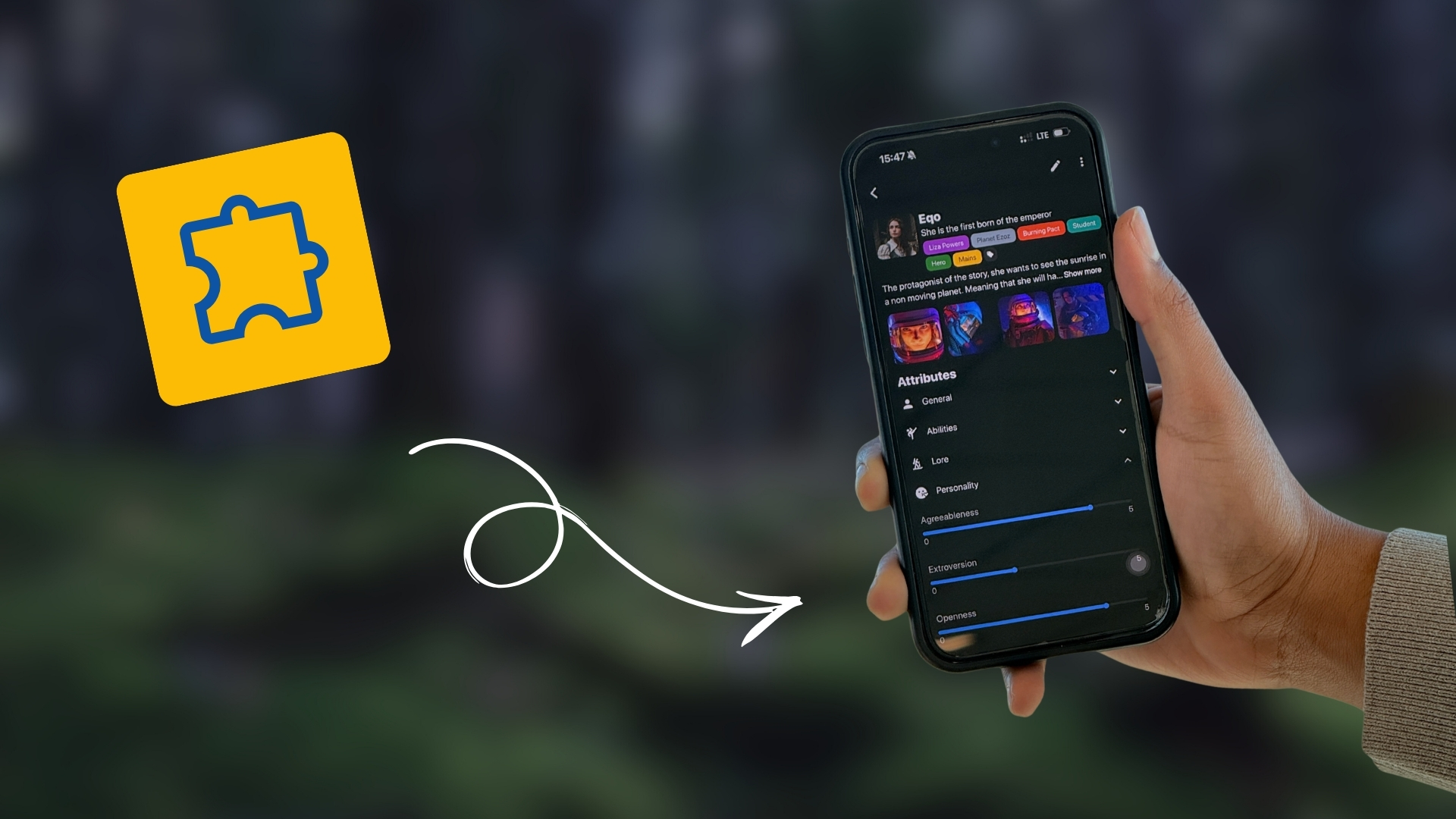
<figure><img src="https://1916472331-files.gitbook.io/~/files/v0/b/gitbook-x-prod.appspot.com/o/spaces%2FFR1c40OqcLTLBKjzbDgF%2Fuploads%2F3eQ6Qqhbe3exiYXu9w0E%2FFree%20Character%20Sheet%20Fortelling.jpg?alt=media&amp;token=ce707d5f-a96b-45df-8939-c72557961056" alt=""><figcaption></figcaption></figure>

Templates keep your story consistent and structured, making it easier to build complex worlds and track important details.\
\
Make use of Fortelling's free character and worldbuilding templates. They are filled with questions to create a well rounded character or location. Want to create your own templates? That's also possible.

Make your own sheets for any category. Ideal for Characters, Items, Magic, Locations, etc.<br>

### How do I organize my story ideas visually?

#### [Boards](/boards/pin-boards)
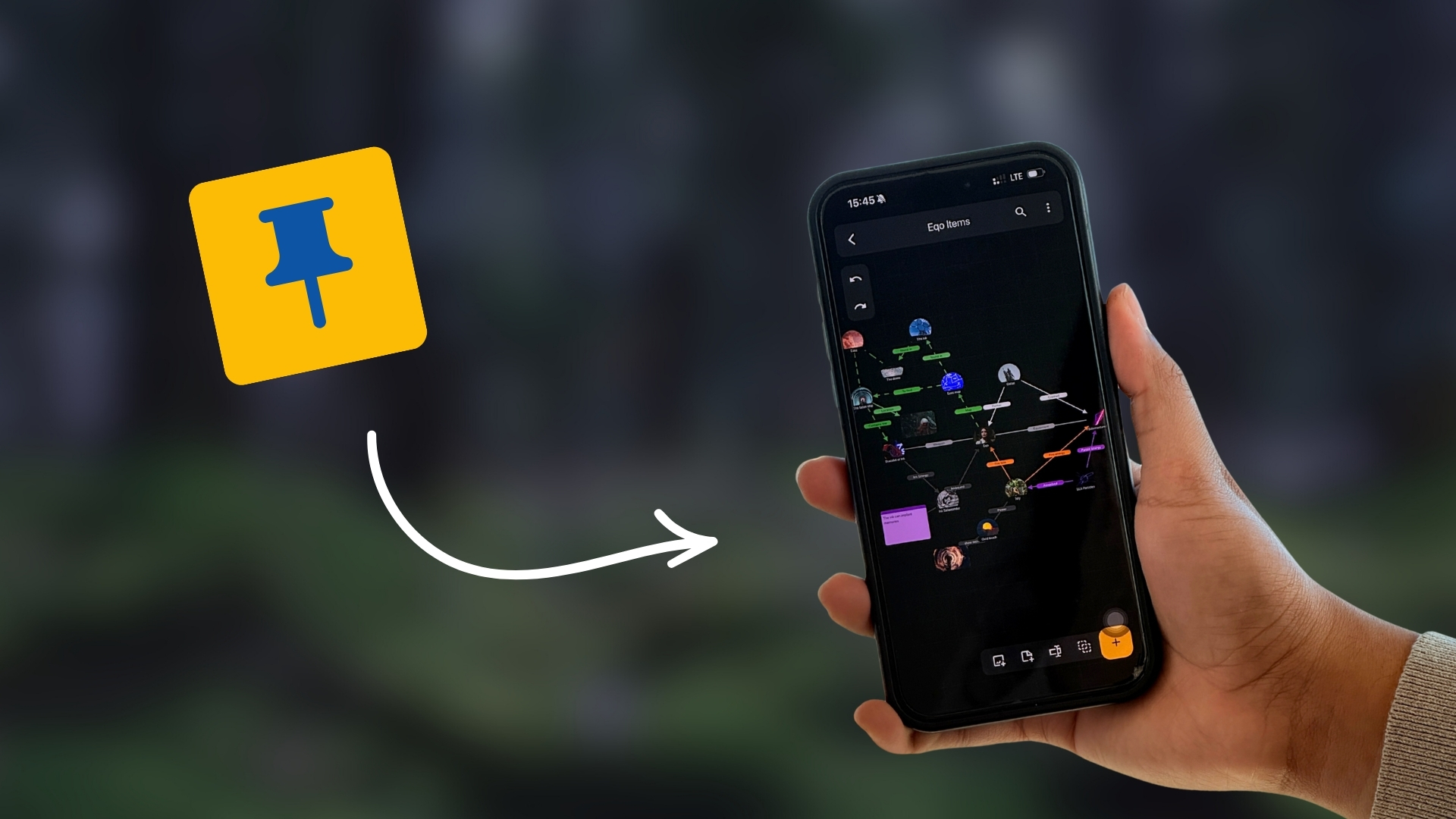
<figure><img src="https://1916472331-files.gitbook.io/~/files/v0/b/gitbook-x-prod.appspot.com/o/spaces%2FFR1c40OqcLTLBKjzbDgF%2Fuploads%2FdHZw2j2qfv8VqycBee8Y%2FStory%20board%20Fortelling.jpg?alt=media&amp;token=93b398c9-0f0e-49f4-a77c-14d1a332c4e0" alt=""><figcaption></figcaption></figure>

It works like a detective wall: you can pin characters, locations, sticky notes, images, and even plot points, then connect them with lines to track relationships and motives. By making a connection in a board you automatically also create perspective links between them. Now it's finally easy to explain your story whenever your friends ask about it.<br>

### How do I boost my mood while writing?

#### [Layout themes](#layout-themes)
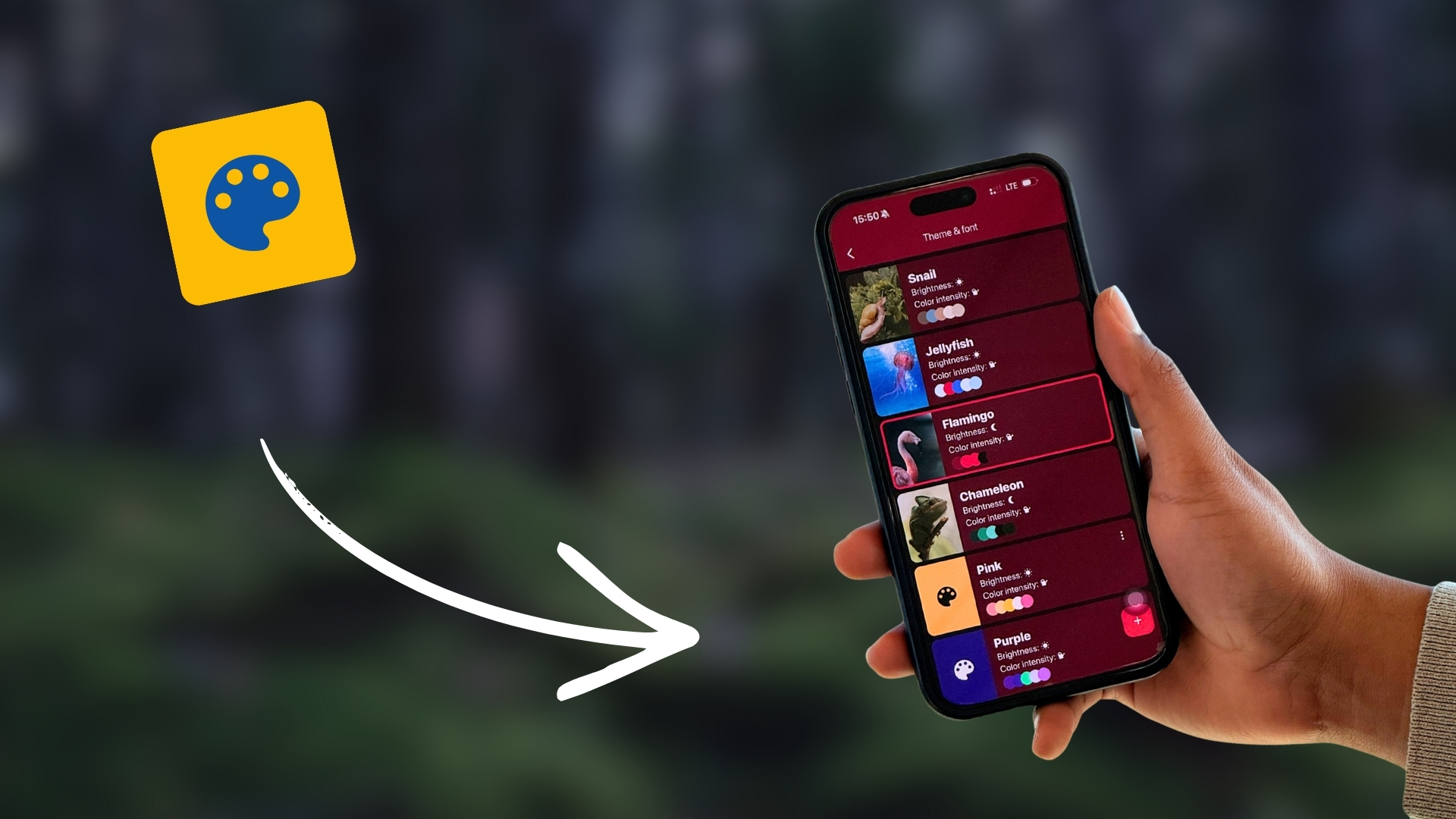
<figure><img src="https://1916472331-files.gitbook.io/~/files/v0/b/gitbook-x-prod.appspot.com/o/spaces%2FFR1c40OqcLTLBKjzbDgF%2Fuploads%2FWfz8XH645wnAt9DRI9uR%2FLayout%20themes.jpg?alt=media&amp;token=3c453f75-01c2-4f1b-bef6-18dbadcc8b02" alt=""><figcaption></figcaption></figure>

Personalize your workspace with different colors, styles, and text options to make writing more enjoyable and accessible. You can even create your own themes! Tip: Match it with your story vibe.<br>

### How do you track your chapter progress?

#### [Chapter Status](/writing/books-and-chapters#chapter-status)
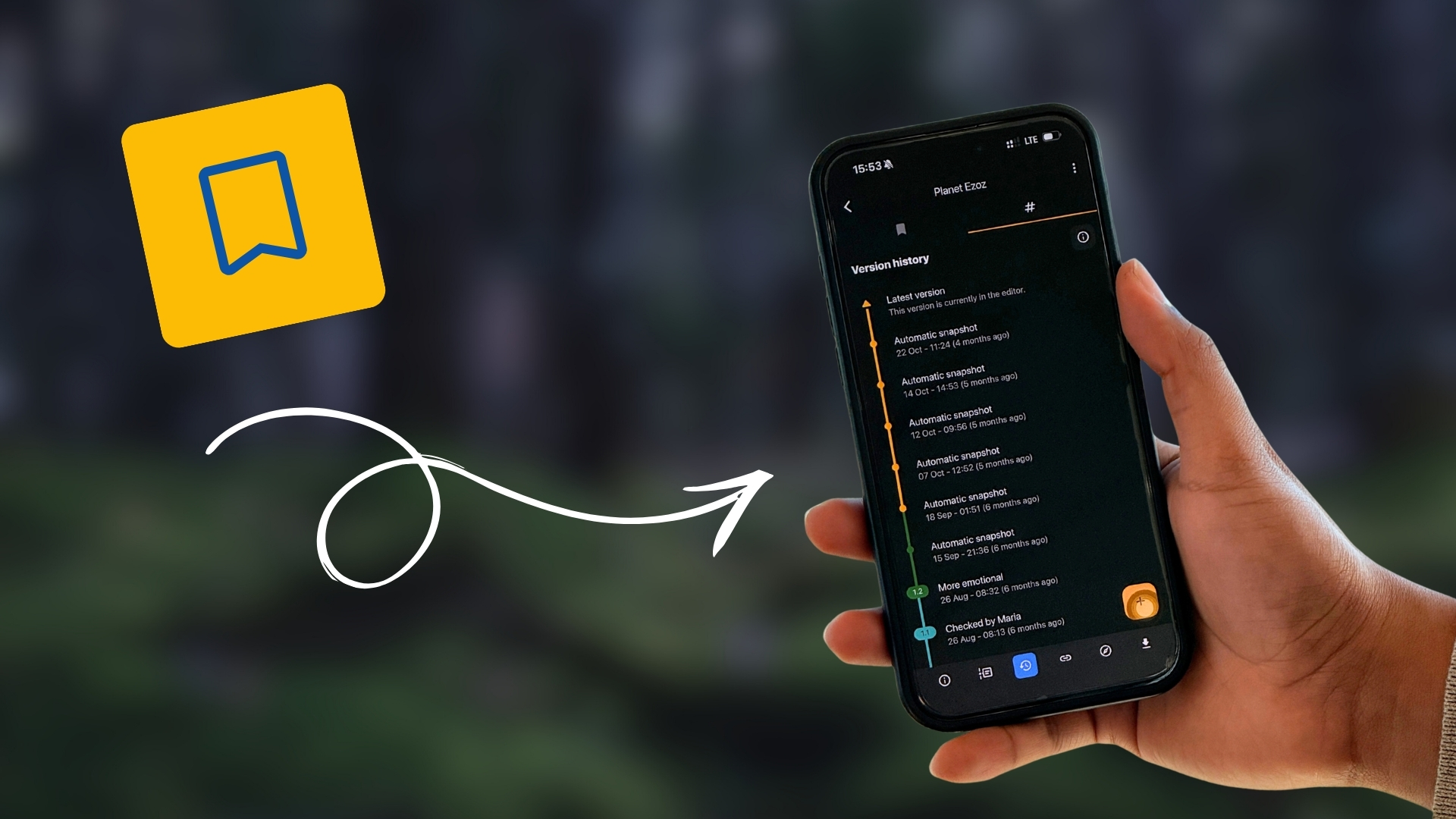
<figure><img src="https://1916472331-files.gitbook.io/~/files/v0/b/gitbook-x-prod.appspot.com/o/spaces%2FFR1c40OqcLTLBKjzbDgF%2Fuploads%2FirCnL1VvYEOEkzcVqSXe%2FBook%20drafts%20Fortelling.jpg?alt=media&amp;token=e45b3318-774c-4bf0-b3ed-69cc882fc2f1" alt=""><figcaption></figcaption></figure>

Use the chapter status to track your progress on a chapter and improve your draft management.

### How do you track your writing goals?

#### [Statistics & Logbook](/writing/writing-goals)

<figure><img src="https://1916472331-files.gitbook.io/~/files/v0/b/gitbook-x-prod.appspot.com/o/spaces%2FFR1c40OqcLTLBKjzbDgF%2Fuploads%2Fxkf26AnkqL5JEEAwkIho%2FStory%20Logbook%20Fortelling.jpg?alt=media&amp;token=ce4a7ba5-a16e-459c-aa96-1068841ea5bf" alt=""><figcaption></figcaption></figure>

Set daily goals and an overall goal for the entire book. Track your word count and become more consistent at writing. You also have a dedicated place to write about your feelings and thoughts about your day. This helps with reflection.

We understand how much you value your creativity.

Therefore, we will never use your data to train AI. We believe that you can create better stories without the help of a machine.

We are always working hard to keep updating the app with new tools and features. Enjoy!\
\ <a href="https://web.fortelling.app/" class="button primary">Jump inside Fortelling</a>